
Most AI off switches from Google, Microsoft and Meta cover one app or one chat, not your whole phone or PC. For two of the AIs in this guide, there’s no switch to find. Google says AI Overviews can’t be turned off, and WhatsApp’s help pages show no setting that turns Meta AI off. So knowing how to turn off AI is mostly knowing which switch reaches how far.
Our advice: use the real switches first, Gemini’s default-assistant setting on Android and the Enable Copilot checkbox in Word, Excel and PowerPoint on a computer. Then pick the cheapest workaround for the rest. A couple of the workarounds switch off features you may want, so read the cost before you tap.
Think of these settings as light switches in separate rooms, not a main breaker for the house. You walk round and flip each one. A few rooms have no switch on the wall, and there you work around the light instead.
Quick Navigation
How to turn off AI, one product at a time
Find your product’s row, then jump to its section below. “No switch for” covers two cases the wording keeps apart: a vendor saying in plain words it can’t be turned off, and help pages that simply offer no setting. The sorting is ours, not the vendors’.
| Product | Turns it off | Only hides it | No switch for | The workaround |
|---|---|---|---|---|
| Gemini on Android | Set the default digital assistant to another app or None | Power button, “Hey Google” and lock screen settings stop it opening | Going back to Google Assistant, once Google removes it from your phone | Keep the app; deleting it alone doesn’t change the default |
| Copilot in Word, Excel, PowerPoint | Enable Copilot checkbox on Windows and Mac, one per app, per computer, with a personal Microsoft account | Removing the ribbon icon | Copilot on iOS, Android and the web, in Microsoft’s words | Account privacy setting, changed in a Windows or Mac app; it also turns off other features |
| Copilot in Outlook | The Copilot toggle in new Outlook, Mac, web and mobile; it follows your account | Microsoft’s second page calls the same toggle a way to hide Copilot | Classic Outlook on Windows, with no date given | The privacy setting above |
| Copilot on Windows | Uninstall the Copilot app | Re-point the Copilot key, for example to Search | The Copilot key: no “off” choice listed | Check the taskbar setting too, because it overrides the key |
| Meta AI in WhatsApp and Facebook | None on the help pages | None on the help pages | Meta AI itself: no off setting on WhatsApp’s or Facebook’s help pages | On WhatsApp: Restricted chat, one chat at a time; delete Meta AI chats and type /reset-ai |
| Google AI Overviews | None | None | AI Overviews. Google: “Features cannot be turned off.” | The Web filter, which you select after a search |
| Google AI Mode | None on Google’s AI Mode help page | Chrome on a computer can hide its address-bar button | AI Mode: no off step on that page | You reach it by choosing it |
Most real switches are narrow. Two Microsoft settings reach further. Outlook’s toggle follows your account to your other devices, and the account privacy setting carries to your other Office apps. So plan one sitting per device, not one tap per product.
How to turn off Gemini on an Android phone
If Gemini pops up when you hold the power button or say “Hey Google”, you can stop it without deleting the app, and you can still open Gemini yourself. The setting that unhooks it is your default assistant, just below. Each of the three shortcuts also has its own setting, and the steps in your phone’s Settings vary by Android device.
- The power button: open Settings > System > Gestures > Press & hold power button, and pick an action other than Digital assistant. If you can’t find it, search Settings for “power”, “side button” or “gesture”.
- “Hey Google”: in the Gemini app, tap Menu, your profile picture or initial, then Settings > Talk to Gemini hands-free, and turn off “Hey Google”.
- The lock screen: in the Gemini app’s Settings (as in step 2), open Gemini on lock screen and turn off Use Gemini without unlocking.
The setting that actually unhooks it: your default assistant
Underneath the shortcuts sits your default digital assistant: Settings > Apps > Default apps > Digital assistant app > Default digital assistant app, then choose another assistant or None. The label reads “Google” whether your assistant is Google Assistant or Gemini, so don’t be thrown.
Picture the default assistant as the number your power button speed-dials. Deleting the Gemini app doesn’t automatically change that number, because it doesn’t remove Gemini as your default. Choosing None clears it, so no assistant answers the shortcut. Once Gemini can’t open by voice or touch, you have to unlock the phone and open the app to use it.
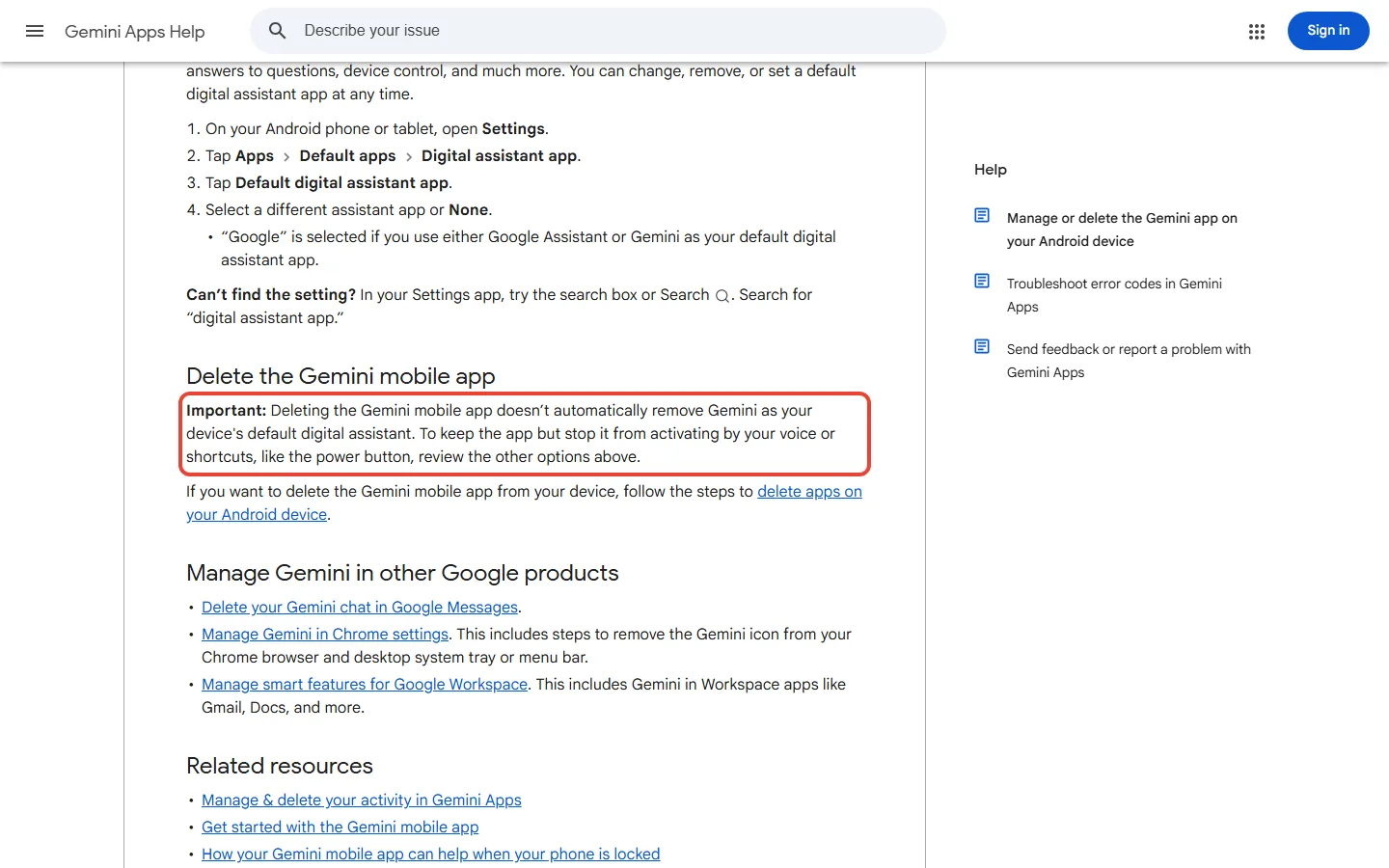
So if you’ve already deleted the app, check the default assistant before you assume Gemini is gone. Keeping it? See our Gemini review.
Gemini replacing Google Assistant: can you switch back?
Not once Google has removed Assistant from your phone. Until this autumn, switching back was the escape Google itself offered, and the steps were still on Google’s Gemini help page in mid-October. Now it lists “Switch from Gemini to Google Assistant” among its topics but gives no steps under it.
Removal was due to start in early September and could take a few weeks to reach everyone. Once it’s done, in Google’s words, “you will no longer be able to use or switch back to Google Assistant”. In late September, 9to5Google reported Assistant gone on every device it checked in the US and Europe, and the switch-back setting gone from the Gemini app.
A Wear OS watch, Gemini-compatible earbuds and Android Auto follow the phone. Google said the change doesn’t affect Nest and Home speakers, and cars with Google built-in keep Assistant beyond the September date Google gave. If your phone has already switched, plan around Gemini rather than hunting for a way back.
What Gemini keeps after you stop it opening
Stopping Gemini from opening doesn’t change what it saves. That’s a separate switch called Keep Activity, and it’s on by default if you’re 18 or over. On a computer, go to gemini.google.com > Settings & help > Activity, click On near the top, and choose Turn off, or Turn off and delete activity.
Take a chat you start at 9 a.m. on a Monday with Keep Activity already off. Google can still keep it with your account for up to 72 hours (72 / 24 = 3 days), so until about Thursday, 9 a.m. Off doesn’t mean gone at once; the chat just won’t show in your activity list.
The switch has a cost. With Keep Activity off, Gemini’s connected apps (the other apps it can reach into for you) shrink to five: Device assistance, Gemini Notebook, Messages, Phone and WhatsApp. A gentler option is auto-delete, which clears activity older than 18 months by default; you can pick 3 or 36 months instead. On a work or school account, your Workspace admin controls these activity settings.
Gemini also lives in Chrome and in Workspace apps such as Gmail, each with its own settings page. Our call: turn Keep Activity off if every app you connect to Gemini is on that list of five.
Copilot: one checkbox per app, per computer
Of everything here, Copilot has the most real off switches, and the most to flip. How to turn off Copilot depends on two things: the app and the device. The Word, Excel and PowerPoint settings below need a personal Microsoft account; with a work or school account they aren’t available, so ask your IT admin.
Word, Excel and PowerPoint on Windows and Mac
- Windows: in the app, go to File > Options > Copilot, clear the Enable Copilot checkbox, select OK, then close and restart the app.
- Mac: open the app menu, then Preferences > Authoring and Proofing Tools > Copilot, clear Enable Copilot, and close and restart the app.
Once it’s off, the ribbon’s Copilot icon is disabled and no Copilot feature works in that app. But the box covers one app on one computer. Microsoft’s own example: to turn Copilot off in Word and Excel, you clear the box in both, then repeat on every other computer. The change applies to anyone who uses that computer.
One Windows laptop with Word, Excel and PowerPoint is three boxes. Add a Mac with the same apps, plus new Outlook or Outlook for Mac, all on one personal account. That’s 3 x 2 = 6 boxes plus 1 Outlook toggle: seven switches. Outlook needs only one because its choice follows your account.
No Enable Copilot box? Your app may be too old. On Windows the box arrived with Word Version 2412 and Excel and PowerPoint Version 2501; on a Mac, with Word 16.93 and Excel and PowerPoint 16.93.2. Update the app and look again.
Skip the shortcut of removing the Copilot icon from the ribbon. It’s like taking a shop’s sign down while the door stays open: Copilot still works from the shortcut menu and other places.
Outlook: one toggle that follows your account
Outlook has its own Turn on Copilot toggle. It’s in Quick Settings > Copilot on Android, iPhone and Mac, and in Settings > Copilot on the web and in new Outlook for Windows. Your choice follows your account, so switching it off on a Mac also turns it off in Outlook on your iPhone. You need the latest Outlook on a phone, or at least Version 16.95.3 on a Mac.
If Outlook is your work mail, note that Microsoft’s two pages on this toggle disagree. The turn-off page calls it turning Copilot off, and says its settings aren’t available with a work or school account. The Copilot toggle page calls it a way to “hide Copilot entry points”, set per account, which applies to organizational email too. At work, look for the toggle, and ask your IT admin if it isn’t there.
Classic Outlook on Windows has no toggle, and Microsoft gives “no estimated date” for one. There, the privacy setting below is the fallback.
Word, Excel and PowerPoint on your phone and the web: Microsoft says it can’t be turned off
On a phone or in a browser, there’s no checkbox to find. Microsoft is plain about it: “You can’t turn off Copilot in the iOS, Android, or web versions of Word, Excel, or PowerPoint.”
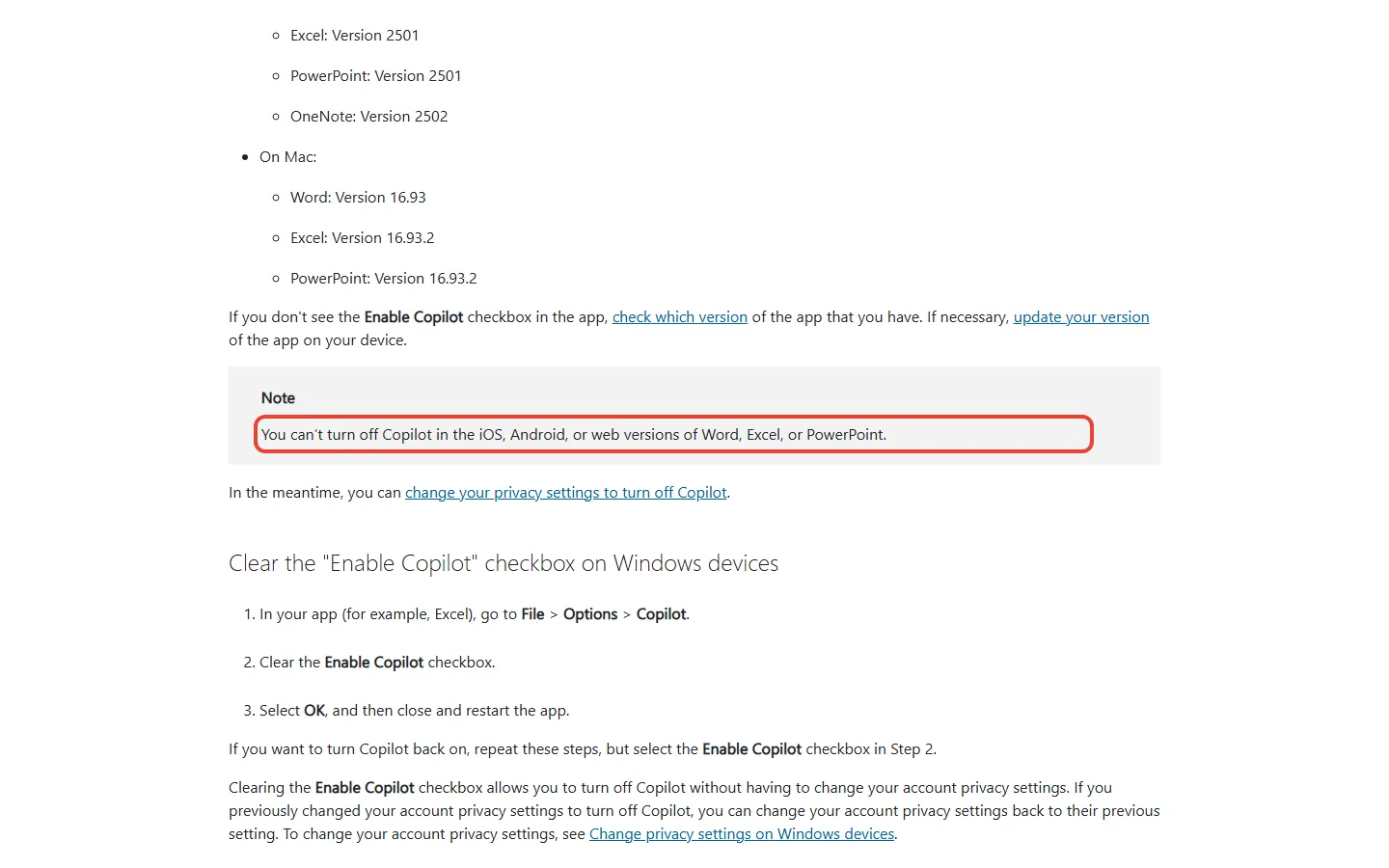
The fallback, for now, is your account privacy setting.
- Windows: File > Account > Account Privacy > Manage Settings, then under Connected experiences clear Turn on experiences that analyze your content, select OK, and close and restart the app.
- Mac: the app menu, then Preferences > Personal Settings > Privacy > Connected Experiences > Manage Connected Experiences, clear the same box, select OK, and close and restart the app.
Change it in one app, and the others pick it up the next time they open.
It works like turning off the water at the main valve to stop one dripping tap: the drip stops, and so does the shower. You also lose other features, such as suggested replies in Outlook, text predictions in Word, PowerPoint Designer and automatic alt text for images. And Microsoft gives these steps only for the Windows and Mac apps. It doesn’t say whether the change reaches Word on your phone or in a browser.
Add Word on an iPhone and Word on the web to the two-computer setup above, and that’s two more places with no switch. We’d use the checkbox wherever it exists and live with Copilot on your phone. The privacy setting makes sense only if you never use text predictions or Designer, and even then Microsoft doesn’t confirm it reaches your phone or browser.
The Copilot app, the Copilot key and Edge
The Copilot app is separate from the Office checkboxes; on new Windows 11 PCs it should already be installed. To remove it on Windows 11, open Settings > Apps > Installed apps, find Copilot, open the More options (…) menu and choose Uninstall. On Windows 10, it’s Settings > Apps, then Copilot > Uninstall.
The Copilot key is re-pointed rather than switched off. Go to Settings > Bluetooth & devices > Keyboard > Customise Copilot key on keyboard; the choices include Search, Microsoft Copilot and Custom, depending on your account and apps. There’s no “off” on that list, so Search is the quiet pick. If Copilot is on in Taskbar settings, it overrides your key choice, so check the Ask Copilot toggle in Settings > Personalization > Taskbar too.
In Edge, Copilot sits behind the icon at the top right, and on Microsoft’s Edge help page the one setting for limiting it is about privacy. Open the More menu (…) > Copilot and AI, then turn off Allow Copilot to read context clues on the web. Copilot then stops using your current page, tabs and history.
So in Edge you can stop Copilot reading your pages, but the page gives no step for hiding the button.
Can you remove Meta AI from WhatsApp?
Not with any setting WhatsApp documents. There’s none in its help articles that turns Meta AI off or hides it. Facebook’s help page has nothing on how to turn off Meta AI either.
This guide covers Meta AI in WhatsApp and Facebook. On WhatsApp, what you can do is keep it out of particular chats and wipe its copy of what you shared.
“Optional”, but no documented off switch
How WhatsApp describes it: “an optional service from Meta that can answer your questions, teach you something, or help come up with new ideas”.
What its help pages leave out: a setting to turn it off or hide it. The only removal they name is taking Meta AI out of a group chat.
For you: optional means you never have to talk to it. It doesn’t come with a documented way to make it disappear.
Some people see it as a coloured circle on the Chats tab. Meta AI is only in some countries, and you might not have it even if friends in your country do.
Restricted chat: the closest thing to off, one chat at a time
Think of Restricted chat as a “do not disturb” sign you hang on one door at a time. In a chat where it’s on, people in the chat can’t use Meta AI features. They can’t auto-save media to their gallery, export the chat, or use linked devices for it either.
The linked-device part is the one that bites. Before, you can read that chat on WhatsApp on your laptop; after, you can’t use a linked device for it. In a group, the admins turn it on; in a one-to-one chat, either of you can.
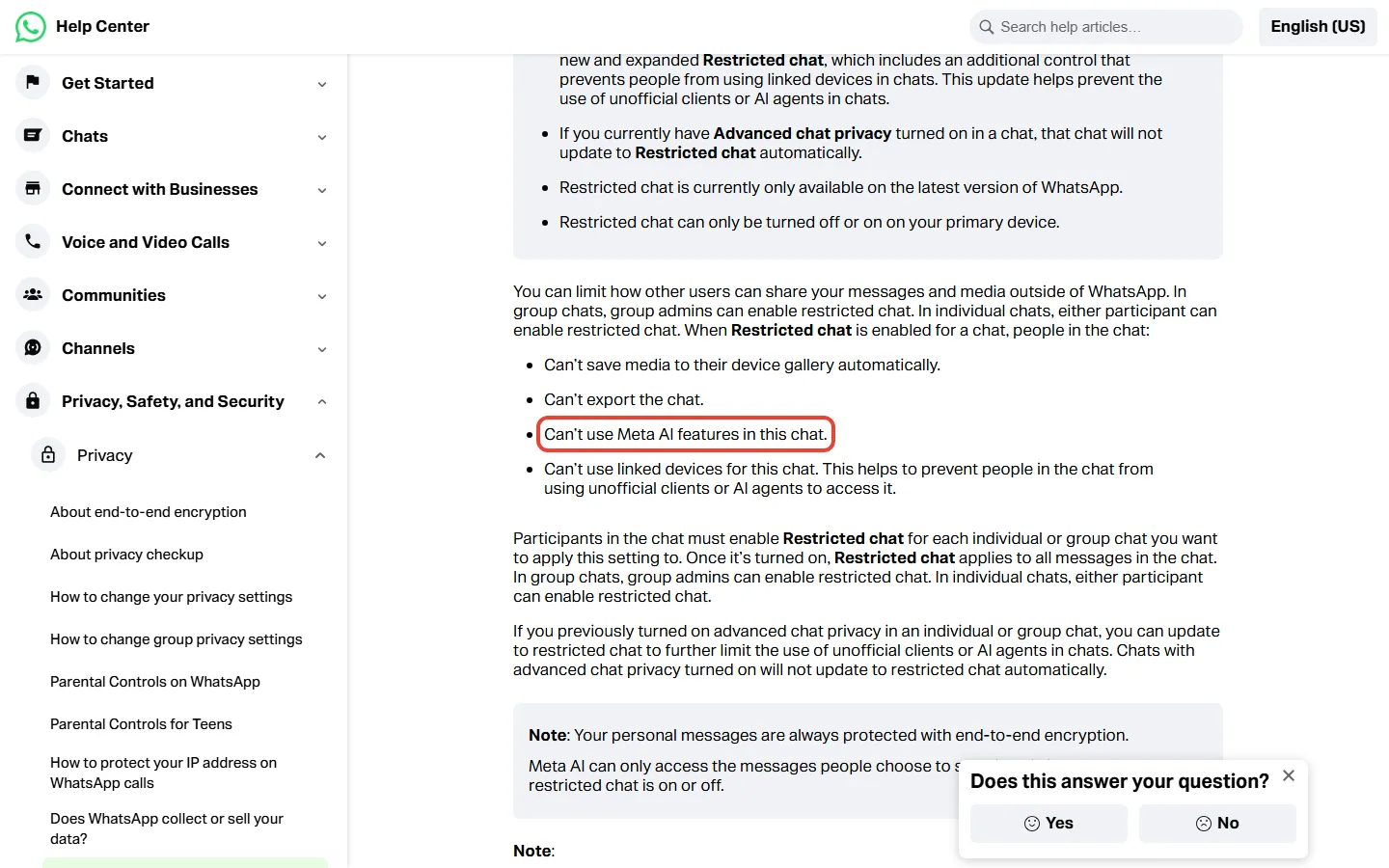
Keeping Meta AI out of 4 group chats and 6 one-to-one chats takes 4 + 6 = 10 separate switches. In the groups, it’s the admins who can flip them.
Restricted chat needs the latest WhatsApp and is switched on or off from your primary device, the phone your account lives on. It is replacing Advanced chat privacy, and chats that use the old setting don’t move over by themselves.
There’s a gap, though. People who aren’t on the latest WhatsApp may still use unofficial apps or AI agents (software that acts on someone’s behalf) in that chat, and you won’t be notified if someone in the chat isn’t on the latest version.
Restricted chat doesn’t change what Meta AI can read. Meta AI can only access the messages people choose to send it, whether Restricted chat is on or off. We’d use it in a group where you don’t want anyone pulling Meta AI in, not across every chat you have.
Clearing what Meta AI has, and what Meta does with it
You can delete your chats with Meta AI at any time, and a deleted chat can’t be restored. To delete Meta AI’s own copy, type /reset-ai in the Meta AI chat, or /reset-all-ais for every chat, individual or group, where you’ve used it. WhatsApp also has an article on removing Meta AI as a group member, on some devices only so far.
On WhatsApp, only messages that mention @Meta AI, or that people choose to share with Meta AI, can be read by Meta. Meta may use your prompts, the messages you share and your feedback to improve its AI. In some countries, Meta AI may also use information from accounts linked to your Meta Account, such as Facebook or Instagram. So the simple rule: don’t tag Meta AI in chats you care about.
On Facebook, where you have it, Meta AI sits in Messenger chats (tap Messenger, then Meta AI at the top right) and in Facebook search. There’s no step to turn it off on Facebook’s Meta AI help page.
Two privacy points from that page apply on Facebook and Messenger. In encrypted chats, messages that mention @Meta AI, and its replies, are not end-to-end encrypted, the lock that keeps a message readable only by the people in the chat. And when its AIs can’t answer, Meta shares your message and general details, such as your region, with selected partners. So on Messenger, treat anything you tag @Meta AI with as readable by Meta.
Google Search: AI Overviews stay, AI Mode waits to be opened
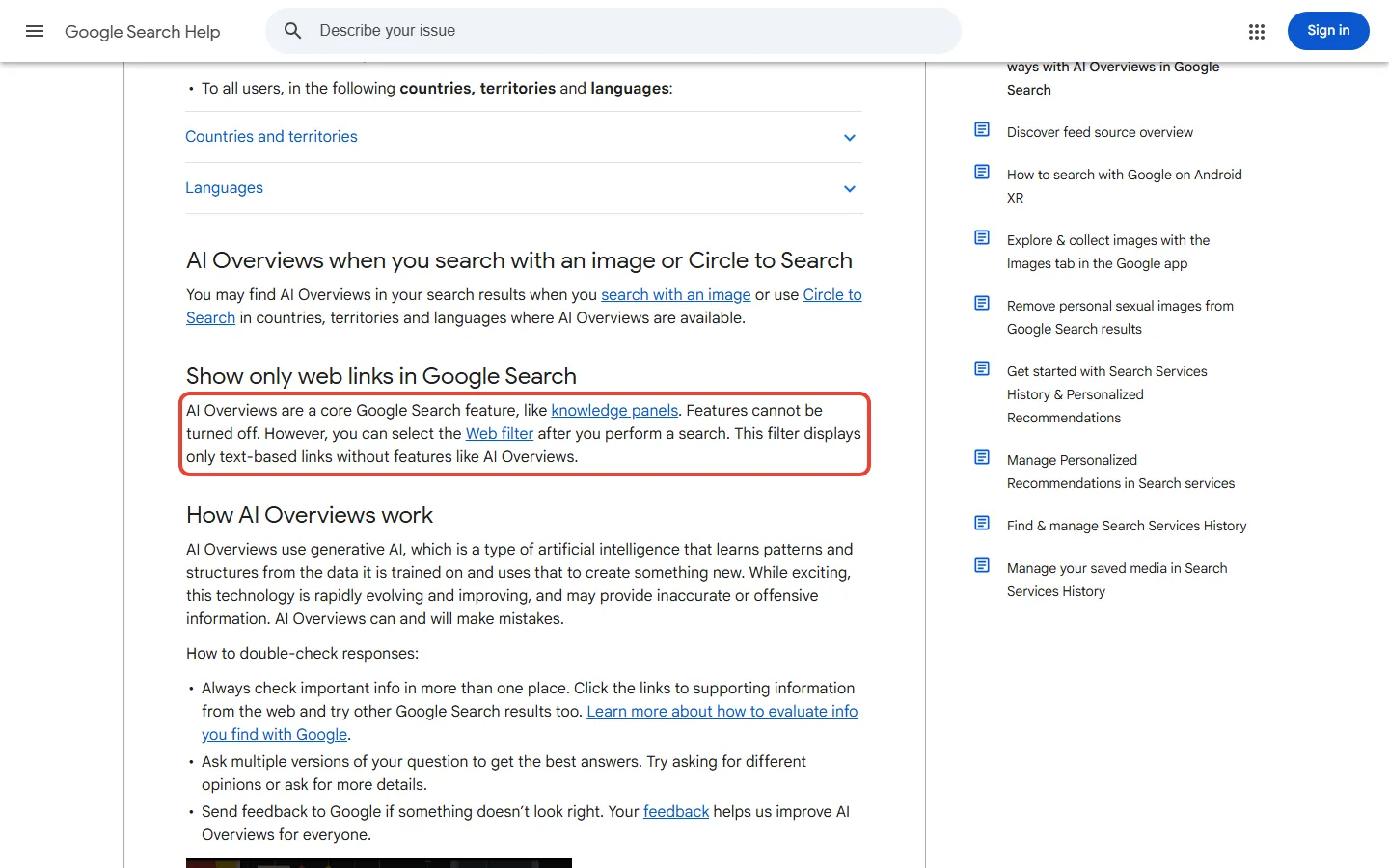
You can’t turn off AI Overviews, and Google’s AI Overviews help page says so in two sentences: “AI Overviews are a core Google Search feature, like knowledge panels. Features cannot be turned off.” They can also appear when you search with an image or use Circle to Search.
The Web filter, and two Labs toggles that aren’t what they seem
What Google offers instead is the Web filter, which you select after you perform a search: it shows only text links, without AI Overviews. Google doesn’t say whether it stays on for your next search. If you start 15 fresh searches a day and each opens without it, that’s up to 15 taps on Web a day. Fine for a research session, tiring for quick lookups.
Search Labs looks like the place to switch this off. It isn’t. On a computer, turning off “AI in Search” in Labs opts you out of Google’s testbed for new AI experiments, not out of AI Overviews. The Labs “AI Mode” toggle only covers people who opted in to that experiment, and for now Labs isn’t offered to Workspace accounts. Skip both if what you want is a quieter results page.
AI Mode: you reach it by choosing it
There’s no step to turn AI Mode off on Google’s AI Mode help page. But every way in that Google lists starts with you: google.com/ai, the AI Mode button after a search, or AI Mode on the Google app’s home screen. So the practical answer to how to turn off AI Mode is to leave that button alone. On mobile, an AI Overview can also carry you into AI Mode if you tap to see more and type a follow-up.
Chrome on a computer can hide its address-bar AI Mode button: right-click the address bar and unselect Always show AI Mode. That’s a hide, not an off, because AI Mode still works in Search. You may not see the button at all. AI Mode in Chrome isn’t available to everyone or on every device yet, and is still coming to people outside the US and in other languages.
What Search keeps, and how to delete it
Google uses what people search and the feedback they give to improve its AI in Search; the data its reviewers see is disconnected from accounts. On a computer, you can clear AI Mode history: open AI Mode, click AI Mode history on the left, then Delete or Delete all. Deleted items may linger in My Activity, your Google account’s activity log, and are auto-deleted in less than 24 hours.
Google’s own example has a trap in it. A search that starts as an AI Overview and continues in AI Mode can leave two entries in your Search history. Delete it from AI Mode history and it’s still in Search history, so you have to delete it there too.
Three checks before you close Settings
- Check the default, not just the app: on Android, deleting Gemini doesn’t change the default digital assistant, so set it to another app or None.
- Count your devices and chats: Copilot’s checkbox works per app, per computer, and Restricted chat per chat; Outlook’s toggle follows your account, and the privacy setting, changed in one app, reaches your other Office apps.
- Clear the data side separately: stopping an assistant from opening doesn’t touch what it saved. Turn off Keep Activity for Gemini, delete AI Mode history and the matching My Activity entries for Search, and use /reset-ai for Meta AI.
For ChatGPT, we covered how to turn off its Intelligent UI. If you’d rather pick one assistant on purpose, start with what the free plans really give you. Then compare ChatGPT’s plans, Claude’s, and Meta Muse against ChatGPT.
Sources and how we checked: Google’s help pages on the Gemini app for Android, Gemini Apps Activity, AI Overviews, AI Mode, Chrome and Search Labs, Google’s community post on the move to Gemini, and an Internet Archive copy of the Gemini Android page from October 14 for the old switch-back steps; Microsoft’s pages on Copilot in Microsoft 365 apps, the Outlook toggle, the Copilot app, the Copilot key and Edge; WhatsApp’s articles on Meta AI, Restricted chat, deleting chats and groups; and Facebook’s Meta AI article. Most were read on November 7, 2026, and the Edge, Outlook toggle, Copilot on Windows, Search Labs and WhatsApp groups pages on November 3, plus 9to5Google and Droid Life. No off setting appeared on WhatsApp’s three Meta AI articles, Facebook’s Meta AI article, Google’s AI Mode article, or Microsoft’s Copilot key and Edge pages, and the AI Overviews article is silent on whether the Web filter stays on.

Founder of AI Tool Analysis. Every price and limit here is checked against the vendor’s own pages. How we research
Stay Updated on AI Plans and Prices
Get an email when a plan we cover changes its price or limits.
Free, unsubscribe anytime.
Related Reading
- ChatGPT Intelligent UI: How to Turn It Off, and What Still Shows Up (2026)
- Gmail AI Features 2026: What’s Free, What Needs Google AI Plus or Pro, and What’s US-Only
- Google Gemini Review 2026
- Is Google AI Plus Worth It? Google AI Plus Review (2026)
- Meta Muse vs ChatGPT (2026)
- Free AI Tools 2026: What 13 Free Plans Really Give You
Last Updated: November 7, 2026
Next Review Update: December 7, 2026