
ChatGPT Intelligent UI has no full off switch, but you can turn it down. On ChatGPT on the web, open Settings, then Personalization, then Layout and Visuals, and choose Simple. Some visual pieces may still show up, and the setting doesn’t give you a classic text-only mode.
Our advice: set it to Simple, add one line to Custom Instructions, and keep the plan you have. Don’t pay more to escape a layout. In the Chat tab, the one documented setting with no Intelligent UI at all is Pro effort, and the cheapest personal plan that has it costs $100 a month.
Intelligent UI arrived with GPT-6 on October 7, 2026. It lets ChatGPT answer with graphics, tappable buttons, forms, charts and small tools such as calculators, bill splitters and games. Everything below comes from OpenAI’s help pages and release notes, read on October 17, 2026. For the rest of the app, see our ChatGPT review.
⚡ TL;DR: ChatGPT Intelligent UI
What it is: the answer style ChatGPT added with GPT-6 on October 7, 2026, mixing text with visuals and small tools you can use in the chat.
How to turn it down: ChatGPT on the web, Settings, Personalization, Layout and Visuals, Simple.
Who has it: Free, Go, Plus, Pro and Business, plus Enterprise where the admin allows it, on GPT-6 from Instant through Extra High.
Our take: pick Simple, add one Custom Instructions line, and keep your plan.
⚠️ The catch: the setting is not a full off switch or a text-only mode, and OpenAI’s help pages describe it for the web only.
📑 Quick Navigation
How to turn off ChatGPT Intelligent UI (the Simple setting)
OpenAI describes the switch for ChatGPT on the web. Two of its help pages name the same control in different words, so the steps below cover both versions.
- Open ChatGPT in a web browser and sign in.
- Click your profile icon, then Settings.
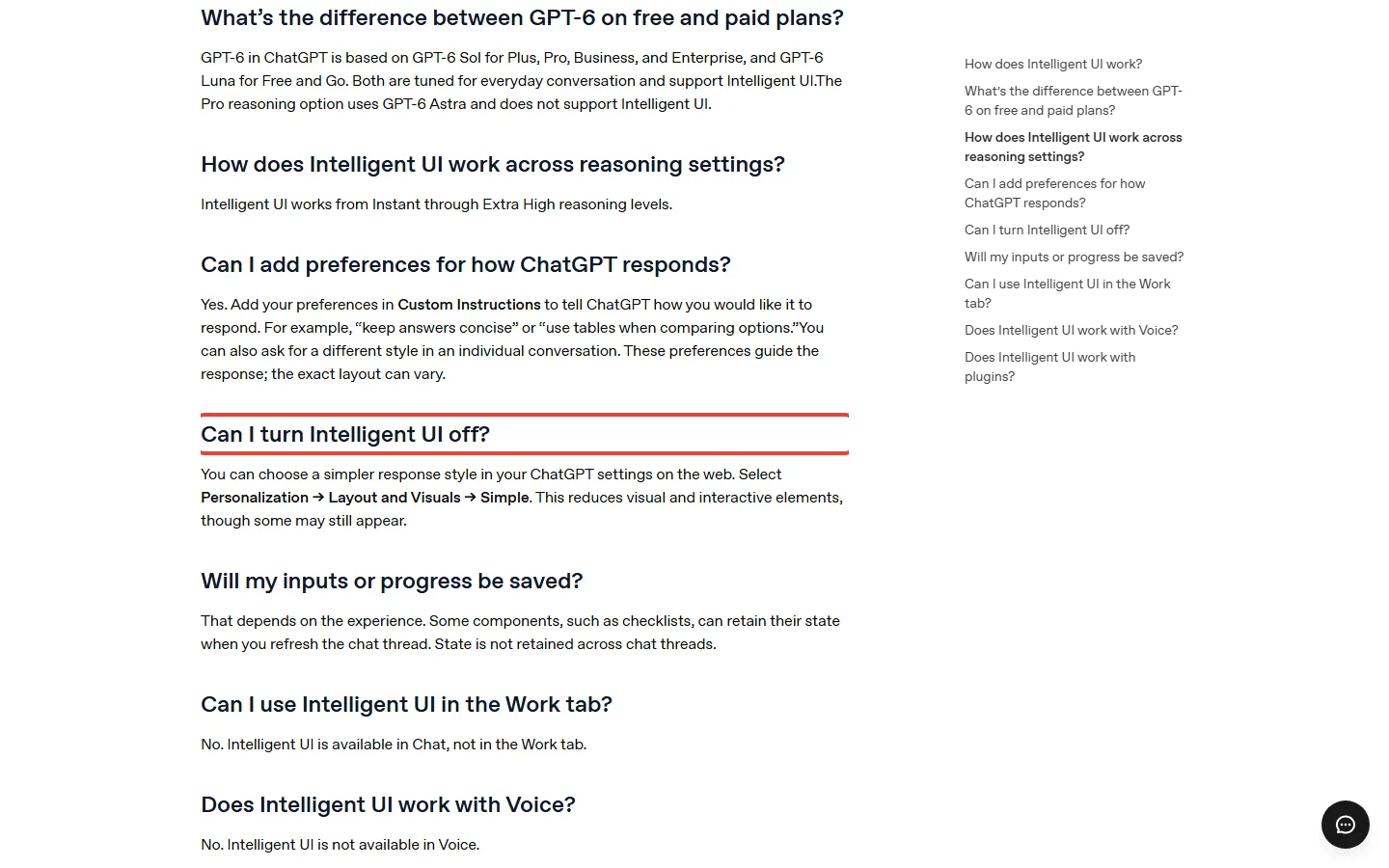
- Go to Personalization, then Layout and Visuals, and choose Simple. That is the path on OpenAI’s Intelligent UI help page.
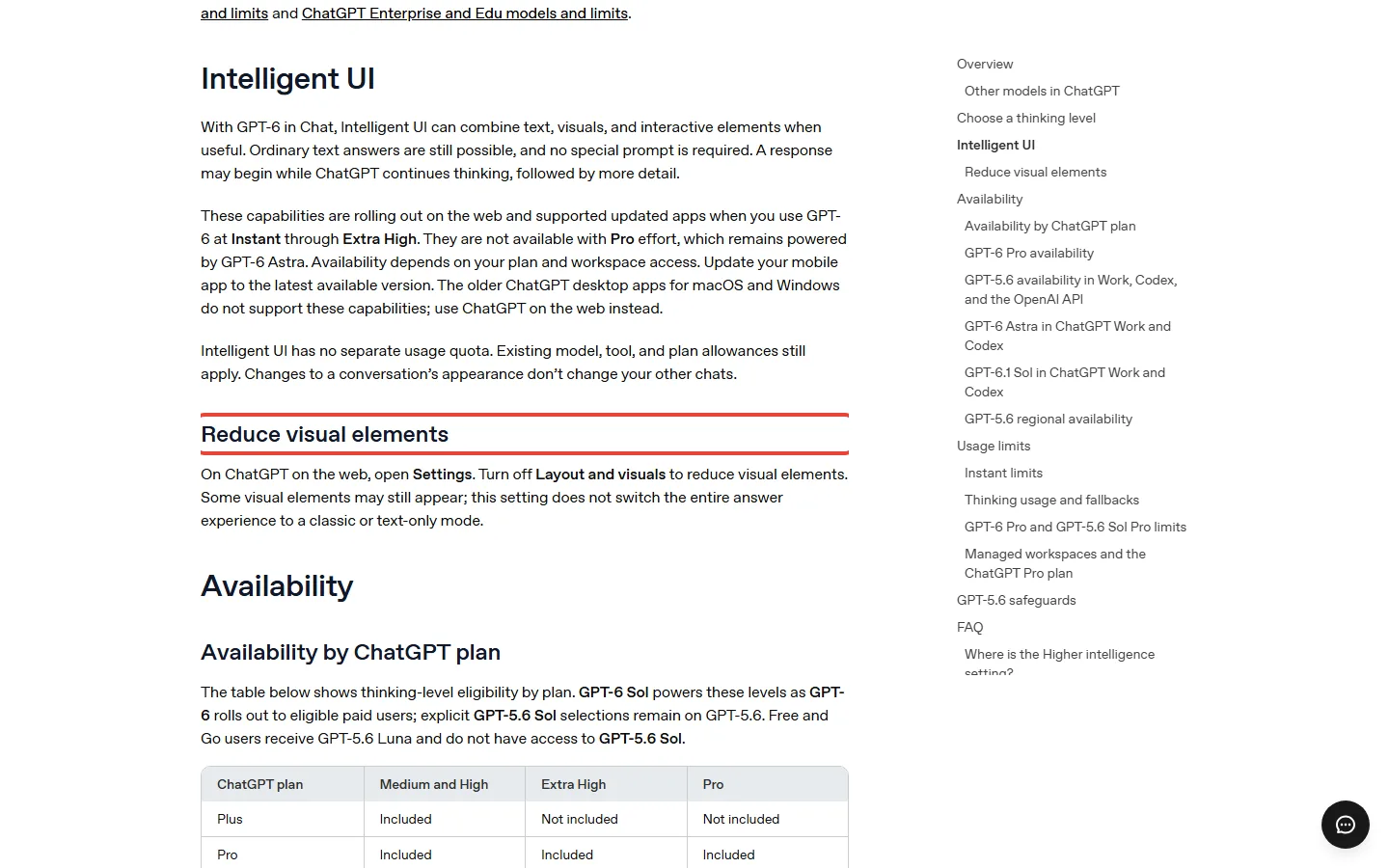
- If your Settings show a Layout and visuals switch instead, turn it off. That is how OpenAI’s GPT-6 models help page words it.
- Ask your next question. Expect fewer visuals; some may still appear.
Using the phone app? Neither help page gives steps for the iPhone or Android app, on the pages we read as of October 17. Change the setting once on the web. OpenAI doesn’t say whether the choice follows you to the app, so check one answer there afterwards.
What the Simple setting won’t do
Simple works like a dimmer, not a light switch. OpenAI says the setting “does not switch the entire answer experience to a classic or text-only mode.” So three things stay true after you change it:
- Some cards, images or buttons can still appear in an answer.
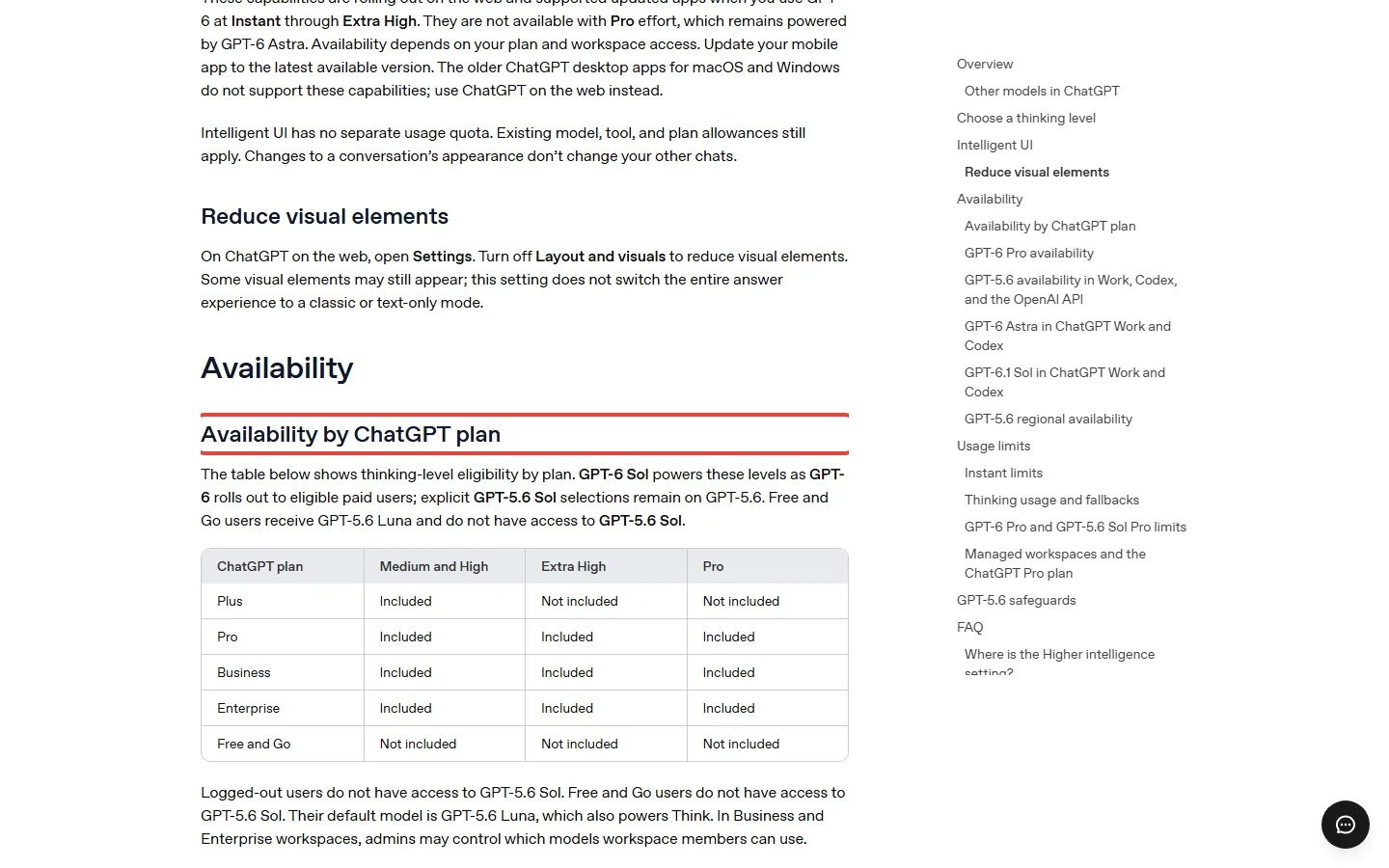
- It doesn’t change your model. That still depends on your plan: GPT-6 Sol on Plus and above, GPT-6 Luna on Free and Go.
- One chat’s look doesn’t carry into your other chats.
🔍 REALITY CHECK
What OpenAI says: “when a simple text answer is the most useful response, ChatGPT can give you that.”
What the fine print says: ChatGPT picks the format by itself. The Simple setting only reduces the visuals, and “some may still appear.”
Verdict: if you want text nearly every time, use the setting and a Custom Instructions line together. Even then, OpenAI says the exact layout can vary.
OpenAI’s GPT-6 models page puts the switch under its own heading, Reduce visual elements, right after the feature’s other limits.
Every way to get plainer ChatGPT answers, and what each costs
The Simple setting is one of six options. Here they are side by side, with who can use each one.
| Option | Who can use it | What it does | Our take |
|---|---|---|---|
| Simple setting (web) | ChatGPT on the web; OpenAI names no plan limit | Fewer visuals; some still appear | Do this first |
| A Custom Instructions line | Anyone who sets Custom Instructions | Guides the style; the exact layout can vary | Do this second |
| Ask in the chat for plain text | Anyone, per conversation | Changes the style for that conversation | Fine for one-off questions |
| Pick GPT-5.6 Sol in the model menu | Plus and above, if your model menu lists it; Free and Go don’t get GPT-5.6 Sol | Keeps the chat on GPT-5.6, while Intelligent UI comes with GPT-6 | Our reading; worth a try on Plus |
| Pro effort | Pro $100 and Pro $200 (as listed on OpenAI’s models page), Business, Enterprise | No Intelligent UI at all | Not worth paying for on its own |
| Voice or the Work tab | Wherever you have them | Intelligent UI isn’t available there | Different jobs, not a fix |
For the Custom Instructions line, OpenAI’s own examples are “keep answers concise” and “use tables when comparing options”. A line such as Answer in plain text unless I ask for a table or a tool does the same job for this problem.
The GPT-5.6 Sol row is our reading, not OpenAI’s words. OpenAI ties Intelligent UI to GPT-6, and an explicit GPT-5.6 Sol pick stays on GPT-5.6. It doesn’t say outright that GPT-5.6 Sol answers without the new look.
Now the money. Say you pay $20 a month for Plus and move to Pro 100 just to use Pro effort. That is $100 minus $20, so $80 more a month, or $960 more a year, to avoid a layout. The Simple setting costs nothing. If Pro tempts you for other reasons, our guide to the $100 Pro plan covers what else it buys.
Do ChatGPT Free and Go get Intelligent UI?
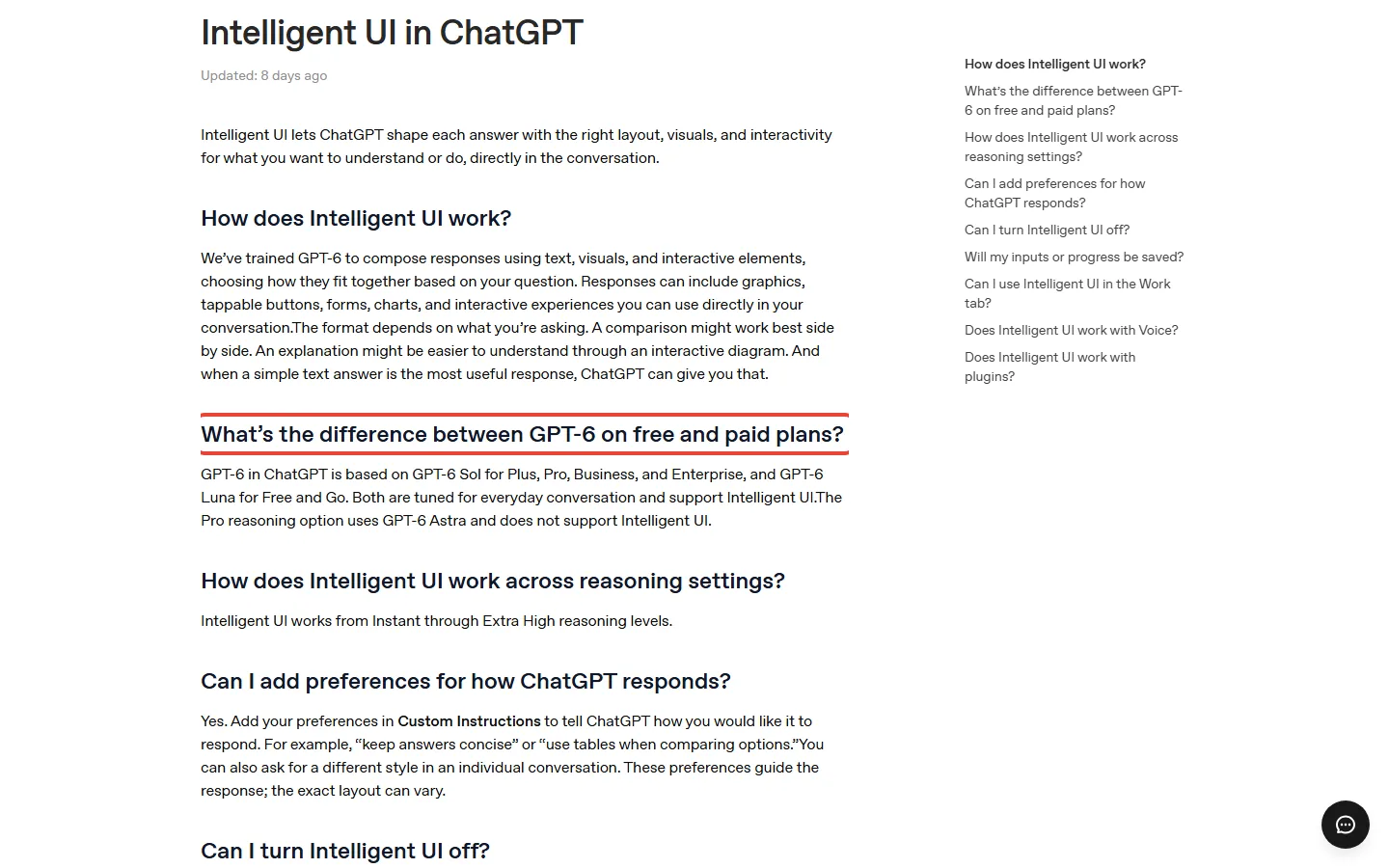
Yes. The rollout started on October 7 for Plus, Pro, Business and Enterprise in the Chat tab. Free and Go started getting it on October 8. Plus, Pro, Business and Enterprise run it on GPT-6 Sol; Free and Go run it on GPT-6 Luna, and both models support Intelligent UI.
One OpenAI page disagrees. As of October 17, the GPT-6 models help page still says GPT-6 is rolling out to eligible Plus, Pro, Business and Enterprise users, and that Free and Go get GPT-5.6 Luna. The release notes and the Intelligent UI page say GPT-6 Luna. We think the models page hasn’t caught up, but both are OpenAI’s words, so you get both.
Why you might not see Intelligent UI yet
- Your account isn’t in yet. OpenAI gave a start date, not a date for each account. If GPT-6 is missing from your model menu, it may not be available for your account yet.
- You’re looking for the wrong name. The menu says GPT-6, not Sol, and GPT-6 replaces Latest.
- You’re on an old desktop app. The older ChatGPT apps for macOS and Windows don’t support it. OpenAI’s advice is to use ChatGPT on the web instead.
- Your phone app is out of date. OpenAI says to update the mobile app to the latest version.
- You’re in Voice, the Work tab or Pro effort. None of these use Intelligent UI.
Curious what Free gives you beyond this? Our rundown of 13 free AI plans compares ChatGPT Free with the others.
Does Intelligent UI use up your message limits?
No. Intelligent UI has no usage quota of its own. Your plan’s normal model and tool allowances still apply. File uploads, image generation, voice and data analysis keep their own separate limits. Image limits by plan are in our ChatGPT Images comparison.
If you pay for Plus, you can’t dodge it with the Thinking slider either. Plus includes Medium and High but not Extra High or Pro. Intelligent UI works from Instant through Extra High, so every level a Plus user can pick includes it.
One more detail: the tools don’t remember everything. Some pieces, such as checklists, can keep their state when you refresh the chat, but nothing carries over to another chat.
When the new look earns its place
Turning it down doesn’t have to be forever. OpenAI’s own examples are planning jobs: the timing for a Sunday roast next to the recipe, or the stops of a road trip on a map. It can also build a savings calculator, a bill splitter for dinner with friends, or a small game. For those, a slider or a table beats a wall of text.
For quick facts, emails and drafts you want to copy, plain text is easier. OpenAI admits there is “still work ahead to improve the model’s design judgment”. TechCrunch reported at launch that users would be able to dial the visuals back, and the Simple setting looks like that dial.
If the new look pushes you to compare assistants, our Claude review, Gemini review and Meta Muse vs ChatGPT comparison cover what each plan costs.
Questions people ask about ChatGPT Intelligent UI
Can you turn off Intelligent UI in ChatGPT?
Not completely. On the web, Settings, Personalization, Layout and Visuals, Simple reduces the visuals, though some may still appear. On Pro plans, the Pro effort level skips Intelligent UI entirely.
Is there a classic or text-only ChatGPT mode?
Not one that OpenAI documents. It says the Layout and visuals setting does not switch ChatGPT to a classic or text-only mode. A Custom Instructions line asking for plain text helps, but the layout can still vary.
Can I turn Intelligent UI off in the ChatGPT app?
OpenAI only documents the setting on the web, on the help pages we read as of October 17. Change it on the web, then check an answer in the app.
Does ChatGPT Free get Intelligent UI?
Yes. Free and Go started getting it on October 8, on GPT-6 Luna. One OpenAI help page still says Free and Go get GPT-5.6 Luna, so the pages disagree for now.
Does Intelligent UI cost extra or use more messages?
No. It has no separate usage quota; your plan’s existing allowances apply.
Why does ChatGPT keep adding cards and tools when I just want text?
Because ChatGPT picks the format for each answer by itself, and no special prompt is needed to trigger it. Switch to Simple and add a plain-text line to Custom Instructions.
What we would do on each plan
- Free or Go: switch to Simple and add one instruction line. Don’t upgrade to get or escape the new look: Free and paid plans both have it.
- Plus ($20 a month): the same two steps. If you want the pre-October style back, try GPT-5.6 Sol in the model menu if it is listed (our reading, see above).
- Pro: you already have the cleanest option. Pick Pro effort when you want answers without Intelligent UI; pick Instant to Extra High when you want the visuals.
- Thinking about Pro only for this: don’t. It is $80 more a month than Plus for a layout preference.
If you also use ChatGPT for coding, the models behind the Work tab and Codex didn’t change with this release; our ChatGPT Codex review covers them.
Sources and how we checked
All pages read on October 17, 2026, and a copy of each saved. Nothing here comes from using the feature ourselves.
- OpenAI Help: Intelligent UI in ChatGPT (the Simple path, Custom Instructions, Work tab and Voice)
- OpenAI Help: GPT-6 and other models in ChatGPT (Layout and visuals, apps, quota, thinking levels)
- ChatGPT release notes (the October 7 rollout entry)
- OpenAI: GPT-6 and Intelligent UI for everyone (launch post and examples)
- TechCrunch launch coverage
Related Reading
- ChatGPT Review (September 2026)
- ChatGPT Dots Pricing: Is the $100 Pro Plan Worth It? (2026)
- Free AI Tools 2026: What 13 Free Plans Really Give You
- ChatGPT Images 2.5 vs Nano Banana 2.1: Free vs Paid Limits and Prices (2026)
- ChatGPT Codex Review (2026)
- Google A2UI Review 2026
Stay Updated on ChatGPT and Other AI Tools
Don’t miss the next big change. Get AI Weekly every Thursday with plan changes, price moves and settings worth knowing about. No hype, no spam.
- ✅ Price-change alerts for the major AI tools
- ✅ New plans and features explained from the vendor’s own pages
- ✅ Settings and fine print that change what you get
Free, unsubscribe anytime.

Last Updated: October 17, 2026 | Facts checked: October 17, 2026 (against OpenAI’s help pages, release notes and launch post) | Next Review Update: October 31, 2026, when the GPT-6 Luna wording on OpenAI’s models help page is re-checked.
Have a tool you want us to cover? Suggest it here | Questions? Contact us