
The new Claude Projects is one conversation where Claude splits your work into threads that run in parallel in the cloud. The new version is in beta on Pro ($20 a month) and Max (from $100), and it is still rolling out, so paying for Pro does not mean you will see it yet. Free accounts keep the classic Claude Projects, up to 5 of them.
Our advice: if you have it, set it up, but make two changes before you send real work: lower the thread model or effort, and tell Claude to propose threads before starting them. The five-step list below covers the rest. And if you are on Free, don’t pay for Pro just to get this: Anthropic is giving it to select Pro and Max accounts first, with a waitlist for other Pro and Max users.
⚡ TL;DR: The Short Answer
What It Is: The new Claude Projects is one conversation where Claude splits your tasks into threads that run in parallel in the cloud.
Who Gets It: Pro ($20 a month) and Max (from $100), in beta and still rolling out. Free keeps classic Projects, up to 5.
How to Start: claude.ai/code or the desktop Code tab, Projects, New project. Only the name is required.
Our Take: Set it up if you have it, but lower the thread model or effort and ask Claude to propose threads before you send real work.
Old Projects: They keep working. Anthropic is moving some Pro and Max users’ projects to the new version and says nothing is lost.
⚠️ The Catch: A project draws on the same usage pool as your normal Claude chats, and on Pro Anthropic says to expect to hit your limit sooner on days you run one.
📑 Quick Navigation

Do you have the new Claude Projects yet?
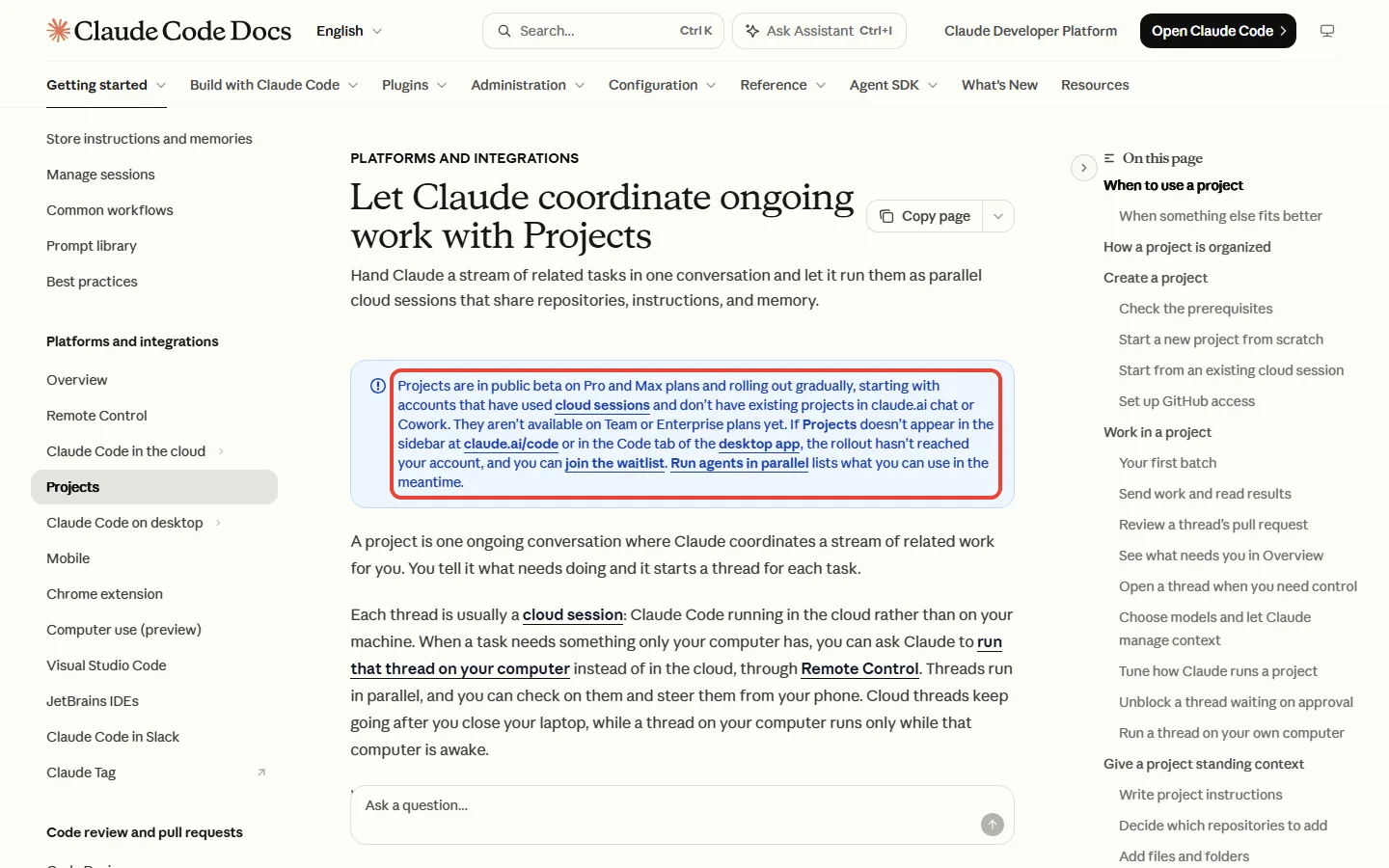
Open claude.ai/code in a browser, or the Code tab of the Claude desktop app, and look at the left sidebar there. If Projects is in that sidebar, you have the new version.
The Projects page in normal Claude chat (claude.ai/projects) is the classic one, so it doesn’t count. If it’s missing, the rollout hasn’t reached your account; the help article linked below has the waitlist link.
Don’t let the word Code put you off. A project doesn’t need a code repository: its threads can research and write documents, and deliver them as files.
Anthropic’s two pages describe the rollout differently. The Claude Code docs say it starts with accounts that have used Claude Code in the cloud (cloud sessions) and have no projects in chat or Cowork yet. The help center article adds that some Pro and Max users’ existing projects are being moved across too. Both agree on the plans: Pro and Max, in beta, not Team or Enterprise yet.
| Plan | Price | Which Claude Projects you get |
|---|---|---|
| Free | $0 | Classic Projects, up to 5 |
| Pro | $20 a month, or $17 a month on the annual plan ($200 up front) | Classic Projects, plus the new version in beta once the rollout reaches you |
| Max | From $100 a month | Same as Pro |
| Team and Enterprise | Not covered here | Classic Projects with sharing; Anthropic says the new version will follow |
If you’re on Free and upgrade just for the new Projects, that is $240 a year paying monthly, or $200 on the annual plan, for a beta Anthropic still describes as going to select Pro and Max subscribers.
Old vs new Claude Projects: what changed
Classic Projects is a folder for chats: a workspace with its own chat history and a knowledge base of files you upload. Chats inside it don’t share context unless the information is in that knowledge base.
The new version, in beta since September 17, 2026, turns the project into one ongoing conversation. Claude acts as coordinator and starts a thread for each task; each thread is a separate session that reports back when it’s done. Anthropic’s pitch is that you brief Claude “the way you’d brief a chief of staff”.
Cloud threads also keep going after you close your laptop. Because several run at once and each is a full session, the new version uses your plan faster.
| What changes | Classic Projects | New Projects (beta) |
|---|---|---|
| Where you open it | claude.ai/projects | claude.ai/code, the desktop Code tab, the Claude mobile app |
| How work gets done | You chat, one reply at a time | Claude splits the work into parallel threads in the cloud |
| Largest single file | 30 MB per file | 480 MB per file from the Library tab |
| Standing context | Project instructions and the knowledge base | Instructions up to 16,000 characters, project memory, and a Library of files |
| Sharing | Team and Enterprise plans | None: a project belongs to one user |
| Plans | All plans, Free capped at 5 | Pro and Max, in beta |
Parallel help inside one coding task is a different feature, where each helper acts on its own part of the job: see our Claude Agent Teams review.
How to use Claude Projects: set up a new project, step by step
- Open Projects. At claude.ai/code or in the desktop app’s Code tab, select Projects in the left sidebar, then New project. In a browser you can go straight to claude.ai/code/projects/browse.
- Name it. The name is the one required field. Scope it to one stream of work you’ll keep adding to, like a family event or a folder of contracts you keep asking about.
- Add a goal if you have one. One line of what you’re trying to get done. Claude works toward it, and you can add it later.
- Add context only if the work needs it: GitHub repositories, files, folders or Google Drive folders. Not code? Skip repositories: a project doesn’t need one, and threads deliver their write-ups as files on the Library tab.
- Know what happens next, then click Create project. On your first project, Claude takes a turn of its own as soon as the project exists, unless you send a message first, and that turn uses your plan. The conversation opens with a message box at the bottom, where you describe the work.
That first turn may post setup recommendations with every suggested repository and routine switched on. Switch off what you don’t want before you click Update setup.
For code, the repository has to be on github.com, not GitLab, Bitbucket or GitHub Enterprise Server, with the Claude GitHub App installed. New to Claude Code? Our Claude Code vs Cursor comparison explains what the $20 plan includes for coding.
Five things to do before you send real work (they help protect your Pro limits)
Do these before you hand the project anything big. The thread model and the number of threads matter most for a $20 plan. The first four are Anthropic’s own advice for a project’s first batch of work, and the fifth is ours.
- Write project instructions. Click the gear icon in the project header, then Memory, then Project instructions. Every new thread and the conversation get this text, up to 16,000 characters. Say what the project is for, how a thread should check its work, and what needs your go-ahead. Changes only reach new threads, so do this first.
- Turn the thread model or effort down. A new project runs every thread on Opus at high effort, which Anthropic says draws on your plan fastest. Change Thread model and Thread effort in Project settings, General. Anthropic suggests a smaller model or a lower effort for work that doesn’t need the largest model. For everyday non-code work on Pro, that is our pick too; our Opus 5.5 vs Sonnet 5.5 comparison shows what you give up.
- Tell Claude to ask before it starts threads. Type “Propose threads and wait for my go-ahead before starting them”, or “Run at most two threads at a time”. Claude keeps to these, but they are instructions, not hard caps.
- Send one small task first. Open the thread when it finishes and check how it reported back before you send the real batch.
- Find the Pause button now. Pause, Archive and Delete sit at the bottom of Project settings, General. Pause stops everything at once; Delete can’t be undone.
Project memory is the other place rules live. Ask Claude to remember a requirement, a decision or a pitfall, or to forget one.
How to give a project work and keep track of its threads
Type into the project conversation as things come up. A quick question usually gets answered right there. New work goes to a new thread, or to one already working in that area, and each new thread appears under your message as a card you can click.
Say you send three unrelated tasks in one message: a cheaper shopping list, a party game plan and a thank-you note. Unrelated tasks become separate threads, and each thread is a full session. So that one message starts three threads, each a full session, on top of the conversation session that reads their reports.
The Overview pane beside the conversation sorts threads by state. For non-code work you will mostly see Waiting on you, Working, Idle and Resolved; Ready for review and Landing are for code pull requests. A thread resolves automatically after a week with no activity.
To redirect a thread, open it and write in its own message box; Stop, or the Esc key, interrupts it. Desktop notifications come only in the desktop app; in a browser, watch for the dot on the Overview button. You can also check on threads and steer them from your phone. Files that threads produce land on the Library tab.
Will Claude Projects eat your Pro usage limits?
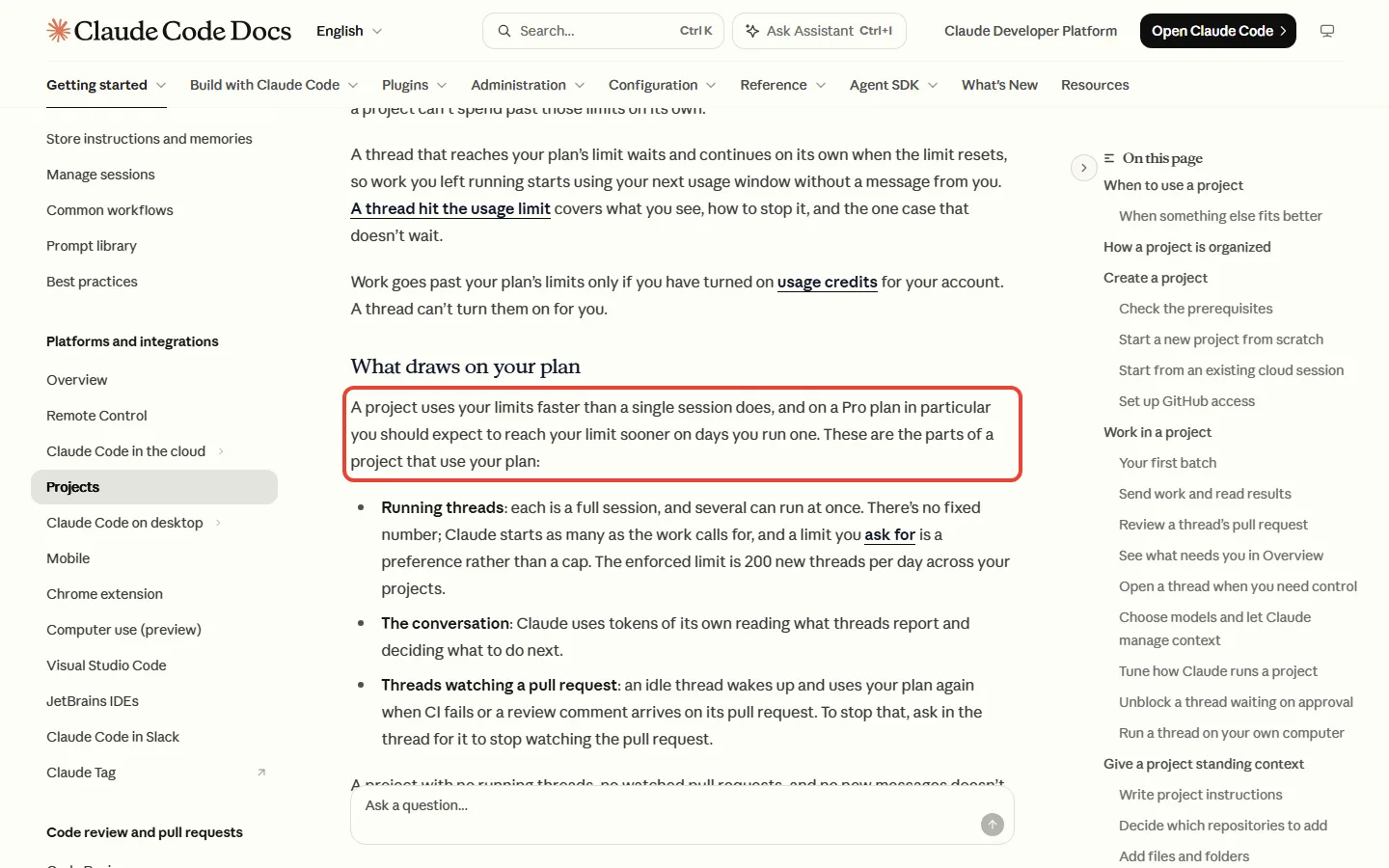
Faster than normal use, yes, though Anthropic gives no per-thread figure: usage depends on length, model and features, with no fixed message count. Anthropic’s docs warn that a project uses your limits faster than a single session, and that “on a Pro plan in particular” you should expect to hit your limit sooner on days you run one.
There is no separate project allowance. Project usage comes out of the same plan limits as your other Claude Code sessions. That is the same pool your normal Claude chats draw from, and it resets on a rolling five-hour window plus a weekly limit.
- Running threads use it. Each is a full session. Claude starts as many as the work calls for, up to an enforced 200 new threads a day across your projects.
- The conversation uses it. Claude spends tokens, the small chunks of words that usage is counted in, reading what threads report.
- Code threads can wake up. A thread watching a pull request uses your plan again when a test run fails or a review comment arrives.
- An idle or archived project doesn’t. No running threads, no watched pull requests and no new messages means no usage.
The limit itself works differently from what most people expect.
🔍 REALITY CHECK
What Anthropic says: “a project can’t spend past those limits on its own.”
The fine print: a thread that reaches your limit waits, then continues on its own when the limit resets, so work you left running starts using your next usage window without a message from you. A thread that a routine started stops with a limit error instead.
Verdict: your bill can’t grow unless you turned on usage credits (pay-as-you-go top-ups at API rates), but your next usage window can start with part of it already used. Click Stop in the thread or pause the project before you walk away.
After an hour away, replying to a long thread costs more than you’d think. Say you come back after lunch, about two hours later: Claude’s short-term memory of that thread (the cache) lasts an hour on Pro and Max within your plan’s limits, so your follow-up first re-reads the thread’s whole conversation. For new work, a fresh thread can use less than reviving a big old one.
Usage in Project settings shows token use by thread and by model.
Adding files: the limits that trip people up
From the Library tab you can add up to 100 files and 2 GB in one pick, with a single file up to 480 MB. The New project dialog is stricter: it skips files over 30 MB, so add big ones from the Library tab later.
Folders come with a cap. Adding one copies its first 100 files up to 200 MB, leaving out files over 30 MB, and a project holds up to 10 folders and Google Drive folders combined.
Say you have a folder of 150 contract PDFs. Adding the folder copies at most the first 100 files (up to 200 MB in all), so at least 50 are left out. Add those from the Library tab instead, where one pick takes up to 100 files.
Uploads are copies. If you edit a file on your computer, upload it again and choose Replace, or threads keep reading the old version.
What happens to your old Claude projects?
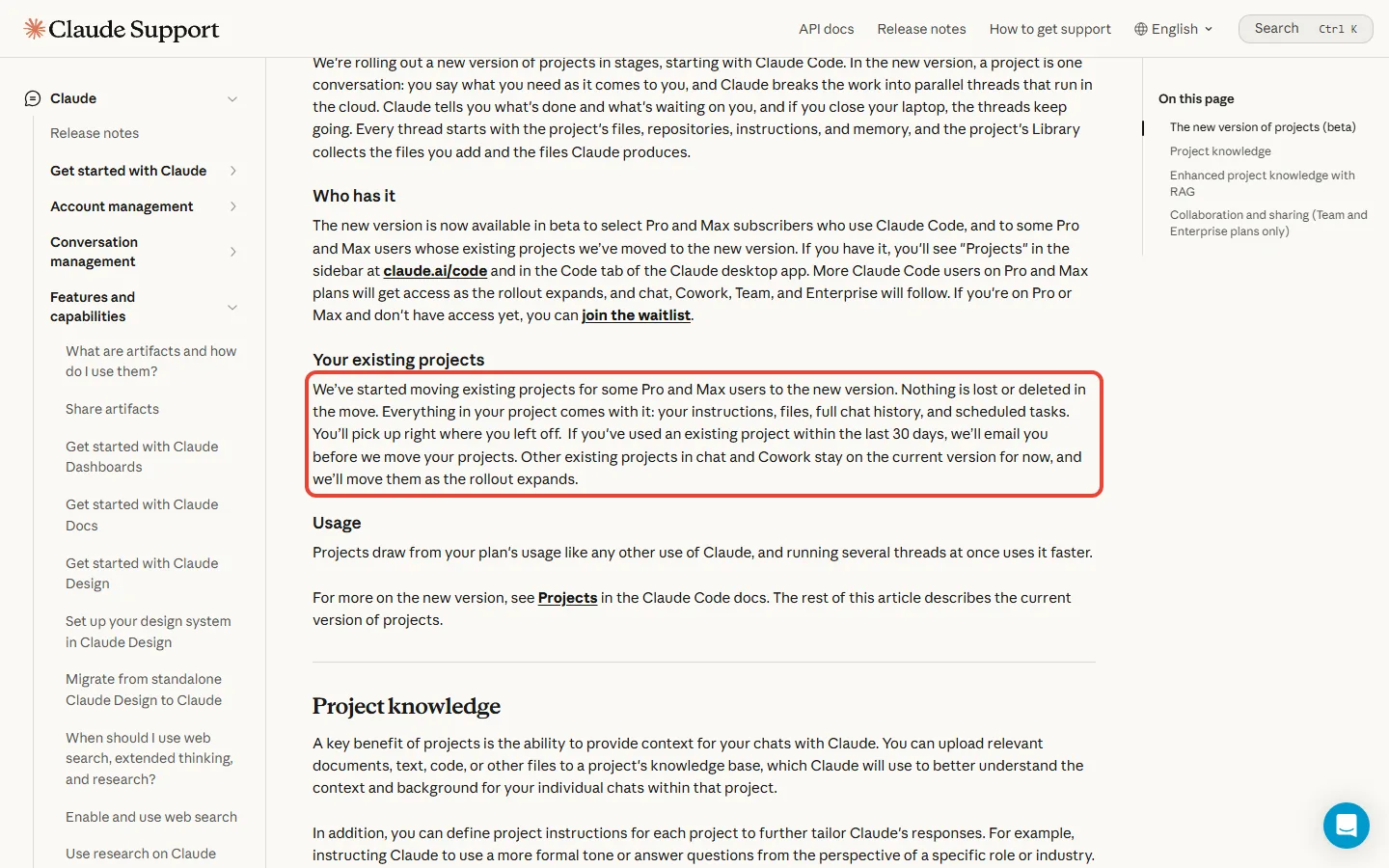
They keep working for now. Anthropic says it has started moving existing projects for some Pro and Max users to the new version, with nothing lost: instructions, files, full chat history and scheduled tasks all come along. If you used a project in the last 30 days, you get an email before the move. Other existing projects in chat and Cowork stay on the classic version for now.
Neither the help article nor the docs, read October 17, say whether you can opt out of the move or switch back.
Our Claude Cowork review covers what changed in chat and Cowork. On classic Projects, which is what Free accounts have, the steps differ: go to claude.ai/projects, click + New Project, add files with the + button, and click Set project instructions.
For plain questions about a stack of documents, classic Projects may be all you need; our NotebookLM review covers Google’s take on the same job.
If Projects is missing or a thread gets stuck
- No Projects in the sidebar: check you are on Pro or Max; if you are, the rollout hasn’t reached you yet, so join the waitlist.
- You looked in the terminal or VS Code: Projects isn’t in the terminal app, the VS Code extension or the JetBrains plugin. Use claude.ai/code, the desktop app or the mobile app.
- A thread says Service is busy: it hit your plan’s five-hour or weekly limit and keeps retrying until the reset. Click Stop or pause the project to keep your next window.
- A “Claude hasn’t responded” banner: click Restart Claude on it. A reply in progress is lost, but threads aren’t affected.
- You want to share it: you can’t. A project belongs to one user, threads can’t move to another project, and two projects can’t be merged.
- Long code tasks: ask Claude to commit and push work in progress, because a cloud thread that can’t resume starts from a fresh copy and uncommitted changes can be lost.
Claude Projects FAQ
Is Claude Projects free?
The classic version is: Free accounts can create up to 5 projects. The new version is listed for Pro ($20 a month) and Max, in beta and still rolling out to select accounts.
What is the difference between Claude Projects and a normal chat?
A project keeps standing context that a single chat doesn’t: instructions and files that every chat or thread in it starts from. The new version also runs your tasks as parallel threads.
How many threads can a Claude project run?
There is no fixed number at once: Claude starts as many as the work calls for, up to an enforced 200 new threads a day across your projects. Asking it to run fewer is a preference, not a cap.
Can I use Claude Projects in VS Code or the terminal?
No. The new Projects works at claude.ai/code, in the desktop app and in the Claude mobile app, not in the terminal app, the VS Code extension or the JetBrains plugin.
How do I delete a Claude project?
In the new version, open Project settings, General, and click Delete at the bottom; it removes the threads, memory and files and can’t be undone. In classic Projects, unarchive an archived project before you delete it.
Should you set up the new Claude Projects now?
- On Pro, with Projects in your claude.ai/code sidebar: yes, for work with several parts that you’ll keep feeding. Change the five settings first, and run it on days you don’t need much else from Claude.
- On Pro, without it: join the waitlist and keep using classic Projects. Anthropic says nothing is lost when your projects move.
- On Max: the same steps, with 5x or 20x Pro’s usage per five-hour session before the limit bites.
- On Free: stay with classic Projects, up to 5. Don’t pay $20 a month ($240 a year, or $200 on the annual plan) for a beta you may not get yet.
- For one task that fits in a single session: skip the project. Anthropic’s docs suggest a plain cloud session for that.
For everything else Claude’s plans include, see our Claude AI review.
Sources and how we checked: Anthropic’s Projects docs, the help center articles What are projects? and How can I create and manage projects?, the launch post and the pricing page, all read on October 17, 2026. Anthropic’s release notes, read the same day, have no entry for the redesigned Projects.

Founder of AI Tool Analysis. Reads the pricing pages and help articles behind each claim. See how we research →
Stay Updated on AI Plans and Prices
AI plans and features change every few weeks. Get the changes that affect what you pay, straight from the vendors’ own pages.
- Honest Breakdowns: We read the vendors’ own pricing pages, docs and help centers
- Price Tracking: Know when plans change price or limits
- Comparison Updates: As the market shifts, we update our verdicts
- No Hype: Just the AI news that matters for your wallet
Free, unsubscribe anytime.

Related Reading
- Claude AI Review 2026
- Claude Cowork Review 2026
- Claude Opus 5.5 vs Sonnet 5.5: Which One to Use
- Claude Agent Teams Review
- Claude Code vs Cursor 2026
- Claude Haiku 5.5 Explained
- NotebookLM Review 2026
Last Updated: October 17, 2026
Facts checked: October 17, 2026 (plans, rollout and limits against Anthropic’s own pages)
Next Review Update: October 31, 2026 (rollout of existing projects recheck)
Have a tool you want us to cover? Suggest it here | Questions? Contact us