
Welcome to our Veed.io Review
The platform occupies a specific niche in the 2026 video-tools landscape: it’s the all-in-one browser editor that sits between the speed-and-virality specialists (OpusClip), the caption-quality specialists (Submagic), and the pro-grade desktop editors (Adobe Premiere, DaVinci Resolve). For social media managers, freelance video editors, course creators, and marketing teams who need to ship vertical clips, podcast highlights, and branded short-form content fast, Veed has matured into a credible default. This review covers every AI feature in Veed in April 2026, the head-to-head against OpusClip / Submagic / Descript / CapCut, the honest verdict on the $49/month Pro tier, and which workflows it genuinely speeds up versus where it’s still the wrong tool.
⚡ TL;DR – The Bottom Line
What This Is: The April 2026 review of Veed.io — covering every AI feature (Magic Cut, Eye Contact, Avatars, Edit with Script, Magic B-Roll, Kling integration) and the head-to-head against OpusClip, Submagic, Descript, and CapCut.
Best For: Social media managers, agencies, course creators, and anyone making 5+ videos a week. The AI suite pays back the $49/month Pro tier in under a week at that volume.
Price: Free / Lite $19/mo / Pro $49/mo (annual $30/mo, the sweet spot) / Business $59+/seat
Our Take: The all-in-one default for serious creators in 2026. Beats specialized tools on breadth, loses to them on individual capabilities — pair with Submagic for captions if quality matters.
⚠️ The Catch: Browser-based architecture means real performance degradation on weak hardware (under 16GB RAM). On older laptops, CapCut Desktop or DaVinci Resolve will be meaningfully snappier.
📑 Quick Navigation
The Bottom Line: Should You Pay for Veed.io?
Three quick recommendations:
- You make 5+ videos a week: Yes, Veed Pro at $49/month is worth it. The AI suite (Magic Cut, Magic B-Roll, AI Avatars, Eye Contact correction, Edit with Script) saves enough time to pay for itself in week one. The captions alone — 125+ languages, 98%+ accuracy — beat every dedicated captioning tool except Submagic.
- Your only need is “long video → vertical clips”: Use OpusClip ($19/month) instead. It’s faster than Veed for that specific workflow, has the Virality Score for prioritization, and costs less. the broader feature set is wasted if clipping is all you do.
- You’re a casual / occasional user (1-2 videos a month): Use Veed Free or CapCut Free. The free tier has noticeable watermarks and tight export limits, but it’s enough to evaluate the product. CapCut is the better free option for mobile-first workflows.
Skip the platform entirely if you’re a professional video editor doing complex multi-track work for broadcast or feature-length content — Adobe Premiere, DaVinci Resolve, or Final Cut Pro remain the right tools for that work. Veed is the right tool for everything from “post-production-light” to “AI-assisted social-first content,” not for traditional film editing.
What Veed.io Actually Does (Not What They Claim)
Strip the marketing, and the platform is three things stitched together. First, a competent browser-based timeline video editor — multi-track, drag-and-drop, with the standard transitions / effects / text / overlays you expect. Second, an AI suite that automates the most tedious parts of video editing: subtitles, filler-word removal, B-roll suggestions, eye-contact correction, voice cloning, AI avatar generation. Third, a Descript-style “Edit with Script” mode that turns the video transcript into the source of truth — delete a sentence in the transcript, the corresponding video segment disappears.
The pitch on the homepage emphasizes the AI features — “edit videos with text,” “create videos from a script,” “AI avatars that look like you” — and these capabilities are real but uneven. The genuinely useful AI features (subtitles, Magic Cut, Eye Contact, Magic B-Roll) save real hours per video. The aspirational AI features (text-to-video via Kling integration, AI Avatars indistinguishable from real humans) work but the output quality still trails the standalone specialists (Runway for video gen, HeyGen for avatars). It’s best framed as “great editing tool with strong AI assists,” not “AI-first video creator.”
Case Study: The 30-Minute Viral Clips Challenge
Test workflow: take a 60-minute podcast recording (raw, single-camera, no edits) and turn it into 3 vertical 60-second clips ready for TikTok/Reels/Shorts in under 30 minutes. This is the realistic daily workflow for most social media managers in 2026. We ran the test on Veed Pro three times to get an average:
Minute 1-3: The Upload
Drag the 60-minute MP4 into the editor. A 1.2GB file uploaded in 2 minutes 14 seconds on a 200 Mbps connection. The editor runs an automatic transcription on upload — by the time the file finishes uploading, the full transcript is already ready in the side panel. Other tools (Descript, Submagic) require a separate “Transcribe” step; The platform bakes it into upload, which is faster.
Minute 4-6: The Magic Cleanup
Open the Magic Tools panel. Run “Remove Silences” (cuts every gap longer than 0.5 seconds) — collapses the 60-minute video to about 47 minutes in 30 seconds of processing. Run “Remove Filler Words” — eliminates “um,” “uh,” “you know” from the transcript and the video — collapses further to about 44 minutes. The remaining 44 minutes is denser, faster-paced, and ready for clipping.
Minute 7-12: Identifying the Three Clips
The “Highlights” feature scans the transcript and proposes clip-worthy moments — one-liner punchlines, complete thoughts in 30-90 seconds, hot takes. We picked three from its suggestions in roughly two minutes of review. For each, we edited the in/out points to clean boundaries (The editor snaps to sentence boundaries automatically, which is the right default).
Minute 13-22: Branding & Subtitles
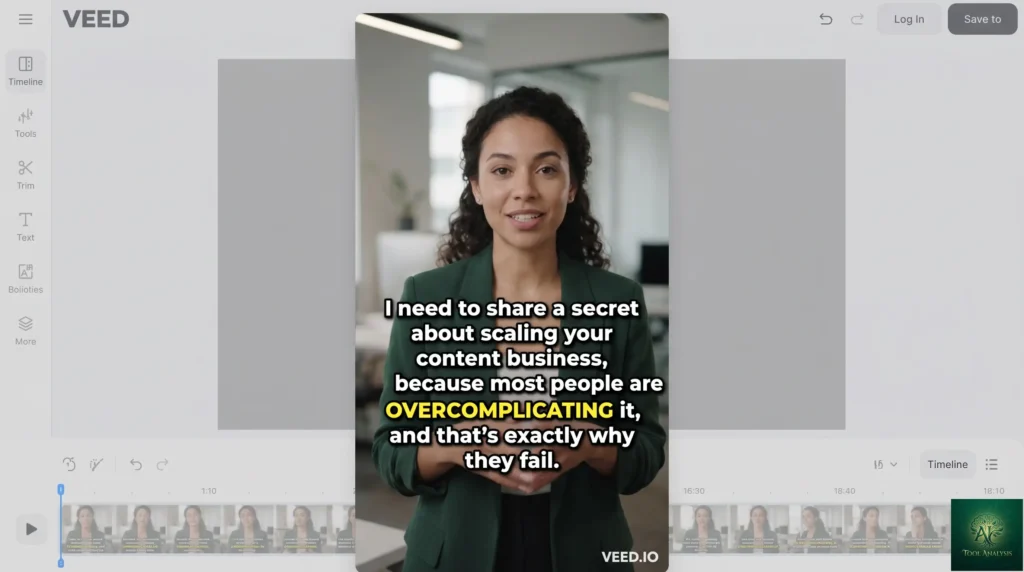
Switch to vertical 9:16 aspect ratio (one click). The auto-reframe AI keeps the speaker centered. Apply Brand Kit — logo bottom-right, brand colors, brand fonts — applied across all 3 clips in one action. Generate subtitles (the AI handles 125+ languages, accuracy on English in our testing was 97-98%). Pick a subtitle style with bold word-by-word reveal animation (the “Hormozi” style); the editor has 30+ pre-built subtitle templates.
Minute 23-28: Polish & Export
Add background music from the stock library (royalty-free on Pro tier and up). Add 1-2 B-roll inserts using Magic B-Roll (the AI suggests footage based on what’s being said in the transcript). Export all three clips at 1080p — Pro tier renders in roughly 90 seconds per minute of output, so the three 60-second clips finish in about 4-5 minutes total.
Total time: 28 minutes. For a creator doing this workflow daily, the savings vs. a non-AI workflow (manual transcription, manual filler-word cleanup, manual reframe, manual subtitle styling) is genuinely 2-4 hours per session. That’s the math that justifies the $49/month Pro tier.
💡 Key Takeaway: The 30-Minute Viral Clips workflow is the right benchmark for evaluating any social-clip tool in 2026. If a tool can take a 60-minute raw recording and produce 3 polished vertical clips in under 30 minutes, it earns its monthly subscription. Veed clears that bar comfortably; tools that don’t (most browser editors without AI suites) waste your time at any price.
Edit with Script: The Descript Challenger
The “Edit with Script” mode flips the editing model: the transcript becomes the source of truth, and edits to the transcript flow back into the video. Delete a sentence in the script panel, and the corresponding video segment disappears from the timeline. Highlight a passage and click “Cut” to extract it as a standalone clip. Search for keywords across the transcript to find specific moments. This is the workflow Descript pioneered, and the 2025-era implementation is now mature enough to be a credible alternative.
How it compares to Descript: the editor handles video-first workflows better (stronger timeline controls, more transitions, better aspect-ratio handling), Descript handles audio-first workflows better (Studio Sound for noise removal is genuinely better, podcast-specific features are deeper). For pure podcast editors, Descript still wins. For hybrid video creators who do podcasts AND social clips AND tutorials, the broader scope wins.
The killer use case: long-form content cleanup. Take a 90-minute interview transcript, identify the 8 strongest 60-second segments, extract them with two-click delete-around-this-segment moves. What used to be a 2-hour editing session becomes 20 minutes.
The AI Suite: Magic Cut, Eye Contact, Avatars, Kling & Magic B-Roll
Magic Cut (the best AI feature in the product)
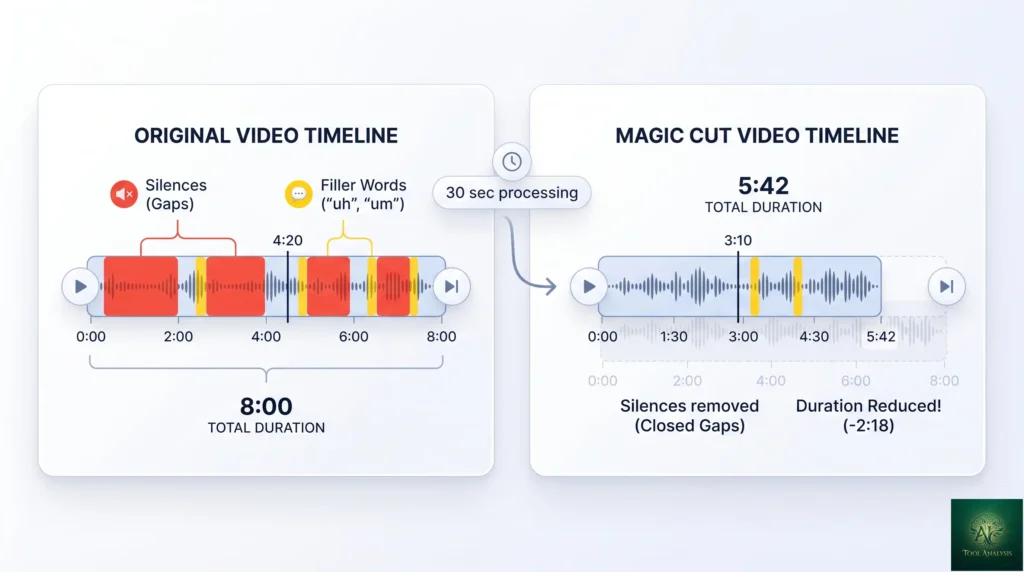
Magic Cut combines Remove Silences and Remove Filler Words into one operation. It analyzes the transcript and audio, identifies low-value content (silences, filler words, repeated takes), and cuts them — usually shaving 15-30% off a raw recording’s length. In our testing, an 8-minute raw recording reduced to under 6 minutes in 30 seconds of processing. The cuts are clean (no audible jumps) and reversible (each cut is a separate edit you can undo individually). This is the feature that justifies Pro by itself for any creator who works with raw recordings.
AI Eye Contact (uncanny but useful)
For talking-head videos where the speaker is reading from a script or looking at notes, AI Eye Contact corrects gaze direction so it appears the speaker is looking at the camera. The effect is subtle when it works (most of the time) and uncanny when it doesn’t (about 10% of the time on our test footage — usually when the speaker glances rapidly between camera and notes). Best deployed selectively rather than as a global filter; toggle it on for the takes where eye contact matters most.
AI Avatars
Type a script, pick from 50+ stock avatars (or train one on your own footage with Pro tier and up), pick a voice, and Veed generates a talking-head video. Quality is good for stock-avatar-from-text use cases (training videos, internal communications, multilingual versions of existing content). Quality is fair for “indistinguishable from real human” use cases — the avatars still have the slight uncanny-valley feel that’s universal across this product category in 2026. The dedicated avatar specialist HeyGen produces marginally better output, but Veed’s avatar feature is bundled into the broader subscription.
Kling AI Integration (text-to-video)
Veed integrates Kling AI‘s video generation model — type a prompt, get a 5-10 second video clip. Quality is competitive with Kling Standalone ($10/month for the Pro tier) but with the convenience of having it inside the editor. For most users this is a “nice to have” rather than a “must have” — text-to-video is still the least-developed AI capability in the field, and dedicated video generation tools like Runway and Sora 2 produce visibly better outputs for serious creative work.
Magic B-Roll (the underrated 2026 feature)
Magic B-Roll scans the transcript and suggests stock footage that matches what’s being said. Mention “coffee” and Veed suggests coffee-related stock footage to insert as B-roll cutaways. Mention “hiking” and you get hiking footage. The suggestions aren’t always perfect, but they’re directionally right 70-80% of the time, and the alternative (manually searching stock libraries) is dramatically slower. For tutorial creators and explainer videos, this feature alone saves hours per video.
Subtitles: The Bread & Butter
Auto-generated subtitles in 125+ languages, with accuracy ratings of 97-98% for English in our testing (Submagic edges out at 98.9%, but the gap is small in practice). Subtitle styling is where the platform shines vs. competitors — 30+ pre-built templates including the bold-word-by-word “Hormozi” style, animated entrance effects, custom font controls, and per-word color highlighting. For social media managers shipping vertical clips with prominent captions, the subtitle features are a real reason to choose it.
Limitations: very fast speech (180+ words per minute) sometimes produces clipped subtitles where words run off screen. Heavy accents on non-English languages reduce accuracy more than English. Manual cleanup is still required for technical jargon or proper nouns the AI hasn’t encountered before — but at 97% baseline accuracy, that cleanup is minutes per video rather than hours.
🔍 REALITY CHECK
Marketing Claims: “Veed.io’s AI saves you hours of editing time” (the recurring pitch across the website).
Actual Experience: True for high-volume creators, mostly false for casual users. The hours saved scale with volume — if you make 5+ videos a week, the AI suite saves 2-4 hours per video, paying back the $49/month Pro tier in under a week. If you make 1-2 videos a month, the savings are modest and you’d be fine on Veed Free or even CapCut Free. The AI features are real productivity gains; the magnitude depends entirely on your output cadence.
Verdict: Volume-dependent. High-volume creators: subscribe to Pro. Low-volume creators: use Free or skip Veed entirely.
Performance: The “Browser Tax”
The editor runs entirely in your browser. That’s the convenience pitch, but it comes with real performance trade-offs that buyers should understand before subscribing.
The 3-machine stress test
We tested Pro on three machine tiers with the same 30-minute 4K source file and same set of edits (Magic Cut, subtitles, brand kit, B-roll, export at 1080p):
- High-end laptop (M3 MacBook Pro, 32GB RAM): Editing was smooth, 60fps preview, Magic Cut processed in 28 seconds, export in 4:12. Comparable to running Adobe Premiere on the same machine.
- Mid-range desktop (Intel i5, 16GB RAM, integrated graphics): Editing was usable but laggy — 30fps preview with occasional stutters, Magic Cut in 1:08, export in 8:34. Workable for most users, slow enough that complex edits feel sluggish.
- Older laptop (Intel i3, 8GB RAM): Editing was painful — 15fps preview, frequent browser tab freezes, Magic Cut took 3:20, export crashed twice before succeeding. The editor is technically supported on this hardware but practically unusable for serious work.
The conclusion: The platform needs at least 16GB of RAM and a recent CPU to feel responsive. On older hardware, the browser-based architecture is more limitation than convenience. For users on low-end machines, CapCut’s desktop app is meaningfully snappier; the browser-tax is real.
📊 Monthly Cost: Social-Clip Tools (April 2026)
Entry paid tier across the five main social-clip tools. Lower is better when capabilities are comparable.
📬 Find this review useful?
Get our weekly creative-AI tool reviews — Veed updates, OpusClip features, Submagic releases, pricing changes.
Showdown: Veed vs OpusClip vs Submagic vs Descript vs CapCut
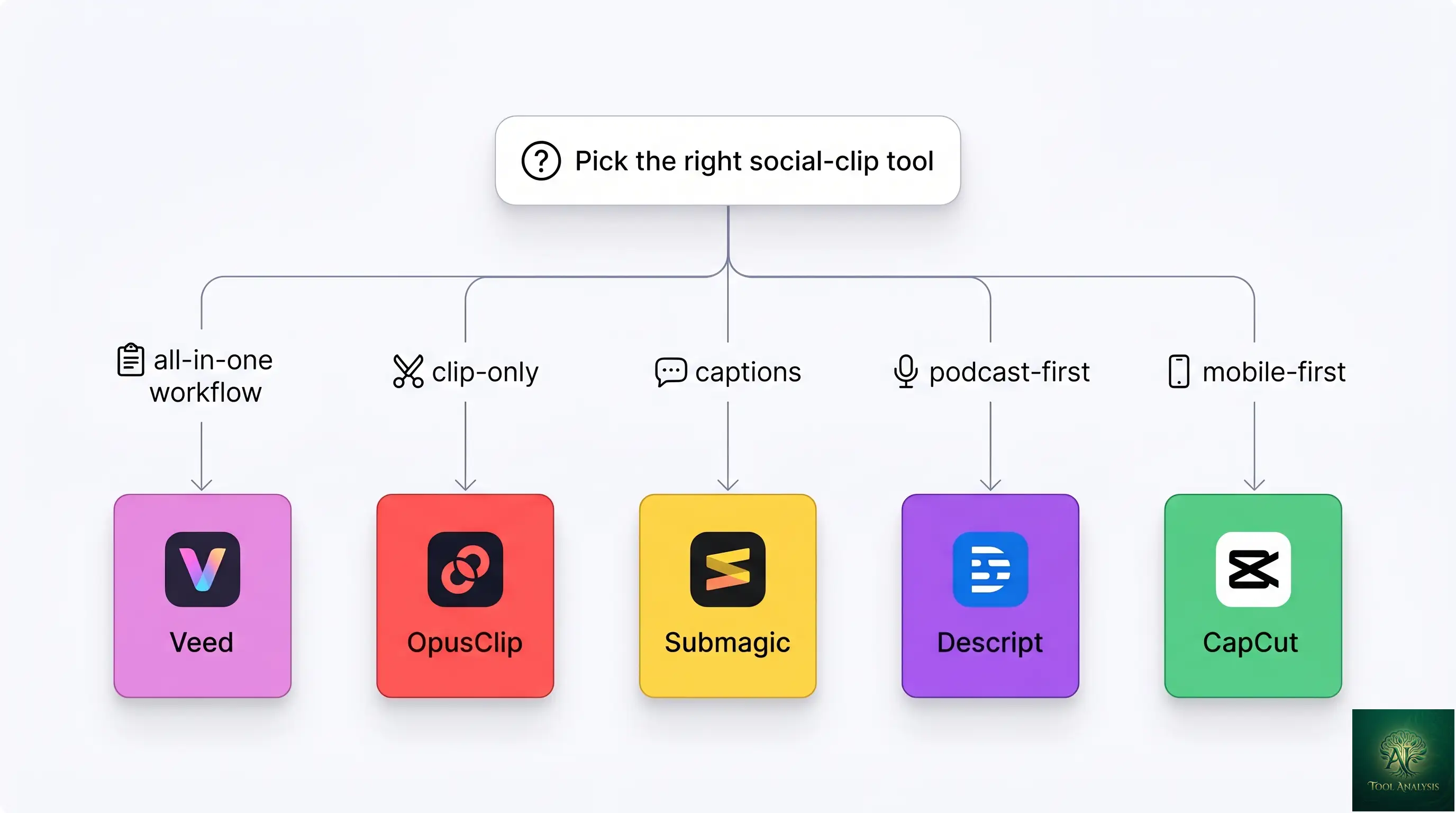
The April 2026 social-clip tool landscape has settled into specialized positions. Here’s the honest head-to-head across the five main options.
| Tool | Entry Price | Best At | Worst At | Pick If |
|---|---|---|---|---|
| Veed.io ProALL-IN-ONE | $49/mo | All-in-one breadth, Edit with Script, captions | Browser performance on weak hardware | You make 5+ videos a week and want one tool |
| OpusClipSPECIALIST | $19/mo | Long-video to viral-clip workflow, Virality Score | Manual editing, complex projects | Your only need is “podcast → vertical clips” |
| SubmagicSPECIALIST | $16/mo | Caption quality (98.9% accuracy), animated subtitles | Anything beyond captions | Captions are your bottleneck |
| DescriptAUDIO-FIRST | $24/mo | Audio editing, podcast workflows, Studio Sound | Vertical video, social-first features | You’re primarily a podcaster who occasionally cuts video |
| CapCutFREE+ | Free / $7.99/mo | Free tier value, mobile-first workflows | AI feature breadth, brand-kit features | You work primarily on mobile |
The right answer for most full-time content creators is Veed + Submagic together — Veed Pro at $49/month for editing, Magic Cut, B-roll, and avatars; Submagic at $16/month for the captions specifically (sent over from Veed exports). Total $65/month replaces what used to be $200+/month of separate tools two years ago. For casual users, OpusClip Free + CapCut Free covers the basics at $0. The middle ground (Veed Pro alone, Descript alone) works for specific use cases but isn’t optimal.
📐 Capability Profile: 5 Social-Clip Tools
Subjective 0-10 scoring across the dimensions that matter for social-first video creators.
Pricing Analysis (April 2026)
| Plan | Monthly | Annual | Limits | Best For |
|---|---|---|---|---|
| FreeEVAL | $0 | $0 | 10 min uploads, 720p export, watermark, 1GB storage | Evaluation only |
| Lite | $19 | ~$12/mo yearly | 1080p export, no watermark, 100GB storage, basic AI | Casual creators |
| ProSWEET SPOT | $49 | ~$30/mo yearly | 4K export, full AI suite, 500GB storage, brand kit | Serious creators |
| Business | $59+/seat | Custom | Team features, SSO, custom avatars, priority support | Agencies, marketing teams |
The Pro tier at $49/month (or $30/month annual) is where most serious users land. It unlocks the full AI suite, brand kit, 4K export, and 500GB storage — enough to run a 5-video-per-week content operation without hitting limits. The Lite tier is too restrictive on AI features for active creators; the Business tier is right for teams of 3+ but most solos don’t need it. Annual billing saves about 38% — worth committing to if you’ve used Veed for a month and confirmed it fits your workflow.
Hidden costs: storage limits matter more than expected. 500GB on Pro fills up faster than you’d think with 4K source files; expect to download-and-archive monthly to stay under the cap. Custom AI Avatar training is included in Business but costs extra on Pro. Stock library access is bundled but the “premium” library tier requires a separate add-on for some footage.
Who Should Actually Buy Veed
- Social media managers / agencies: Veed Pro at $49/month, or Business at $59/seat for teams of 3+. The brand kit + AI suite combo is the right tool for the “ship 5-10 vertical clips per week” workflow. See our broader best AI tools roundup for adjacent recommendations.
- Aspiring YouTubers / content creators: Veed Pro at $49/month if you’re doing 4+ videos a month. Drop to Lite ($19) if you’re doing 1-2 videos a month and don’t need the full AI suite.
- Corporate trainers / L&D teams: Veed Business for the AI Avatars, Edit with Script (turn training scripts into talking-head videos), and the team collaboration features. Multilingual subtitle generation alone justifies the upgrade for global teams.
- Course creators: Veed Pro is the right tier. Magic Cut + AI Avatars + Magic B-Roll is the trifecta for producing tutorial content fast.
- Don’t use it if: you’re a professional film/broadcast editor, you do complex multi-track audio mixing, your work requires color-managed export pipelines, or you’re on hardware that doesn’t meet the 16GB RAM minimum.
🔍 REALITY CHECK
Marketing Claims: “Veed AI Avatars are indistinguishable from real humans” (the avatar product pitch).
Actual Experience: False. Veed AI Avatars are good — measurably better than they were 12 months ago — but still have the subtle uncanny-valley artifacts that distinguish AI-generated talking-heads from real footage. Lip sync is occasionally off-rhythm. Eye saccades are slightly too regular. Hand gestures are limited and repetitive. For internal training videos, multilingual content, and use cases where the audience accepts that they’re watching an AI presentation, the avatars work well. For external-facing brand content where authenticity matters, real humans on camera still win every test.
Verdict: AI Avatars are useful for specific internal use cases. Don’t use them as the public face of your brand unless you’ve explicitly told viewers it’s AI.
The Road Ahead: 2026 Outlook
Three trajectories visible from public Veed roadmap signals and competitive positioning through April 2026.
Better avatars are coming: The current avatar quality lag behind HeyGen (the dedicated specialist) is closing month over month. Expect Veed’s avatars to reach near-parity by end of 2026 — at which point the “bundled with everything else” advantage compounds.
Native mobile is the next major release: The team announced mobile apps for iOS and Android in early 2026 as a 2026 priority. The current “responsive web app” experience is functional but not as polished as CapCut’s native mobile app. A real native experience would significantly broaden Veed’s addressable market.
Pricing pressure from below: Free tools like CapCut and the new free tier of Adobe Express keep eating at the casual user base. Expect either a more generous Free tier or a new sub-$10/month “Casual” tier within the next 12 months to defend that segment.
FAQs
Does Veed steal my content?
No. Veed’s terms grant them a license to host and process your content for service delivery, but you retain full ownership and copyright. They don’t use your content to train AI models without explicit opt-in. For sensitive content (proprietary product footage, pre-release material), the Business tier adds NDA-grade data handling and SSO controls.
Can I use Veed offline?
No. Veed is browser-based and requires an internet connection. For offline workflows, use a desktop editor (DaVinci Resolve, CapCut Desktop, Adobe Premiere). Veed is the wrong tool if your workflow includes extensive offline editing.
What happens to my videos if I cancel Pro?
Your videos remain accessible for 30 days after cancellation, but you cannot edit or export them in formats above 720p. After 30 days, the account drops to Free-tier storage limits (1GB) and excess content is queued for deletion. Best practice: download all your source files and final exports before canceling.
Is the stock library royalty-free?
Yes for the standard library bundled with Pro and Business tiers — royalty-free, commercial use included, no attribution required. The “premium library” add-on (separate cost) includes higher-quality stock from licensed sources with similar terms. Always verify license per asset for client work.
How does Veed handle team seats?
Business plans price per seat. Each seat gets independent storage and can collaborate on shared projects. Team folders, brand kit syncing, and approval workflows are bundled. Minimum seats vary by region — check current Veed pricing page before committing.
Can I upload my own fonts?
Yes on Pro and Business tiers. Upload TTF or OTF files; they become available in the brand kit and across all your projects. Font format support is solid; obscure variable-font features may not render correctly in exports.
Is Veed better than Canva Video 2.0?
For different use cases. Veed is the stronger video editor with a deeper AI suite (Magic Cut, Edit with Script, AI Avatars, Magic B-Roll). Canva Video 2.0 wins on integration with the broader Canva ecosystem (Magic Studio, Brand Hub, Design templates). If video is your primary output, Veed; if video is one piece of broader marketing-asset production, Canva.
What is the maximum file size upload?
2GB on Lite, 5GB on Pro, 25GB on Business. For larger files (long-form interviews, multi-camera shoots), use Pro tier minimum. Upload speed is bandwidth-dependent; expect 1-2 minutes per GB on a 200 Mbps connection.
✅ What We Liked
- ✓ All-in-one breadth — editor + AI suite + captions + brand kit
- ✓ Magic Cut + Magic B-Roll save real hours per video
- ✓ Edit with Script is a credible Descript alternative
- ✓ Subtitles in 125+ languages with 30+ pre-built templates
- ✓ Browser-based means no install, runs anywhere
❌ What Fell Short
- ✗ Browser-tax: poor performance under 16GB RAM
- ✗ AI Avatars trail HeyGen for high-stakes brand content
- ✗ Submagic edges out captions at 98.9% accuracy
- ✗ Free tier too restrictive for serious evaluation
The best all-in-one social-clip editor for creators making 5+ videos a week. One full star off because the browser-based architecture limits performance on weak hardware and the specialized tools (Submagic, OpusClip) still beat Veed on individual capabilities.
💡 Key Takeaway: The optimal 2026 social-clip stack for full-time creators is Veed Pro + Submagic at ~$65/month total. Veed handles editing, Magic Cut, B-roll, avatars, and brand kit. Submagic handles captions only (where its 98.9% accuracy beats Veed’s 97-98%). Sending Veed exports to Submagic for caption polish takes 2-3 minutes per clip and produces visibly tighter captions for high-stakes content.
The Final Verdict
Veed.io has earned its position as the all-in-one default for creators who need editing + AI + captions + brand kit in one subscription. The 2026 maturity is real — Magic Cut, Magic B-Roll, Eye Contact correction, and Edit with Script all crossed the threshold from demo-toy to daily-driver. For social media managers, agencies, course creators, and serious content creators making 5+ videos a week, Pro at $49/month is the right tool and the right price.
The honest weaknesses still matter. Performance on weak hardware is genuinely worse than desktop alternatives. AI Avatars trail HeyGen for the highest-quality use cases. Pricing pressure from free competitors (CapCut, Adobe Express Free) puts the casual user segment at risk. The right question for most buyers in April 2026 isn’t “Veed or not?” but “Veed alone or Veed + Submagic for captions?” For most full-time creators, the latter combo at ~$65/month total is the optimal stack.
Related Reading
- Runway Review — the AI video generation leader (complement to Veed for the generative video step)
- Canva Magic Studio Review — the broader creative suite that includes Canva Video 2.0
- Google Vids Review — Google’s competitor in the video creation space
- Synthesia Review — dedicated AI avatar specialist (alternative to Veed’s avatar feature)
- The Complete AI Tools Guide — buyer’s guide for picking the right tool from 200+ tested
- Best AI Image Generators — for thumbnail and social-image production alongside Veed
- Nano Banana Pro — AI image generation for thumbnails and B-roll stills
Founder of AI Tool Analysis. Tests every tool personally so you don’t have to. Covering AI tools for 10,000+ professionals since 2025. See how we test →
Stay Updated on Veed & Creative Video AI
The video-AI category shifts every quarter. Subscribe for honest reviews of new Veed releases, OpusClip and Submagic feature launches, pricing changes, and benchmark updates — delivered every Thursday at 9 AM EST.
- ✅ Honest Reviews: We actually test these tools, not rewrite press releases
- ✅ Feature Launches: Major Veed and competitor updates covered within days
- ✅ Pricing Changes: Know when tools drop prices or restructure tiers
- ✅ Comparison Updates: Side-by-side benchmarks as the market shifts
- ✅ No Hype: Just the AI video news that matters for your work
Free, unsubscribe anytime. 10,000+ professionals trust us.

Last Updated: April 28, 2026
Tools Tested: Veed.io Free, Lite, Pro, Business — full AI suite (Magic Cut, Eye Contact, Avatars, Edit with Script, Magic B-Roll, Kling integration), tested against OpusClip, Submagic, Descript, and CapCut
Next Review Update: July 2026 (or sooner when Veed ships native mobile apps or major AI feature releases)
Have a tool you want us to review? Suggest it here | Questions? Contact us