
Welcome to Our Leonardo.AI Review
⚡ TL;DR: Is The “Phoenix” Model Worth It?
- The Good: Phoenix Model matches FLUX for text accuracy. Real-Time Canvas is the only tool that lets you “draw” your prompt.
- The Bad: Steep learning curve. The interface is a cockpit, not a chat window.
- The Verdict: The “Android” to Midjourney’s “iPhone.” Essential for control freaks and game devs; overkill for casuals.
Midjourney is a walled garden. It gives you beautiful results with simple text, but it doesn’t want you to touch the settings. Leonardo.AI, on the other hand, hands you the keys to the engine room. It is a full-stack creative studio.
It is the only tool in 2025 that successfully combines high-end image generation, a real-time sketching canvas, video animation (Motion 2.0), and a Photoshop-style editor (Canvas) into one platform. For game developers, web designers, and power users, it is the clear winner. For casual users who just want a pretty picture, it might be overkill.
The Verdict: It creates the most usable assets (transparent PNGs, consistent characters) of any tool on the market.
Click to open/close
- 🧠 The Philosophy: Studio vs. Chatbot
- ⏱️ Getting Started: Navigating the Cockpit
- 🔥 The Phoenix Model: Text & FLUX Integration
- 🎨 Real-Time Canvas: Sketch-to-Image Explained
- 🖌️ The Canvas Editor: Inpainting & Outpainting
- 🧩 Character Consistency & “Elements”
- 🎥 Motion 2.0: Turning Images into Video
- 💰 The Token Economy Breakdown
- ⚔️ Leonardo vs. Midjourney vs. Ideogram
- ❓ FAQs: Your Questions Answered
🧠 The Philosophy: Studio vs. Chatbot
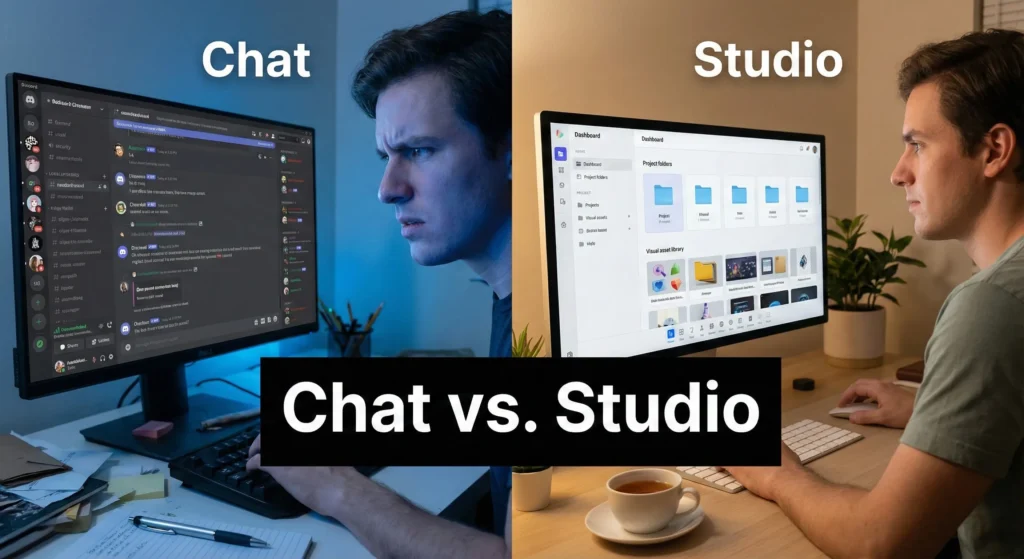
To understand why Leonardo exists, you have to look at the problem with Discord-based AI tools. When you use Midjourney, you are typing a letter to an artist and hoping they understand you. If they get it wrong, you have to write another letter.
Leonardo operates on a “Studio” philosophy. It assumes you want to grab the brush yourself. It provides a visual dashboard where you can upload reference images, control the depth of field, set the exact aspect ratio, and even paint over mistakes.
⏱️ Getting Started: Navigating the Cockpit
When you first log in, you might feel overwhelmed. There are buttons everywhere. Let’s break down the “Cockpit” so you don’t crash the plane.
1. The Left Sidebar (The Controls)
This is where the magic happens. Unlike ChatGPT where you have to ask for things, here you set them.
- Image Dimensions: Don’t just settle for squares. You can set specific pixel ratios (e.g., 16:9 for YouTube, 9:16 for TikTok).
- Guidance Scale (The “Listener” Slider): This is crucial.
- Low (1-5): The AI is creative and ignores your prompt slightly to make it look “better.”
- High (7-10): The AI is a strict rule-follower. If you say “blue cat,” it better be blue.
- Pro Tip: Keep this at 7 for most work. Crank it to 9 if you need specific text on signs.
- Tiling: A hidden gem for 3D artists and web designers. Toggle this on, and the AI generates textures that repeat perfectly seamlessly. Great for website backgrounds or video game floors.
🔍 REALITY CHECK
Marketing Claims: “Intuitive interface for everyone.”
Actual Experience: It’s “intuitive” if you’ve used Photoshop or Blender. If you’ve only used Instagram filters, the “Alchemy Refiner” and “Inference Steps” sliders will look like alien technology. Expect to spend your first 150 free tokens just figuring out what the buttons do.
Verdict: High learning curve, but high reward.
🔥 The Phoenix Model: Text & FLUX Integration
In late 2025, Leonardo integrated the Phoenix model. Under the hood, this shares architecture with the open-source FLUX.1 model, which is famous for one thing: following instructions perfectly.
The Text Test
I tried to break it. I used this prompt: “A vintage travel poster for ‘MARS COLONY’ with a tagline at the bottom saying ‘TICKETS ON SALE NOW’ in art deco font.”
The Result: It nailed the spelling on the first try. Midjourney v6 still struggles with long sentences, often giving you “TICKETS ON SALE NWO.” Phoenix got every letter right.
The Prompt Adherence Test
I asked for: “A cat wearing a red hat, blue boots, holding a green apple, standing on a purple rug.”
Most AIs mix these colors up (giving you a purple hat or red boots). Phoenix separated the concepts perfectly. This makes Leonardo the best tool for specific client requests where details cannot be random.
🎨 Real-Time Canvas: Sketch-to-Image Explained
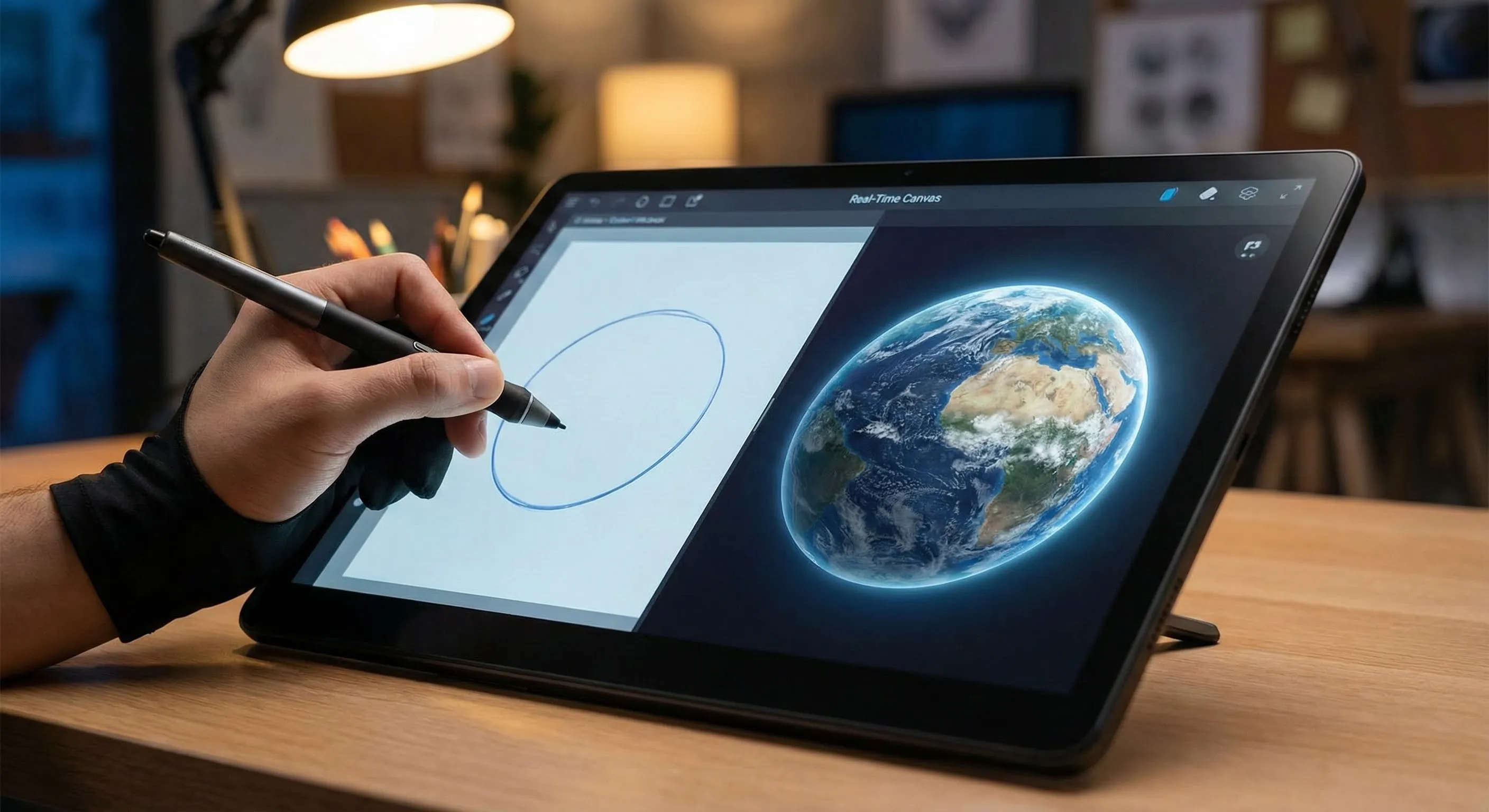
This is the feature that justifies the price tag alone. Real-Time Canvas is a split-screen mode.
- Left Side: A painting canvas (you draw here).
- Right Side: The AI output (updates instantly).
How I Used It: The “Logo” Workflow
I wanted a logo for a coffee shop featuring a bear. In a standard generator, I’d have to describe the bear’s shape for hours. In Real-Time Canvas:
- I drew a crude brown circle (the head).
- I drew two smaller circles (ears).
- I selected the “Vector Art” style preset.
- Instantly: The right side showed a polished vector bear logo.
- I erased one ear on the left; the logo on the right updated to a cyborg bear with a missing ear immediately.
This feedback loop—draw, see result, adjust, see result—is 100x faster than typing prompts, waiting 60 seconds, and typing again.
🖌️ The Canvas Editor: Inpainting & Outpainting
Don’t confuse “Real-Time Canvas” with the “Canvas Editor.” The Editor is for fixing things.
Inpainting (The Eraser)
Let’s say you generated a perfect portrait, but the AI gave the person six fingers (classic AI). You import it to the Canvas Editor, draw a mask over the hand, and type “hand with five fingers.” The AI regenerates only that spot, blending it perfectly with the lighting.
Outpainting (The Extender)
I uploaded a vertical photo taken on an iPhone. I wanted to use it for a YouTube thumbnail (which needs to be horizontal). I placed the image in the center of the Canvas Editor and drew a box around the empty sides. The AI hallucinated the rest of the room, matching the wallpaper and lighting. It essentially “un-cropped” the photo.
🧩 Character Consistency & “Elements”
The #1 struggle for AI users is consistency. “How do I get the same character in a different pose?” Leonardo solves this with Elements and Reference Images.
What are “Elements”?
Think of Elements as “style seasonings.” They are mini-models (LoRAs) trained on specific styles. You can activate them without changing your prompt.
- Element: “Glasscore” -> Makes everything look like transparent glass.
- Element: “Pixel Art” -> Turns any prompt into 16-bit sprites.
- Element: “Kids Illustration” -> Turns it into a storybook drawing.
You can even adjust the “strength” of an element. Want your image to be 30% steampunk and 70% anime? You can dial those in.
Character Reference
In the “Image Guidance” tab, you can upload a photo of a face (generated or real). You set the mode to “Character Reference.” Now, whatever prompt you type (“wearing a space suit,” “eating a burger”), the AI will try to keep the facial structure of your reference photo. It’s not 100% perfect yet—sometimes the hair changes—but it’s far better than random generation.
🎥 Motion 2.0: Turning Images into Video
Leonardo isn’t just for stills. The new Motion 2.0 allows you to animate your generations.
I tested this on a “Cyberpunk City” image.
Settings Used: Motion Strength
5.
Result: The neon lights flickered, steam rose from the vents, and cars moved in the distance.
It was a perfect 4-second loop.
I then tested it on a “Portrait.”
Settings Used: Motion Strength 3.
Result:
The subject blinked, their hair moved in the wind, and they smiled slightly.
The Limitation: If you crank the motion strength to 10, the AI hallucinates badly. People’s heads might detach, or buildings might melt. Keep it between 3-5 for safe, usable results.
💰 The Token Economy Breakdown
Leonardo uses a complex “Token” system. Let’s do the math to see what you actually get.
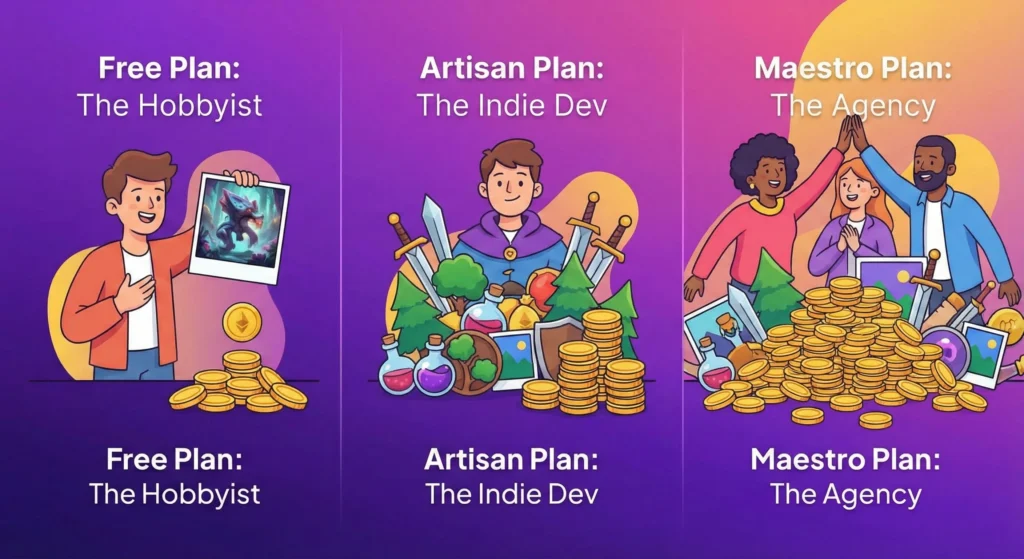
| Plan | Price | Tokens/Mo | Daily Reset? | Cost Per Image (Approx) |
|---|---|---|---|---|
| Free | $0 | 150/day | ✅ Yes | ~2 tokens (Standard) / ~8 tokens (Alchemy) |
| Apprentice | $10/mo | 8,500 | ❌ No (Monthly) | Allows Private Mode |
| Artisan | $24/mo | 25,000 | ❌ No (Monthly) | Unlimited Relaxed Mode |
| Maestro | $48/mo | 60,000 | ❌ No (Monthly) | Best for Agencies |
💡 Swipe left to see full pricing details →
The “Relaxed Mode” Loophole
If you buy the Artisan Plan ($24/mo), you get “Unlimited Relaxed Generations.” This means when you run out of fast tokens, you can still generate images—you just have to wait 30-60 seconds instead of 10 seconds. This effectively makes Leonardo unlimited for paid users, similar to Midjourney’s Standard plan.
⚔️ Leonardo vs. Midjourney vs. Ideogram
Which one should you actually use? I’ve used all three extensively.
Leonardo.AI
- Best For: Control freaks, Game Devs, Web Designers.
- Superpower: The Canvas Editor and specific asset generation.
- Weakness: The “default” style isn’t as artistic as Midjourney; requires tweaking.
Midjourney (v6/v7)
- Best For: Pure artists, inspiration seekers.
- Superpower: Incredible lighting and composition out of the box.
- Weakness: Discord interface is messy; lack of precise editing tools.
Ideogram (2.0)
- Best For: Typography and T-shirt designers.
- Superpower: It is still the king of putting complex text on images (slightly better than Phoenix).
- Weakness: Very few editing features; basically just a prompt box.
❓ FAQs: Your Questions Answered
Q: Does Leonardo use Stable Diffusion?
A: Yes, many of Leonardo’s base models are fine-tuned versions of Stable Diffusion (SDXL), but they also integrate other architectures like FLUX for their Phoenix model.
Q: Can I train my own model on Leonardo?
A: Yes! This is a standout feature. You can upload 10-20 photos of a specific style or object, and Leonardo will train a custom model for you. This is perfect for brands that need consistent assets.
Q: Is the free plan really free forever?
A: Yes. It resets daily. They do not force you to upgrade after a trial period. However, images created on the free plan are public.
Q: What is “Alchemy”?
A: Alchemy is Leonardo’s premium rendering pipeline. It increases resolution, contrast, and lighting fidelity significantly, but it costs more tokens per image (roughly 8-16 tokens vs 2).
Q: Who owns the copyright?
A: As of late 2025, Leonardo assigns full commercial ownership of the images to you, the creator, even on the free plan.
Q: Can I remove backgrounds in Leonardo?
A: Yes, there is a “Remove Background” button in the image viewer. It costs 2 tokens and works very well for character cutouts.
🏆 The Final Verdict: Is It Worth It?
Leonardo.AI has matured from a “Stable Diffusion Wrapper” into a standalone creative powerhouse. With the addition of the Phoenix model, it finally has the prompt adherence to match its feature set.
For the average person just playing around, the interface might feel like flying a spaceship. But for professionals—especially those working in games, web design, or marketing—it is the most versatile tool on the market. The ability to Inpaint, Outpaint, Sketch, and Animate in one browser window is unmatched.
Use Leonardo.AI if: You need precise control, consistent assets, or free daily credits.
Stick with Midjourney if: You are an artist who values “vibes” and lighting over specific structural control.
Don’t Miss The Next AI Tool Launch
The AI landscape changes every week. We test the tools so you don’t have to waste your money.
- ✅ Deep Dive Reviews like this one, delivered weekly
- ✅ Prompt Engineering Cheat Sheets for Leonardo & Midjourney
- ✅ Breaking News on model updates (GPT-5, Gemini 3, etc.)
- ✅ Real Human Tests – no automated content
Free forever, unsubscribe anytime