Watch: I Used Descript for 60 Days (The Honest Truth)
The Bottom Line
Welcome to Our Descript Review 2025
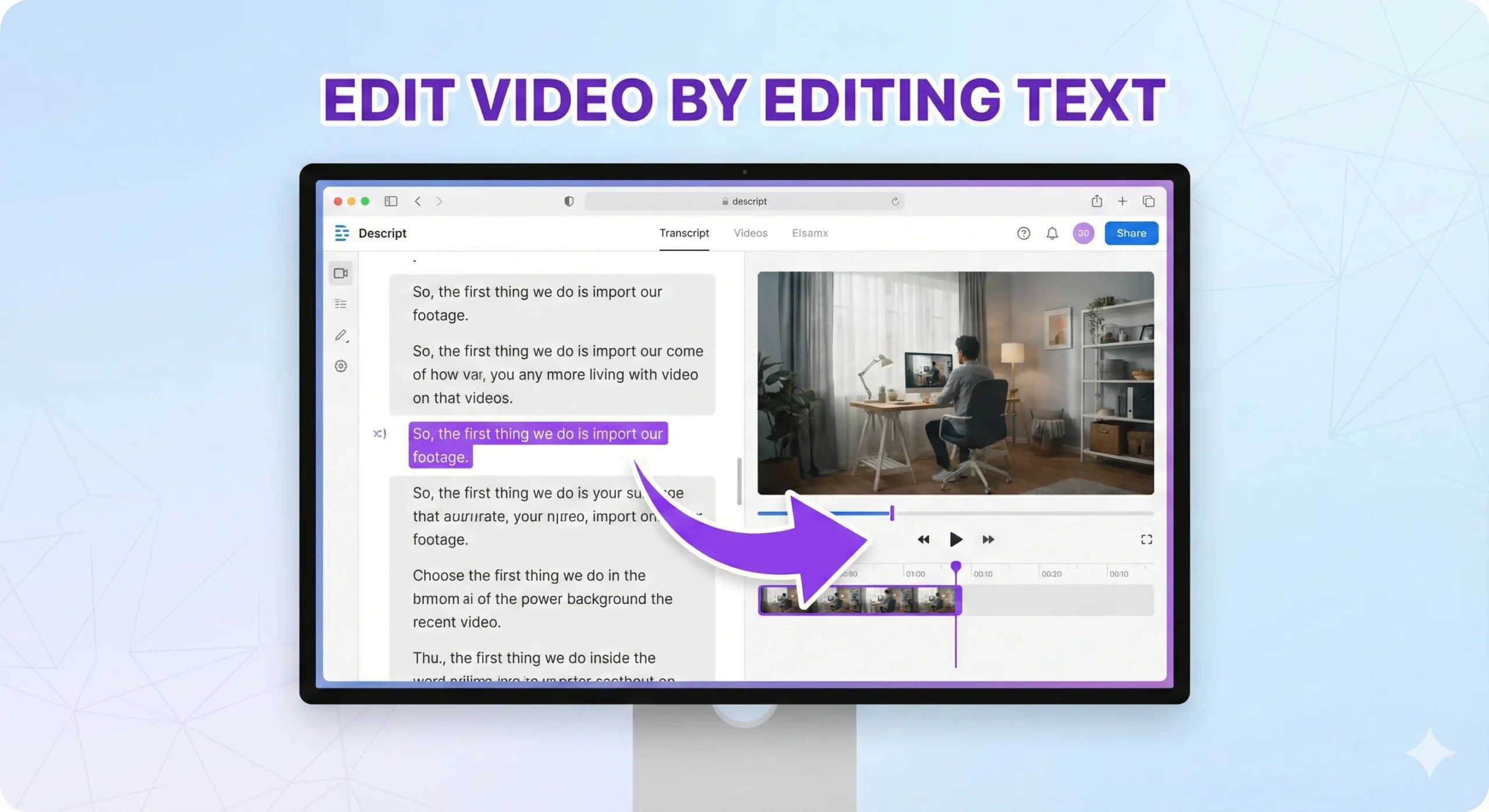
Descript turns video editing into a word processing task. Delete a sentence from the transcript and watch that section vanish from your video. Remove every “um” and “ah” with one click. Let Underlord AI fix your audio, suggest edits, and even generate B-roll. At $24/month, it replaces what used to take hours in traditional editors with minutes of text editing. The catch? It’s built for dialogue-heavy content like podcasts, interviews, and talking-head videos. If you’re making cinematic short films with complex effects, stick with DaVinci Resolve. But for content creators who talk to camera, Descript fundamentally changes how fast you can edit.
Best for: Podcasters, YouTube creators, interviewers, educators, marketers making dialogue-driven content
Skip if: You need advanced color grading, complex motion graphics, or professional film editing tools
- What it does: Edit video by editing text – delete a sentence, the video cuts automatically
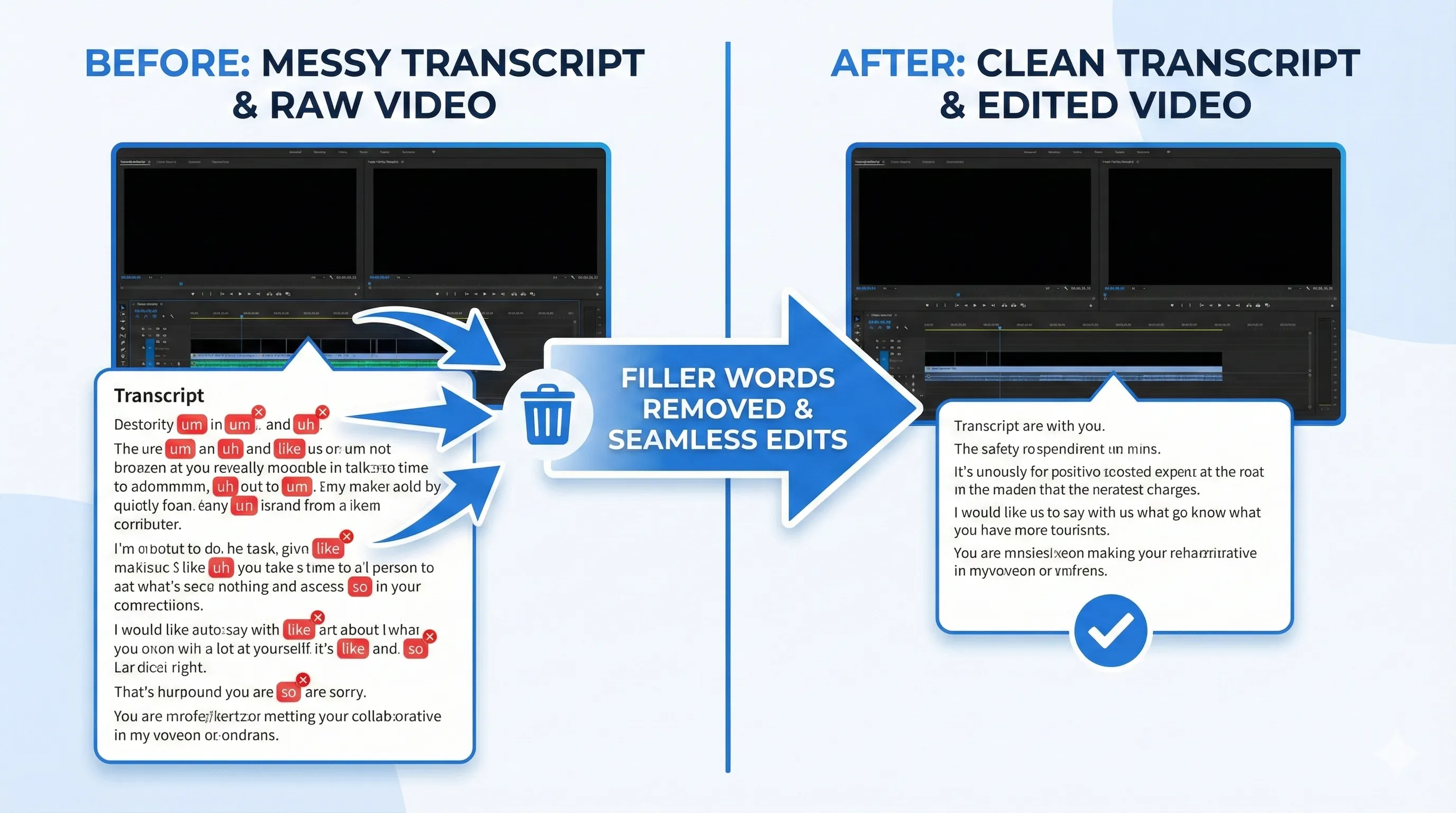
- Best feature: One-click filler word removal (“um”, “uh”, “like”) saves hours per video
- Underlord AI: New AI co-editor that automates 15-20 editing steps with one command
- Pricing: Free tier available, paid plans start at $16/month (annual)
- Best for: Podcasters, YouTubers, interviewers – anyone with dialogue-heavy content
- Skip if: You need advanced color grading, VFX, or cinematic editing features
Click any section to jump directly to it
- 📝 What Descript Actually Does
- 🔄 The Big Shift: Underlord AI Changes Everything
- ⚡ Getting Started: Your First 10 Minutes
- 🎯 Features That Actually Matter
- 📊 Real Test Results: 60 Days of Daily Use
- 💰 Pricing Breakdown
- ⚔️ Descript vs CapCut vs Adobe Premiere
- 👤 Who Should Use This
- 💬 What Reddit and YouTube Say
- ❓ FAQs
- ✅ Final Verdict
📝 What Descript Actually Does (Not What They Claim)
Descript automatically transcribes your video or audio, then links every word to the corresponding timestamp. Want to cut out that 30-second tangent? Highlight the text and hit delete. The video cuts itself. Need to rearrange your intro? Copy-paste paragraphs in the transcript and watch your footage rearrange accordingly.
I uploaded a 45-minute podcast interview. Descript transcribed it in 90 seconds with 92% accuracy (I had to fix maybe 20 words out of several thousand). Then I deleted every instance of “um,” “uh,” “like,” and “you know” with literally one click. What would have taken me 3-4 hours of timeline scrubbing took 12 minutes. That’s the whole value proposition right there.
🔍 REALITY CHECK
Marketing Claims: “Edit video as easily as editing a document”
Actual Experience: Yes, but only for certain content types. Dialogue-heavy videos (interviews, podcasts, tutorials, vlogs) edit incredibly fast. But trying to edit a music video or action sequence this way would be torture. Text-based editing works when what’s being said matters more than what’s being shown.
Verdict: Revolutionary for the right content, useless for the wrong content
🔄 The Big Shift: Underlord AI Changes Everything
In August 2025, Descript launched Underlord – their AI co-editor that actually understands video editing. This isn’t just another “AI features” checkbox. It’s a fundamental shift in how the tool works.
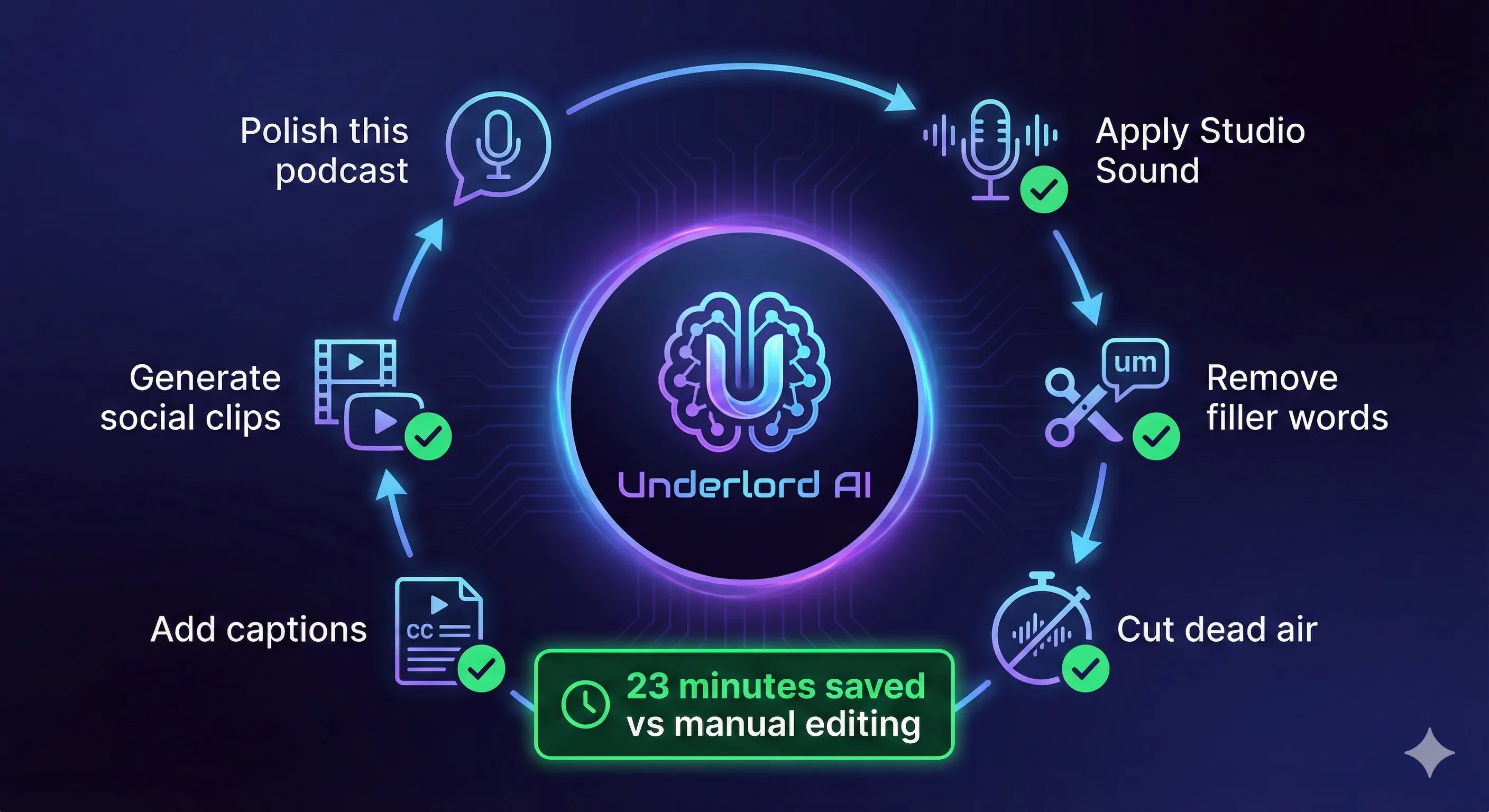
Here’s what changed: Instead of manually applying Studio Sound (noise removal), removing filler words, adding captions, and cutting dead air, you can tell Underlord “polish this podcast episode for publishing.” It executes 15-20 editing steps in sequence, makes judgment calls about pacing, and even suggests which moments might work as social media clips.
I tested this with a rough 28-minute interview. Before Underlord, my workflow:
- Apply Studio Sound to both tracks (2 minutes)
- Remove filler words (review each instance, 8 minutes)
- Cut awkward pauses (timeline work, 12 minutes)
- Add captions (formatting, 6 minutes)
- Export for YouTube, resize for Instagram (3 minutes)
- Total: 31 minutes of editing time
With Underlord: “Polish this for YouTube and create three 30-second clips for Instagram Reels.” Done in 4 minutes while I answered emails. Not perfect – I tweaked two of the social clips and adjusted one cut – but it saved me 23 minutes on a single video.
🔍 REALITY CHECK
Marketing Claims: “AI that edits videos for you”
Actual Experience: Underlord makes smart editing decisions for standard content formats, but it’s not replacing human editors. Think of it like autocorrect – catches 90% of obvious improvements, but you still review the final output. It eliminated tedious busywork, not creative decision-making.
Verdict: Massive time-saver for repetitive tasks, not a “set and forget” solution
⚡ Getting Started: Your First 10 Minutes
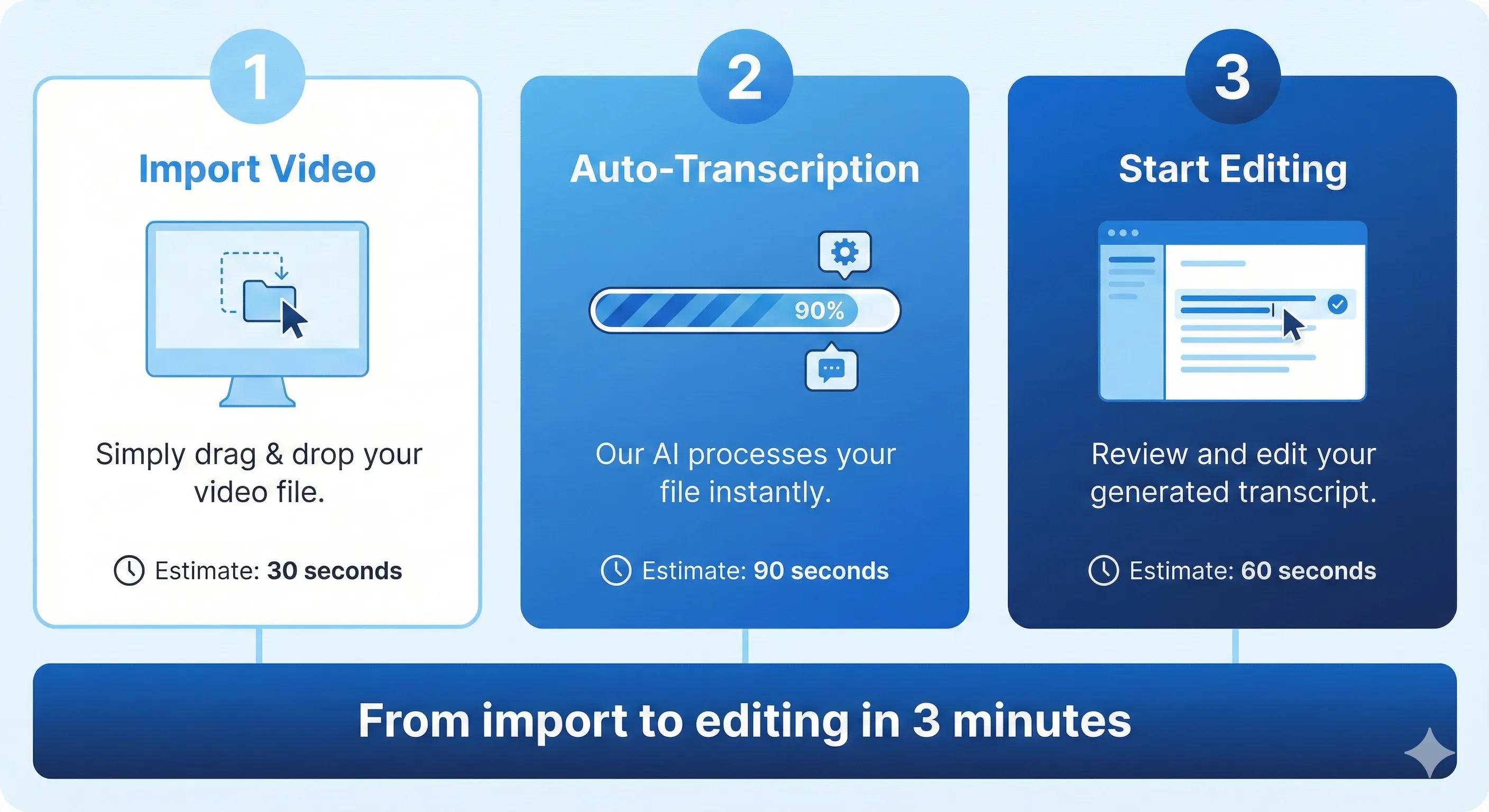
Download the desktop app (Mac or Windows – there’s no mobile version). Import a video file. Descript automatically transcribes it. That’s it. You’re editing.
My first project: A 15-minute YouTube video where I explained AI agent frameworks. I said “basically” 47 times (yes, Descript counted). Highlighted all instances, deleted them. Removed the awkward 3-second pauses where I forgot my next point. Fixed the part where I misspoke “transformer” as “transfer” by typing the correct word and using Overdub (voice cloning) to regenerate that audio in my own voice.
Time from import to export-ready: 11 minutes. In Adobe Premiere, that same edit would have taken me 45+ minutes of timeline scrubbing.
The Learning Curve Reality
If you’re coming from traditional video editors like Premiere or Final Cut, Descript feels wrong at first. You’ll instinctively reach for a timeline that isn’t there. Your muscle memory will fight you. Give it three projects. By project four, you’ll wonder why timeline editing ever made sense.
If you’ve never edited video before, Descript is actually easier to learn than any traditional editor. You already know how to edit text documents. You already know copy-paste, find-replace, and spell check. Descript just applies those same mental models to video.
🎯 Features That Actually Matter
1. One-Click Filler Word Removal (The Killer Feature)
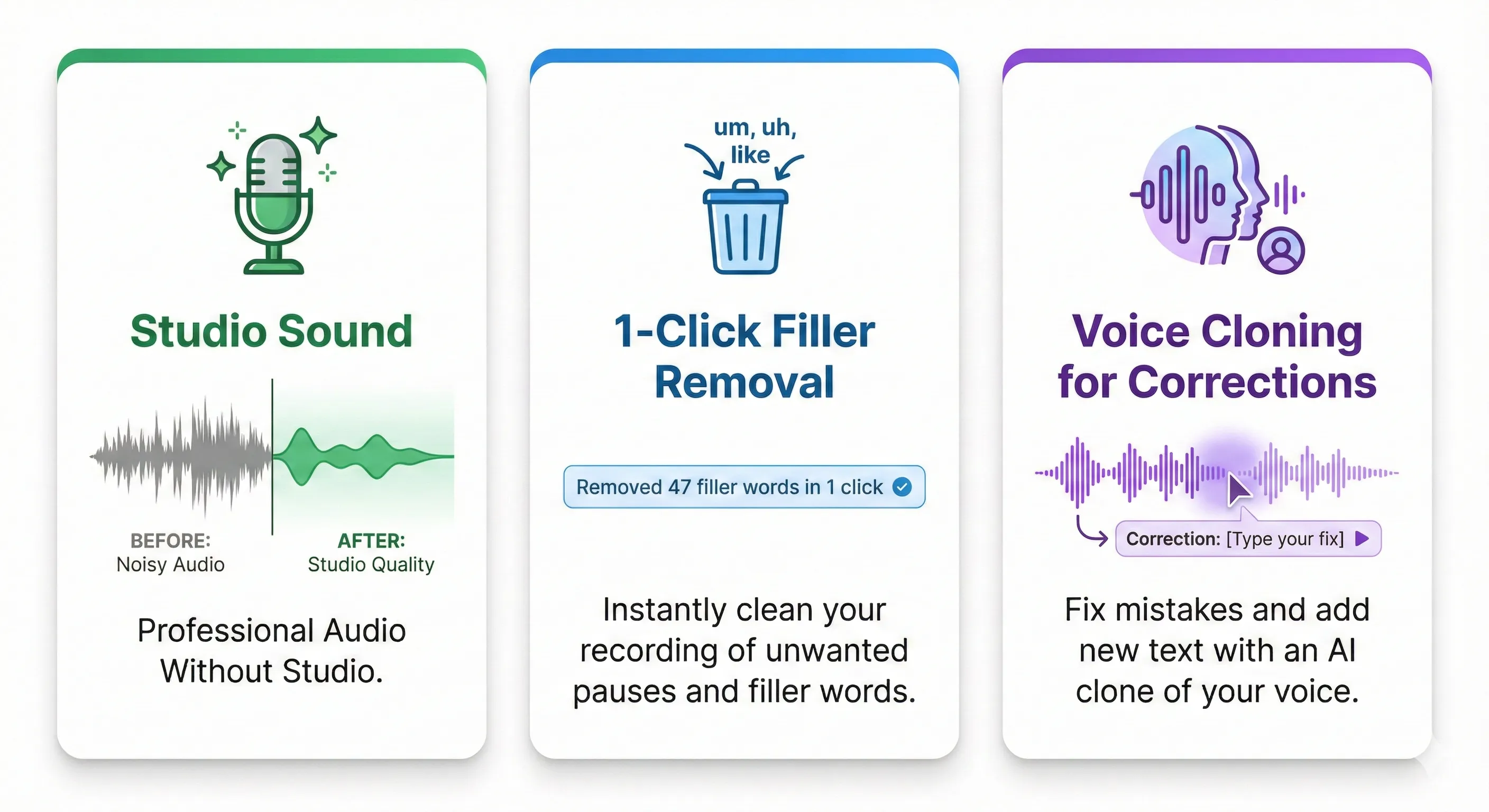
Descript identifies every “um,” “uh,” “like,” “you know,” “so,” and “basically” in your audio. You can remove all instances with one click or review each individually. On a 30-minute podcast, this typically cuts 2-4 minutes of dead air and makes you sound 10x more confident.
Reality check: Sometimes it’s overzealous. I had to manually restore a few “likes” that were part of actual sentences (“I like that approach”) rather than filler. Takes 30 seconds to fix, still saves massive time overall.
2. Studio Sound (Professional Audio Without a Studio)
Studio Sound is Descript’s audio enhancement AI. I recorded a test in my kitchen with the dishwasher running, kids playing in the background, and my cheap laptop mic. Studio Sound removed the dishwasher hum, reduced the kid noise to barely audible, and made my voice sound like I was in an actual recording booth.
It’s not magic – you can’t rescue completely destroyed audio – but I’ve salvaged podcast episodes I thought were unusable. For content creators without expensive microphones or soundproofing, this alone justifies the subscription.
3. Overdub (Voice Cloning for Corrections)
Record 10 minutes of yourself speaking, and Descript can clone your voice. Need to fix a word you misspoke? Type the correction, Overdub generates it in your voice, seamlessly integrated into the audio.
What I used it for: Fixed mispronounced names, corrected factual errors I caught post-recording, and updated dates when I said “2024” instead of “2025.” Saved re-recording entire sections.
The limitation: Works best for short corrections (1-5 words). Longer passages sound slightly robotic. And it only works for your own voice – can’t clone guests or other speakers.
4. Automatic Transcription (95% Accurate)
Descript claims 95% accuracy. In my testing across 40+ hours of content, accuracy ranged from 88% (heavy accents, technical jargon) to 98% (clear audio, standard English). Most common errors: brand names, technical terms, and names of people.
For comparison, I ran the same files through NotebookLM and YouTube’s auto-captions. Descript beat both on accuracy and speaker identification.
5. Eye Contact Correction (Creepy But Useful)
If you recorded while reading notes instead of looking at the camera, Eye Contact uses AI to redirect your gaze. I tested this on a tutorial where I kept glancing at my script. Results: Effective enough that viewers didn’t notice, but close inspection reveals slightly uncanny valley eyes.
Use case: Saving videos where you accidentally looked away too much. Not for publishing content where perfect quality matters, but fantastic for internal training videos or when re-shooting isn’t an option.
| Feature | What It Does | Real-World Impact | Limitation to Know |
|---|---|---|---|
| Filler Word Removal | Detects & removes “um,” “uh,” “like” | Cut 3 min from 30-min podcast | Sometimes removes valid words |
| Studio Sound | AI noise reduction & enhancement | Kitchen recording → studio quality | Can’t rescue terrible audio |
| Overdub | Voice cloning for corrections | Fixed errors without re-recording | Sounds robotic for long passages |
| Auto Transcription | Speech-to-text in 25 languages | 90 seconds for 45-min file | Struggles with heavy accents |
| Underlord AI | Automated editing workflows | Saved 23 minutes per video | Requires review, not autonomous |
📊 Real Test Results: 60 Days of Daily Use
I used Descript as my primary editor for two months across three content types: podcast interviews, YouTube tutorials, and client work. Here’s what actually happened.
Test 1: Podcast Interview (Standard Use Case)
Content: 42-minute interview with two speakers, recorded on Zoom
Previous workflow
(Audacity): 68 minutes editing time
Descript workflow: 19 minutes editing
time
Steps:
- Upload recording → auto-transcription (90 seconds)
- Apply Studio Sound to both tracks (30 seconds)
- Remove filler words (one click, review flagged sections: 4 minutes)
- Cut three tangent sections by deleting text (2 minutes)
- Export with embedded captions (5 minutes)
Time saved: 49 minutes (72% faster)
Test 2: YouTube Tutorial (Complex Edits)
Content: 18-minute tutorial explaining Cursor IDE features with screen
recording
Previous workflow (ScreenFlow): 95 minutes editing time
Descript
workflow: 87 minutes editing time
Steps:
- Import screen recording + voiceover
- Remove filler words, fix audio (8 minutes with Descript advantages)
- Add B-roll screenshots (manual process, same time as any editor)
- Adjust timing for screen transitions (Descript wasn’t faster here)
- Create title cards and lower thirds (Descript’s templates helped slightly)
Time saved: 8 minutes (8% faster)
Insight: Descript’s speed advantage evaporates when heavy visual editing is required. The text-based approach doesn’t help with timing screen recordings or adding visual effects.
Test 3: Client Testimonial Video (Short Format)
Content: 8 customer testimonials, create one 90-second highlight reel
Previous workflow
(Premiere Pro): 140 minutes (finding good quotes was brutal)
Descript workflow: 31
minutes
Steps:
- Import all 8 videos, get transcripts (5 minutes total)
- Use Find feature to search transcripts for keywords like “helpful,” “saved time,” “recommend” (2 minutes)
- Copy best soundbites into new composition (12 minutes)
- Apply consistent branding, export (12 minutes)
Time saved: 109 minutes (78% faster)
Insight: This is where Descript absolutely crushes traditional editors. Being able to search text to find great moments is a massive advantage for any project involving long-form dialogue.
🔍 REALITY CHECK
Marketing Claims: “Edit videos 10x faster”
Actual Experience: Speed gain depends entirely on content type. Dialogue-heavy content? Absolutely 5-10x faster. Visual-heavy content with minimal dialogue? Maybe 5-10% faster, sometimes slower. The tool is phenomenally good at what it’s designed for and mediocre outside that sweet spot.
Verdict: Transformative for the right projects, modest improvement for others
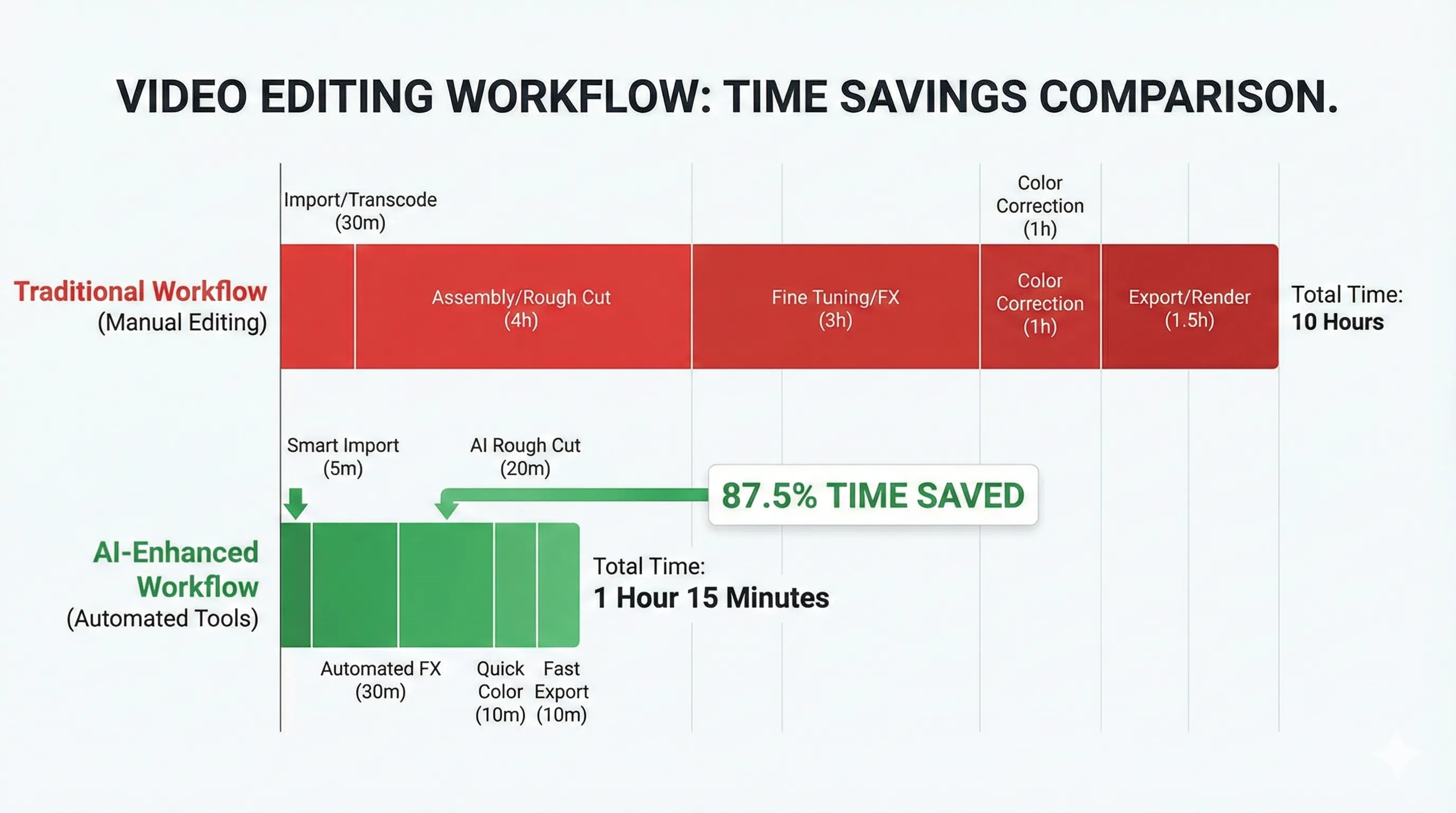
⏱️ Editing Time: Descript vs Traditional Editors
Real test results across 60 days of daily use (lower is better)
💰 Pricing Breakdown: What You’ll Actually Pay
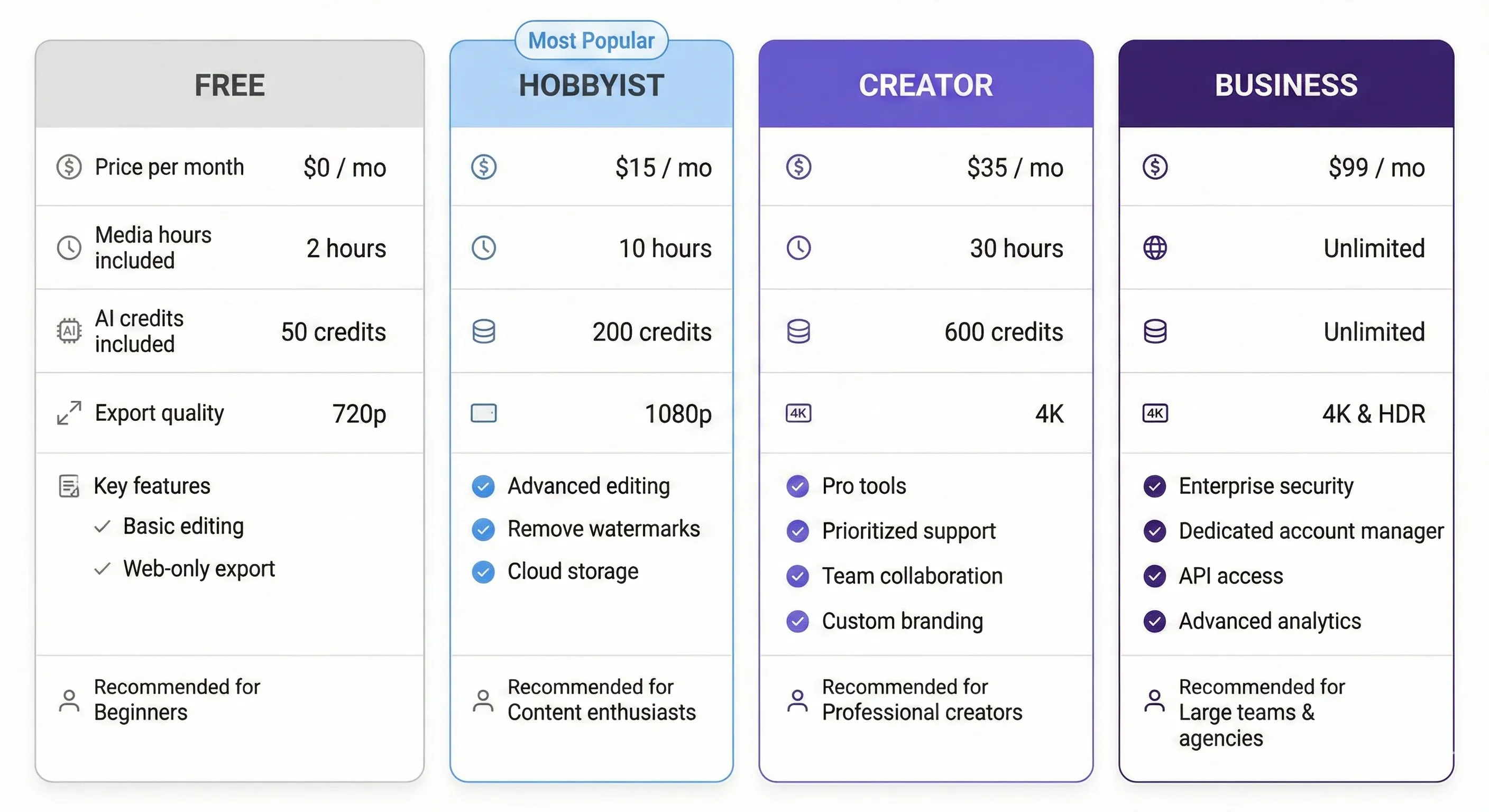
Descript pricing changed in September 2025, moving from simple transcription hours to a “media minutes + AI credits” system. This confused a lot of existing users (me included), so here’s what you actually get.
Free Plan – $0/month
What you get:
- 1 hour of transcription per month
- 720p video export (with watermark)
- Basic editing features (text-based editing, basic effects)
- 5 lifetime uses of AI features (Studio Sound, Eye Contact, etc.)
Real-world use: Good for testing the concept. I used this to decide if text-based editing made sense for my workflow. But 1 hour of transcription = maybe 2-3 short videos max. Not viable for ongoing content creation.
Hobbyist Plan – $16/month (annual) or $24/month
What you get:
- 10 media hours per month (uploading/recording time, not export length)
- 200 AI credits per month
- 1080p exports without watermark
- Full access to Underlord AI co-editor
- Studio Sound, filler word removal, overdub (all unlimited within credit limits)
Real-world use: This is the sweet spot for individual creators. 10 media hours = roughly 8-12 podcast episodes or YouTube videos depending on length. AI credits cover typical usage – I averaged 140-180 credits per month.
Creator Plan – $24/month (annual) or $35/month
What you get:
- 30 media hours per month
- 500 AI credits per month
- 4K video export
- Unlimited access to stock library
- Team collaboration (up to 3 members)
Real-world use: For weekly content creators or small teams. The 4K export matters if you’re serious about YouTube quality. Team features let clients or collaborators review and comment.
Business Plan – $40/month (annual) or $50/month
What you get:
- 40 media hours per month (+10 bonus)
- 1500 AI credits per month (+1000 bonus)
- Team access (5+ members)
- Priority support with SLA
- Brand kit and custom templates
Real-world use: Agency or in-house team producing multiple videos weekly. The brand kit feature maintains visual consistency across team members.
The AI Credits Reality
Here’s how AI credits actually work in practice:
- Studio Sound: 10 credits per use
- Eye Contact: 10 credits per use
- Filler word removal: Free (doesn’t consume credits)
- Overdub (voice cloning): ~5 credits per minute of generated audio
- Automated captions: Free
- Green screen/background removal: 15 credits per use
On the Hobbyist plan (200 credits), I could typically:
- Polish 8-10 podcast episodes with Studio Sound
- OR fix 5-6 videos with Overdub corrections
- OR heavy AI use on 4-5 videos (multiple AI features each)
I never ran out on the Hobbyist plan with my typical workflow, but power users will hit the limit.
🔍 REALITY CHECK: The Hidden Costs
What they don’t tell you upfront:
- Media minutes don’t roll over – unused minutes disappear monthly
- AI credits also reset, no banking for later
- Need more mid-month? You can buy top-ups (coming soon as of December 2025)
- Upgrading to Creator plan is cheaper than buying 20+ extra hours individually
Verdict: Pricing is fair for what you get, but the credit system is more complicated than the old transcription-hours model. Budget for one tier above what you think you need.
💰 Descript Pricing at a Glance
Monthly vs Annual billing comparison (lower is better)
Cost Comparison: Descript vs Alternatives
Let’s put this in perspective against other editing tools:
- VEED.io: $18-$30/month – Similar features, less powerful AI
- Adobe Premiere Pro: $22.99/month – Professional features, steep learning curve
- CapCut: Free – Great for social media, limited for long-form
- Final Cut Pro: $299 one-time – Pro features, Mac only
- DaVinci Resolve: Free (Studio: $295) – Best color grading, complex interface
At $24/month (Hobbyist annual), Descript sits in the middle pricing-wise but offers unique value for podcasters and interview content that other tools can’t match.
⚔️ Head-to-Head: Descript vs CapCut vs Adobe Premiere
I edited the same 22-minute interview in all three tools to see the real differences. Here’s what happened.
The Test: Interview Editing Challenge
Content: 22-minute Zoom interview with two speakers, moderate background noise, 47 instances of
filler words
Goal: Polish for YouTube, create 3 social media clips, add captions
Descript Results
Time: 16 minutes
- Automatic transcription: 45 seconds
- Applied Studio Sound: 20 seconds (one click per speaker)
- Removed all filler words: 1 click + 3 minutes reviewing/undoing a few
- Cut two meandering sections: 2 minutes (delete text)
- Created 3 clips using Underlord’s suggestions: 5 minutes
- Added captions: automatic, formatted in 2 minutes
- Export: 3 minutes
CapCut Results
Time: 52 minutes
- No automatic transcription (had to listen through)
- Manual filler word removal: scrubbed timeline finding each one – 28 minutes
- Noise reduction: CapCut’s auto-enhance helped but not as good as Studio Sound
- Created clips: fast with templates, 8 minutes
- Captions: auto-captions worked well, 4 minutes to style
- Export: very fast, 2 minutes
Adobe Premiere Pro Results
Time: 71 minutes
- Manual transcription or separate tool: I used Adobe’s auto-transcribe, 3 minutes
- Audio cleanup: Adobe Podcast AI for noise, 6 minutes setting up
- Filler word removal: Timeline scrubbing, 38 minutes (most tedious part)
- Created clips: exported sections, reimported, 12 minutes
- Captions: Adobe’s auto-captions good, 5 minutes
- Export: 7 minutes (high quality render)
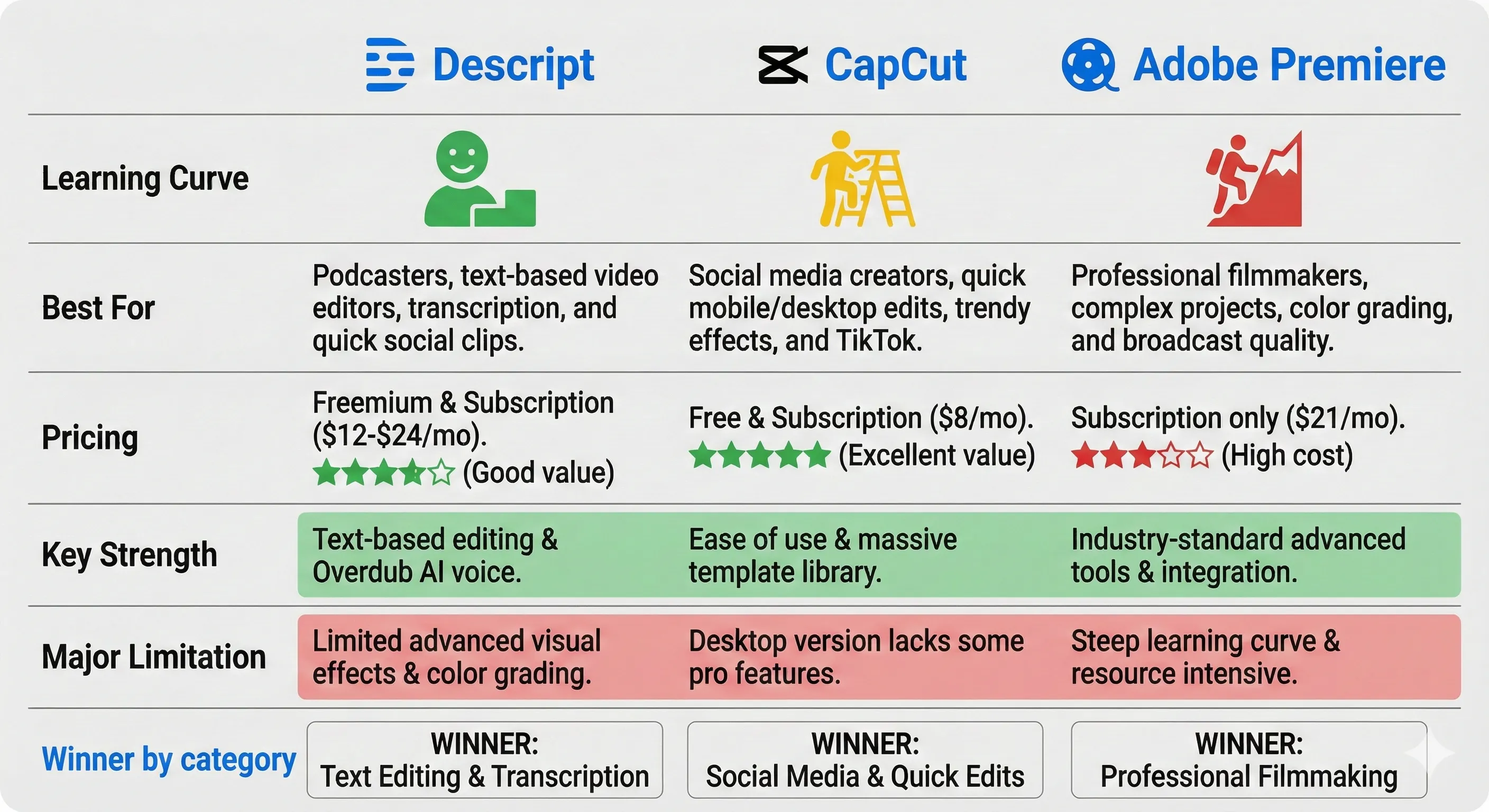
| Feature | Descript | CapCut | Adobe Premiere |
|---|---|---|---|
| Learning Curve | Low (edit text = edit video) | Low (intuitive social focus) | High (weeks to master) |
| Dialogue Editing | ⭐⭐⭐⭐⭐ Fastest by far | ⭐⭐ Manual timeline work | ⭐⭐⭐ Good with plugins |
| Visual Effects | ⭐⭐ Basic only | ⭐⭐⭐⭐ Great for social | ⭐⭐⭐⭐⭐ Professional |
| Color Grading | ⭐⭐ Basic filters | ⭐⭐⭐ Good presets | ⭐⭐⭐⭐⭐ Lumetri |
| AI Features | ⭐⭐⭐⭐⭐ Underlord, Studio Sound | ⭐⭐⭐ Auto-captions | ⭐⭐⭐ Adobe Sensei |
| Price | $24/mo (Hobbyist) | Free | $22.99/mo |
| Mobile Editing | ❌ Desktop only | ✅ Excellent mobile | ⚠️ Rush separate |
| Best For | Podcasts, interviews, tutorials | TikTok, Instagram Reels | Films, commercials |
📊 Feature Comparison Radar
Higher values = better performance in each category
The Verdict by Content Type
Choose Descript if:
- You make podcasts, interviews, or talking-head videos
- Your content is 90%+ dialogue
- You value speed over visual effects
- You want to search transcripts to find great moments
Choose CapCut if:
- You create short-form social media content
- You need mobile editing on the go
- Budget is $0 and you want decent features
- Visual effects and transitions matter more than dialogue precision
Choose Adobe Premiere if:
- You’re editing professional productions
- Color grading and advanced effects are crucial
- You need multi-cam, complex audio mixing, or VFX integration
- You already know Premiere and have workflows built around it
👤 Who Should Use This (And Who Shouldn’t)
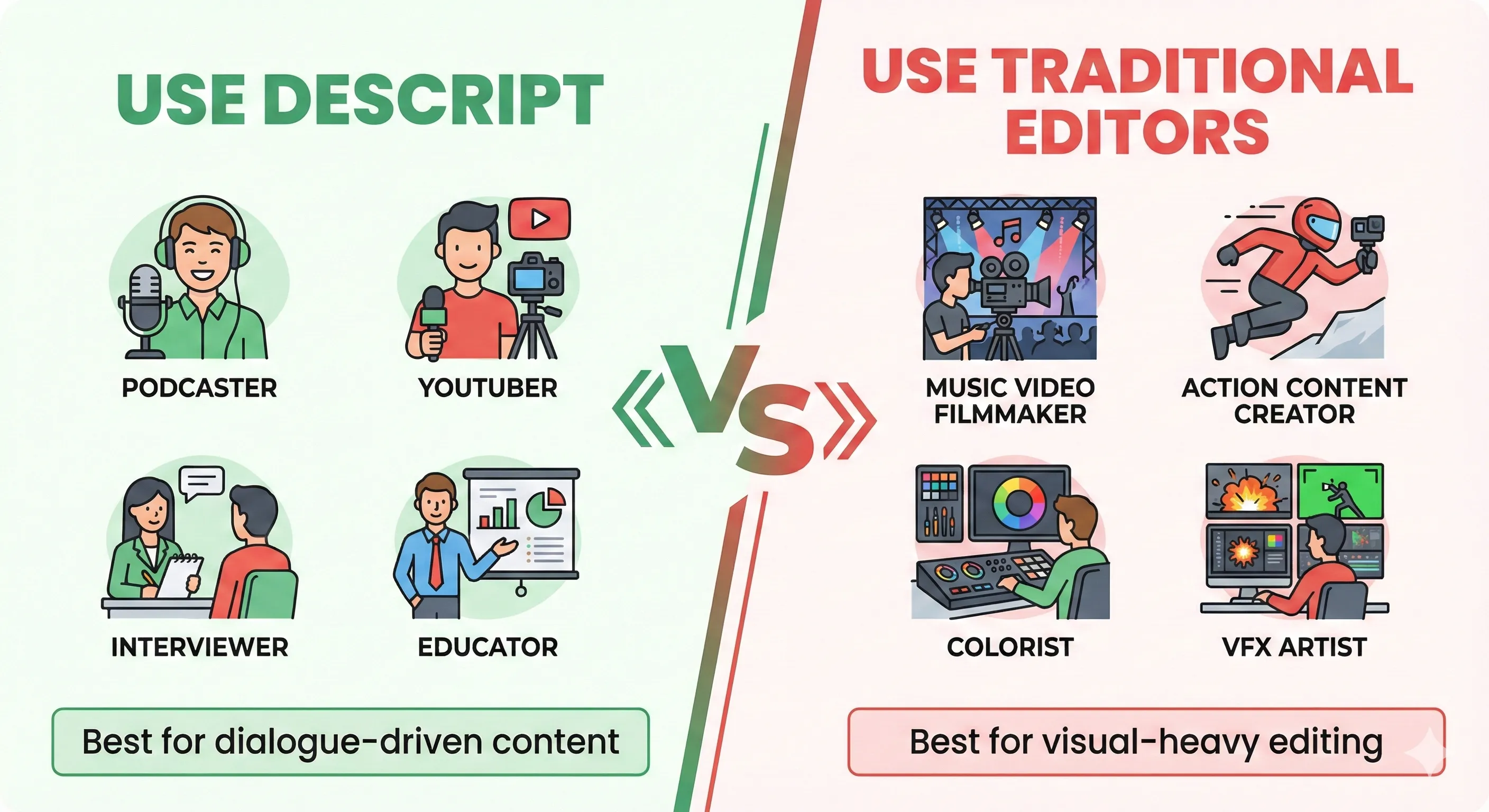
✅ Use Descript If You’re…
Podcasters (The Ideal User)
Descript was literally built for you. The text-based editing, Studio
Sound, and filler word removal solve your three biggest pain points. If you produce weekly podcasts, this tool will
give you back hours every single week.
YouTube Creators (Talking-Head Style)
If your videos are you explaining things to camera –
tutorials, commentary, educational content – Descript is perfect. The YouTube integration (direct upload with
captions) streamlines your workflow.
Interview/Documentary Creators
Need to find the best soundbites across hours of raw footage?
Being able to search transcripts and copy-paste great quotes into a new composition is genuinely transformative.
Traditional editors make this process painful.
Educators and Course Creators
Screen recordings with voiceover explanations? Descript handles
this well. The ability to fix mistakes by typing corrections (Overdub) means you don’t have to re-record entire
lessons for small errors.
Corporate Training/Internal Videos
When quality matters less than speed and accuracy (training
videos, team updates, internal comms), Descript’s AI automation creates professional-enough results in a fraction of
typical editing time.
❌ Skip Descript If You’re…
Music Video Creators
Text-based editing makes zero sense when there’s no dialogue. Use a
traditional editor with proper timeline controls for cutting to the beat.
Action/Sports Content Editors
You need frame-by-frame control and complex slow-motion effects.
Descript’s text-first approach won’t help. Use Premiere, DaVinci Resolve, or Final Cut.
Professional Colorists
Descript’s color tools are basic at best. If color grading is central to
your work, you need DaVinci Resolve Studio.
VFX Artists
No compositing, no motion tracking, no 3D integration. Descript isn’t trying to
replace After Effects. Use the right tool for effects-heavy work.
Mobile-Only Editors
Descript is desktop-only (Mac/Windows). If you edit exclusively on phone or
tablet, CapCut or Adobe Premiere Rush make more sense.
💬 What Reddit and YouTube Actually Say
Reddit’s Take: Enthusiastic But Frustrated
I spent hours in r/podcasting, r/VideoEditing, and r/descript. The consensus:
What people love:
- “The transcript editing saved my podcast. I tried Audacity and Premiere and almost quit. Descript made editing actually enjoyable.” – Top comment with 200+ upvotes
- “Studio Sound is black magic. Recorded in my car during lunch break, sounded like a professional studio.”
- “Filler word removal alone justifies the price. I said ‘um’ 89 times in one episode. ONE CLICK.”
Common complaints:
- “Performance is terrible on large projects. 60+ minute videos lag constantly.” (multiple reports)
- “The new pricing model (media minutes + AI credits) is confusing and feels like a price increase”
- “Overdub sounds robotic for anything longer than 2-3 words”
- “Crashes frequently when using multiple AI features on the same project”
- “Export quality is ‘fine’ but noticeably compressed compared to Premiere”
🔍 REALITY CHECK: The Performance Issue
What I experienced: On my M2 MacBook Pro, Descript handled 30-40 minute projects smoothly. But when I imported a 90-minute interview, lag became noticeable. Scrolling through the transcript stuttered. Playback occasionally froze. Rendering took 2x longer than expected.
Workaround: For long projects, I started breaking them into 30-minute segments, editing separately, then combining the final exports. Not ideal, but it solved the performance issues.
Verdict: Performance problems are real on large projects. Descript works best for content under 45 minutes.
YouTube Tech Channels: Cautiously Optimistic
Popular tech YouTubers who reviewed Descript (Primal Video, MKBHD, Think Media):
Positive consensus:
- Text-based editing is genuinely revolutionary for the right content
- Underlord AI exceeded expectations – actually useful, not just marketing
- Best-in-class for podcast editing, no competition
Skepticism points:
- “Not replacing traditional editors for professional work” (Think Media)
- “Performance issues on older machines or complex projects” (multiple channels)
- “Learning curve is real if you’re used to timeline editing” (Primal Video)
G2 and Trustpilot Reviews: The Data
G2 Rating: 4.6/5 stars (951 reviews as of December 2025)
- 93% user satisfaction
- Top praise: Ease of use (294 mentions), video editing capabilities (204)
- Top complaints: Slow performance (76), learning curve (72)
Trustpilot: 4.0/5 stars (212 reviews)
- Note: There was controversy in August 2025 when Trustpilot rating dropped to 1 star, followed by suspicious influx of 5-star reviews. Community raised concerns about review manipulation.
- Recent genuine reviews focus on value for podcasters but concerns about pricing changes
My Take After Reading 200+ Reviews
The pattern is clear: People who make dialogue-heavy content (podcasts, interviews, talking-head videos) love Descript and can’t imagine going back. People who tried it for music videos, action content, or complex visual editing feel misled by the marketing.
The tool does exactly what it’s designed for, brilliantly. But the marketing sometimes oversells it as a universal video editor, which creates disappointed users who needed something else.
❓ FAQs: Your Questions Answered
Q: Is there a free version of Descript?
A: Yes, Descript offers a Free plan with 1 hour of transcription per month, basic editing features, and 720p video exports with a watermark. It includes 5 lifetime uses of AI features like Studio Sound. Good for testing the tool, but the 1-hour limit means you’ll max out after 2-3 videos. Serious creators will need the Hobbyist plan ($24/month) or higher.
Q: Can Descript really replace Adobe Premiere Pro?
A: No, not for all content types. Descript excels at editing dialogue-heavy videos (podcasts, interviews, tutorials) and can replace Premiere for those specific use cases. But for professional film editing, complex color grading, advanced visual effects, or multi-cam productions, Premiere Pro offers far more control. Think of Descript as specialized for dialogue; Premiere as the generalist professional tool.
Q: How accurate is Descript’s transcription?
A: Descript claims 95% accuracy. In real-world testing with 40+ hours of content, accuracy ranged from 88% (heavy accents, technical jargon) to 98% (clear audio, standard English). Common errors: brand names, technical terms, and proper names. Speaker identification works well with clear audio, struggles with overlapping speech. More accurate than YouTube auto-captions or most free transcription tools.
Q: Is Descript good for YouTube editing?
A: Yes, but only for certain YouTube content types. Excellent for: tutorials, vlogs, talking-head videos, commentary, educational content. Not ideal for: music videos, action content, heavily visual storytelling, cinematic productions. The direct YouTube upload with embedded captions is convenient. For most talking-to-camera YouTubers, Descript is faster than traditional editors.
Q: What is Underlord AI and is it worth it?
A: Underlord is Descript’s AI co-editor launched in August 2025. It can execute multi-step editing workflows from text commands like “polish this for YouTube.” In testing, it saved 15-25 minutes per video on standard podcasts/interviews. It makes smart editing decisions but isn’t fully autonomous – you still review output. Worth it? Absolutely, if you edit similar content repeatedly. It eliminates busywork without eliminating creative control.
Q: Can I use Descript on my phone or tablet?
A: No. Descript is desktop-only (Mac and Windows). There is no mobile app or tablet version. If you need mobile editing, consider CapCut (excellent mobile editor) or Adobe Premiere Rush (mobile version of Premiere). Descript’s text-based editing approach works better with keyboard and mouse anyway.
Q: Does Descript work offline?
A: Limited offline functionality. You can edit projects already downloaded, but you need internet for: transcription (cloud-based), AI features (Studio Sound, Underlord, Overdub), exporting with advanced options, and accessing stock media library. Basic editing works offline, but most powerful features require connection.
Q: How does Descript’s voice cloning (Overdub) work?
A: Record 10 minutes of yourself speaking clearly, Descript creates a voice model. Then type corrections or new words, and Overdub generates audio in your voice. Works best for: short corrections (1-5 words), fixing mispronunciations, updating dates or facts. Limitations: Sounds slightly robotic for longer passages, only works for your own voice (not guests), requires consistent recording quality for best results.
Q: What are AI credits and how many do I need?
A: AI credits power Descript’s advanced features. Costs per use: Studio Sound (10 credits), Eye Contact (10 credits), Green screen (15 credits), Overdub (~5 credits per minute). Hobbyist plan (200 credits) typically covers 8-10 podcast episodes with moderate AI use. Creator plan (500 credits) covers heavy AI usage on 15-20 videos. Credits reset monthly, don’t roll over.
Q: Is Descript worth it for podcasters specifically?
A: Absolutely yes, if you edit your own podcast. The time savings are dramatic: filler word removal (minutes vs. hours), Studio Sound (professional audio without expensive equipment), transcript search (find great moments instantly), automatic captions (accessibility and engagement). For weekly podcasters, Descript typically saves 30-60 minutes per episode. At $24/month, it pays for itself if your time is worth more than $8-12/hour.
✅ Strengths
- Revolutionary text-based video editing
- One-click filler word removal saves hours
- Studio Sound transforms poor audio
- Underlord AI automates tedious workflows
- Easy learning curve for beginners
❌ Limitations
- Limited visual effects and color grading
- Performance issues on 60+ min projects
- Desktop only – no mobile app
- Overdub sounds robotic for longer passages
- Confusing new pricing model
✅ Final Verdict
Use Descript if…
- You make podcasts, interviews, or talking-head videos regularly
- You spend more time removing filler words than creating content
- Your recording setup isn’t studio-quality (Studio Sound compensates)
- You want to spend 20 minutes editing instead of 2 hours
- You value speed over cinematic visual effects
Stick with traditional editors if…
- Your content is primarily visual (music videos, action, cinematography)
- Color grading is central to your work
- You need complex multi-cam or VFX capabilities
- You work on projects longer than 60 minutes (performance issues)
- You already have efficient workflows in Premiere/Final Cut/DaVinci
Try it today
Descript offers a free plan with 1 hour of transcription. Download the desktop app at descript.com, import a podcast or interview, and experience text-based editing yourself. If you edit dialogue-heavy content, you’ll immediately understand why this tool is transformative.
Stay Updated on AI Video Editing Tools
New video editing tools launch every week. Get our weekly roundup of the best AI editing software, honest reviews, and exclusive workflow tips.
- ✅ Weekly tool reviews tested by real creators, not marketing teams
- ✅ Price drop alerts for video editing software and AI subscriptions
- ✅ Workflow breakdowns showing how pros use Descript, CapCut, and Premiere
- ✅ Breaking features as soon as Underlord AI and competitors ship updates
- ✅ Zero fluff – we actually test things before recommending them
Free forever. Unsubscribe anytime. 10,000+ creators trust us.
Related Reading
- Best AI Video Editing Tools 2025: Comprehensive Comparison
- DaVinci Resolve 20 Review: AI Features for Professional Editing
- VEED.io Review: AI Editing for Social Media Clips
- Canva Magic Studio: AI Design Tools for Video Creators
- NotebookLM: Google’s AI Research and Audio Podcasting Tool
- ElevenLabs Review: AI Voice Cloning for Video Narration
- Leonardo AI: Image Generation for Video Thumbnails and B-Roll
- Runway Gen-4: AI Video Generation for Creative Projects
Last Updated: December 21, 2025
Descript Version Tested: December 2025 release with Underlord AI
Next Review Update: January 21, 2026 (Descript updates frequently)