
🆕 Latest Update (December 2025): Canva has officially launched the “Canva
Business” plan. This tier includes full access to the Leonardo.ai “Phoenix” model via Dream
Lab, plus the new Canva Code feature for interactive widgets. Note: Legacy “Teams”
pricing has shifted to a per-seat model.
⚡ TL;DR: Is Canva
Still
Worth It?
- The Good: Dream Lab (powered by Leonardo Phoenix) finally
fixes
AI image text. Magic Switch creates entire decks in seconds. - The Bad: Teams pricing has tripled for small groups.
Video
generation is still weak compared to Runway. - The Verdict: Essential for speed-focused marketers and
solopreneurs. Small agencies should beware the new “per-seat” costs.
The Bottom Line
In late 2025, Canva has evolved from a simple graphic design tool into a massive
“Creative Operating System.” The
integration of Dream Lab (powered by the recently
acquired Leonardo.ai “Phoenix” model) finally
gives it high-end image generation capabilities that rival
specialized tools like Midjourney. It is no longer
just for “quick and dirty” social posts; it is becoming
a legitimate creative powerhouse.
However, the 2025 pricing restructuring—specifically the shift to per-seat pricing for Teams and the
introduction
of the pricier “Business” tier—has made it significantly more expensive for small agencies. A
team of five that
used to pay a flat fee is now looking at a 300% increase.
The Verdict: Canva is still the king of “good enough, fast enough” design. The new AI
features
(Magic Switch, Dream Lab) save hours of grunt work. But if you are a team of 5+ on a tight budget,
the price
hike might force you to look at competitors.
Best for: Solopreneurs, marketing teams needing speed over perfection, and “non-designers”
who
need professional assets instantly.
Skip if: You need granular pixel-level
control (Photoshop/Affinity is still better) or if you
are a small team sensitive to per-user subscription
costs.
Related: Check out our Best AI
Image
Generators of 2025 for dedicated alternatives.
Click to open/close
- 🚀 The “Creative OS”: What Canva Actually Is Now
- 🦁 Dream Lab Deep Dive (The Leonardo Integration)
- 🔥 Stress Test: The 9 AM Deadline
- 💎 Hidden Gems: Canva Code, Sheets & Affinity
- 🎬 Video 2.0: Is It Finally Usable?
- 💸 The 2025 Pricing Restructure
- 🆚 Head-to-Head: Canva vs. Adobe Express
- 🛡️ Enterprise Safety: Canva Shield
- 🔧 Troubleshooting & Pro Tips
- 🗣️ What Users Are Saying
- ❓ FAQs
🎨 The “Creative OS”: What Canva Actually Is Now
If you haven’t logged into Canva since 2023, you might be confused. It used to be a place to drag-and-drop
clipart onto a birthday card. Today, with the launch of Visual Suite 2.0, Canva calls itself
a
“Creative Operating System.”
What does that mean in plain English? It means Canva is trying to kill your need for Google Docs,
PowerPoint,
Photoshop, and Premiere Pro simultaneously. They want you to open Canva in the morning and never leave.
It’s
ambitious, and surprisingly, it’s mostly working. The ecosystem has expanded to include Docs (word
processing),
Whiteboards (collaboration), and even Website building.

The Core AI Engine: Magic Studio
Canva doesn’t have one single “AI Bot” like ChatGPT. Instead, it uses a suite of about 15 different AI
tools
collectively called Magic Studio. These are context-aware buttons that appear when you click
on
an object.
- Click a photo? You get Magic Grab (removes/moves subjects), Magic Expand (extends
borders),
and Magic Edit (generative fill). - Click text? You get Magic Write (rewriting) and Magic Morph (texture effects).
- Click a video? You get Magic Media (generation) and Highlights (clipping).
🔍 REALITY CHECK
Marketing Claims: “The only all-in-one platform you’ll ever need to run your business.”
Actual Experience: It’s an “80% solution.” It does 80% of what Photoshop does, 80% of
what
Premiere does, and 80% of what Google Docs does. For most marketers, that’s perfect. For specialists,
it
feels limited. You will still need specialized tools for high-end work.
Verdict: A jack of all trades, master of… speed.
🦁 Dream Lab Deep Dive (The Leonardo Integration)
This is the biggest update of late 2025. Canva acquired Leonardo.ai earlier this year, and
we
are finally seeing the integration. It’s called Dream Lab, and it lives on your homepage.
The Phoenix Model Difference
Old Canva image generation (powered by basic Stable Diffusion XL) was often “mushy.” Faces looked waxy, hands
had
seven fingers, and text was gibberish. Dream Lab uses Leonardo’s Phoenix model. I tested
it
with a difficult prompt:
“A magazine advertisement for a luxury coffee brand, text ‘MORNING BREW’ written in steam, cinematic
lighting, photorealistic 8k, macro shot.”
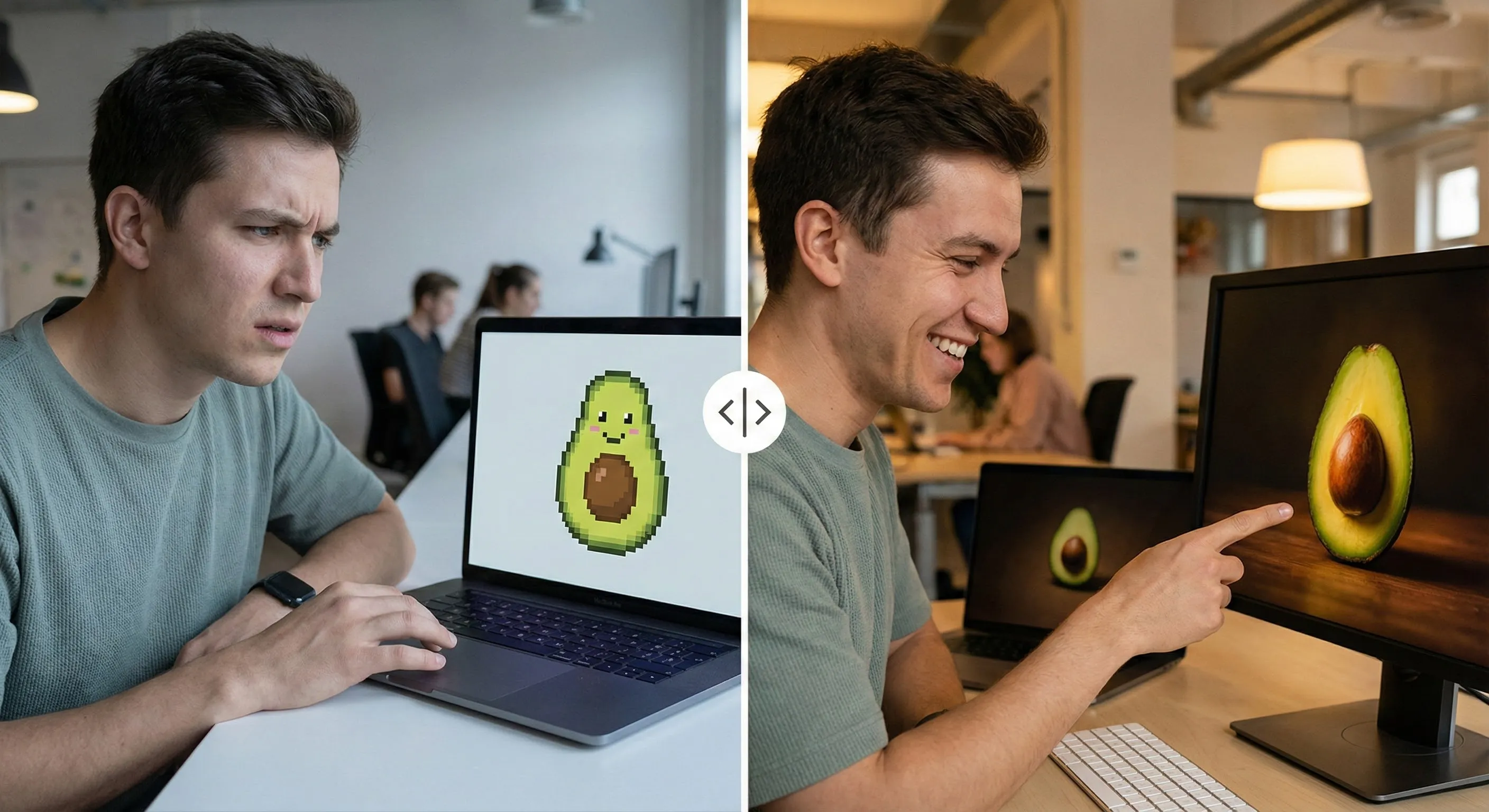
lighting is consistent).
The difference is night and day. The “Phoenix” model actually understands text rendering within
images—something
only top-tier models like Ideogram or Flux could do previously.
The Killer Feature: “Style Reference”
This is what brands have been waiting for. You don’t have to describe a style (“blue line art with yellow
dots”)
anymore. You just upload an image that represents your brand, and Dream Lab uses it as a
style
anchor.
My Test: I uploaded a picture of a rough, hand-drawn architectural sketch. Then I prompted:
“A
futuristic city.”
Result: Dream Lab generated a futuristic city drawn in that exact sketch style.
For
maintaining brand consistency across a slide deck, this is invaluable. It solves the “Random AI Look”
problem
where every image looks like it came from a different artist.
The Credit System Warning:
Dream Lab is not unlimited. Pro users get 500 credits a month. Each image generation costs 1 credit. If you
are
experimenting heavily, you can burn through this in a weekend. Business plans get higher limits (see
Pricing
section).
🔥 Stress Test: The 9 AM Deadline (Magic Switch & Grab)
Features on a landing page are one thing. Using them when your boss is yelling is another. I simulated a
“Panic
Scenario”: I have a 1,500-word blog post and I need a presentation for a meeting in 20
minutes.
I used nothing but Canva Magic Studio to get it done.
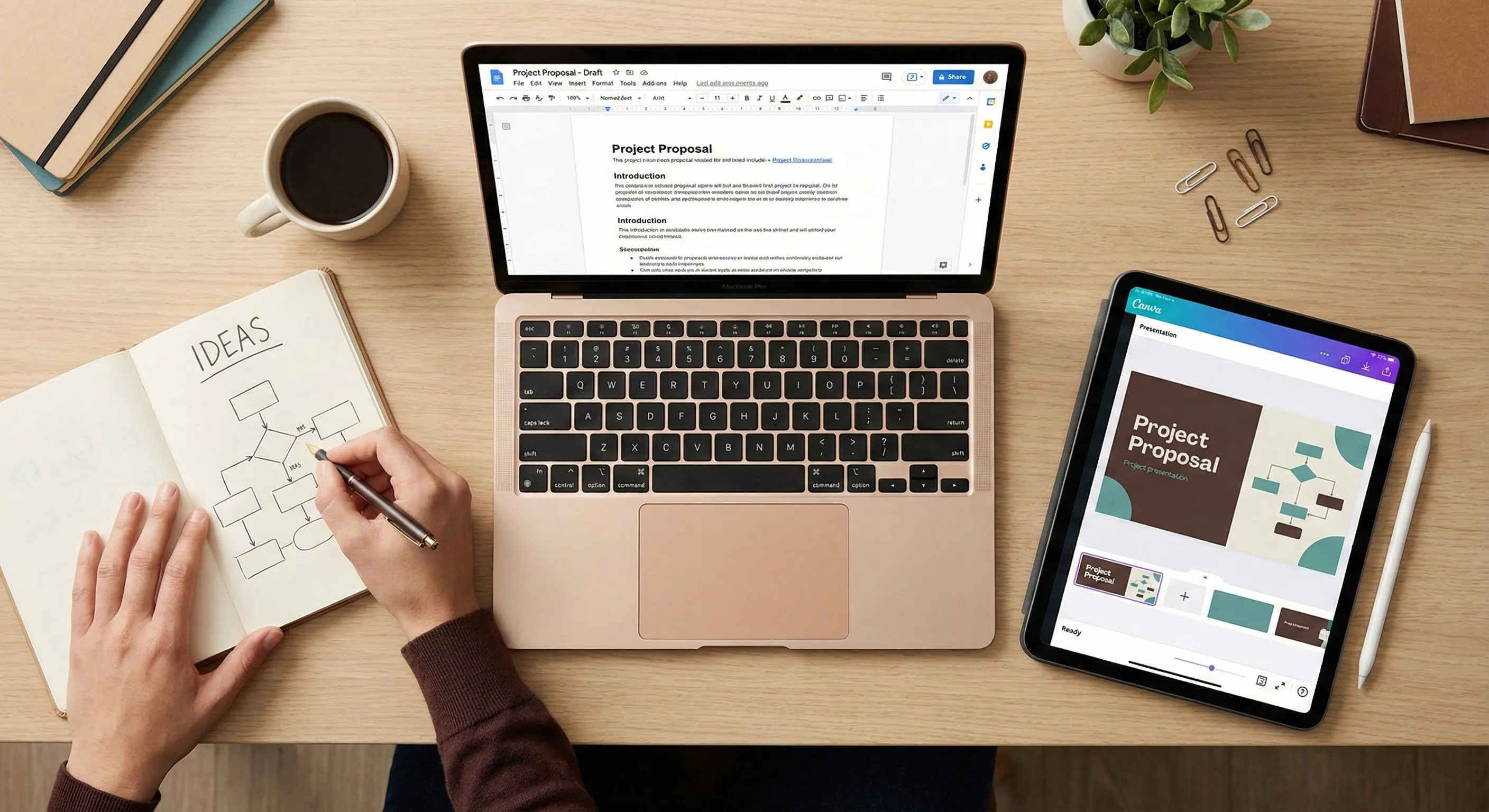
Step 1: Magic Switch (09:00 AM)
I opened the Doc in Canva and clicked “Transform to Presentation.” I selected a corporate template style.
Result: In 45 seconds, I had a 12-slide deck. It successfully pulled the headers as slide
titles
and bulleted the main points.
The Flaw: It summarized too much. It missed the nuance of my third argument, and
it
chose a generic “Corporate Blue” theme that didn’t match our style.
Step 2: Brand Kit & Magic Write (09:05 AM)
I clicked the “Brand” tab and hit “Shuffle.” Instantly, the generic blue turned into our brand’s “Neon Green
and
Black.” Then, I noticed the tone on Slide 4 was too casual. I highlighted the text and selected “Magic Write
>
Rewrite more professional.”
Result: “Here’s the cool thing about this…” became “A key advantage of this approach
is…”
perfect.
Step 3: Magic Grab (09:10 AM)
I had a photo of our product, but the model was standing too far to the left, leaving awkward white space. I
used
Magic Grab to click on her. She instantly became a movable layer. I slid her to the center.
The
AI filled in the background wall behind where she used to be.
Result: Flawless. This used to take me 15 minutes in Photoshop with the Clone Stamp tool.
In
Canva, it took 4 seconds.
Step 4: Magic Morph (The Polish)
To make the title slide pop, I typed “Q4 REPORT” and used Magic Morph to prompt: “Made of
inflated silver mylar balloons.”
Result: A realistic 3D text effect that looked like a high-end render. I dragged it onto
the
cover slide.
Step 5: Magic Animate (09:15 AM)
The slides felt static. I clicked “Magic Animate.” It analyzed the content and applied a “Professional”
animation
set—wipes for images, fades for text.
Verdict: Done with 5 minutes to spare. Is it an award-winning deck? No. Is it better than what
I
could have done manually in 2 hours? Absolutely.

🎬 Video 2.0: Is It Finally Usable?
Video has always been Canva’s weak point. The Video 2.0 update brings “Magic Media”
(Text-to-Video) and “Highlights.” Does it compete with Runway Gen-4?
Text-to-Video (Runway Gen-2 Competitor?)
I prompted: “Drone shot of a coffee shop in Paris, raining.”
The video was 4 seconds long. It moved smoothly, but the people in the background walked slightly
backwards.
It’s fine for a blurred background behind a quote, but you aren’t making a commercial with this.
Specialized
tools are still miles ahead.
The “Highlights” Feature
This is the real winner for business users. You can upload a 60-minute Zoom recording, and Canva uses AI to
find
the “clippable moments.”
My Experience: It found 4 clips from a 30-minute meeting. 2 were perfect insights, 1 was
just
us saying goodbye, and 1 was a random silence.
Verdict: Good for lazy editing, but you still need to watch the clips to verify content.
💸 The 2025 Pricing Restructure (Business vs Teams)
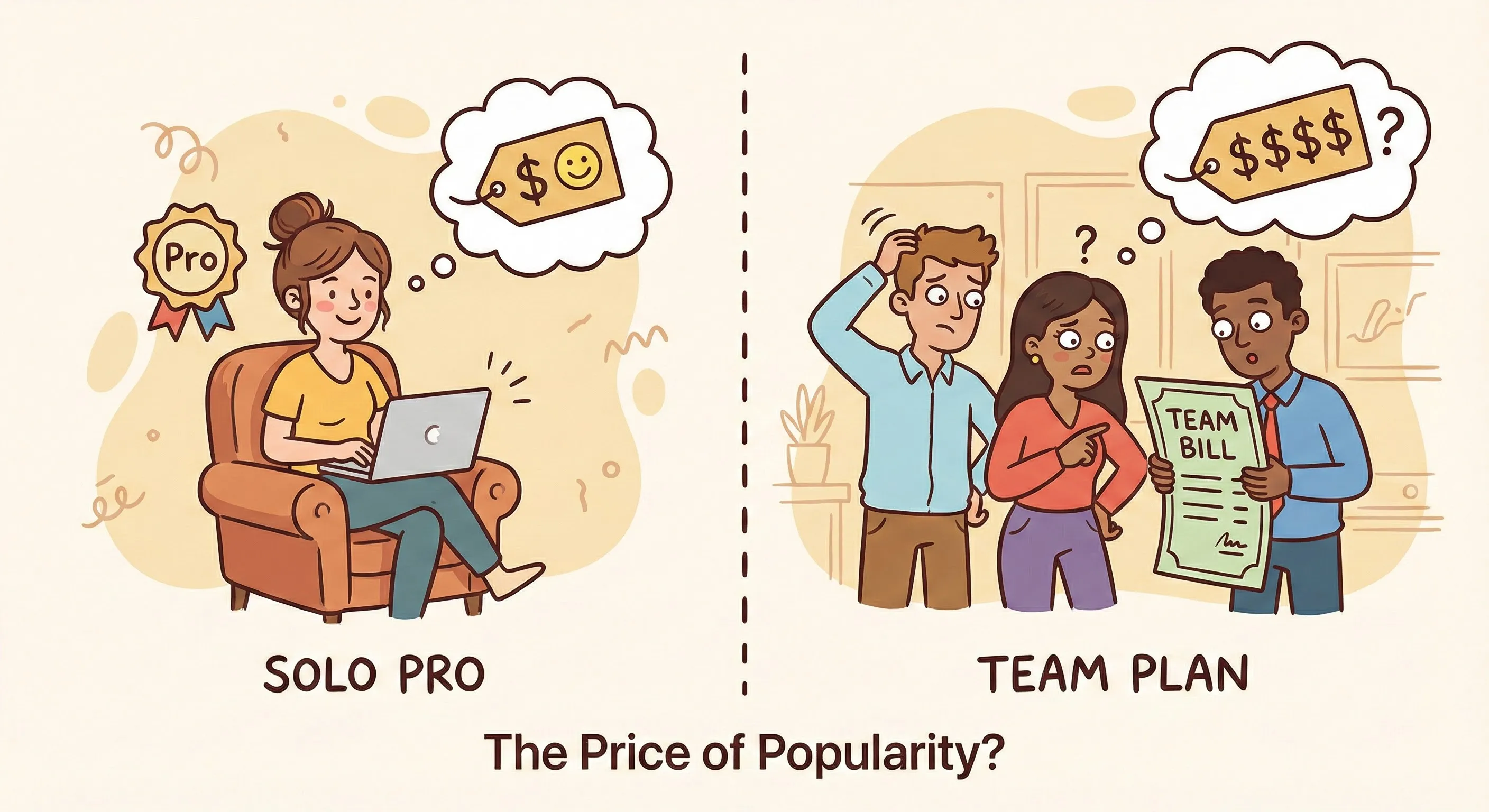
Here is where things get complicated (and expensive). Canva has split its offering into three distinct paid
tiers, and the “Teams” pricing has shifted dramatically.
| Plan | 2025 Price | Key AI Features | Verdict |
|---|---|---|---|
| Canva Pro (Solo) | ~$120 – $150/yr | Dream Lab (500 credits), Magic Switch, 1TB Storage. | Best Value. Still a steal for freelancers. |
| Canva Teams | ~$100/yr PER USER (Min 3) | Same as Pro, but with Team Brand Kits and Collaboration. | The Trap. A team of 5 used to pay ~$150 total. Now they pay ~$500+. |
| Canva Business (New) | ~$240/yr ($20/mo) per user | Includes Leonardo.ai Apprentice Plan, advanced analytics, Canva Shield. | For Power Users. Only worth it if you heavily use Leonardo.ai. |
💡 Swipe left on mobile to see all pricing tiers →
⚠️ PRICE WARNING
The “Teams” Shift: If you are currently on a legacy Teams plan, check your renewal
notice.
Many users are reporting automatic migration to the new per-seat pricing, which can triple your bill
overnight. If you have inactive users on your team, remove them immediately.
🆚 Head-to-Head: Canva vs. Adobe Express (2025)
Adobe Express is fighting hard to reclaim this market. Which one should you choose?
| Feature | Canva Magic Studio | Adobe Express (Firefly) | Winner |
|---|---|---|---|
| Image Gen | Dream Lab (Phoenix Model) | Firefly Image 3 | Canva for creativity. Adobe for “safe” commercial stock. |
| Editing | Magic Grab/Edit (Simple) | Photoshop Integration | Adobe. It connects to real Photoshop files. |
| Typography | Basic Kerning/Leading | Adobe Fonts Library | Adobe. Better font controls hands down. |
| Ease of Use | Intuitive, Fun | Slightly more technical | Canva. My grandmother could use Canva. |
My Take: If you already pay for Adobe Creative Cloud, use Express (it’s included). If not,
Canva
is a better standalone product for non-designers. The interface is simply faster to navigate.
See how Adobe compares in our Best
AI
Video Tools Review.
🛡️ Enterprise Safety: Canva Shield
For business users, the biggest fear is “Will the AI make something offensive?” or “Is my data training the AI?”
Canva Shield is their answer for 2025:
- Indemnification: Enterprise users are legally protected if Canva’s AI generates
something
that gets sued for copyright (similar to Adobe’s promise). - Opt-Out: Teams can toggle a setting to prevent their proprietary designs from being used
to
train Canva’s models. Do this immediately if you work in sensitive industries. - Automated Moderation: It prevents Dream Lab from generating NSFW or copyrighted
character
content. It’s strict—sometimes too strict (it blocked my prompt for “exploding champagne bottle” as unsafe).
🔧 Troubleshooting & Pro Tips
Even with AI, things go wrong. Here is how to fix common Canva AI glitches:
Dream Lab Faces Look Distorted
If Dream Lab generates a person with a “melted” face in the background, don’t delete the image.
Fix: Use the Magic Edit brush. Paint over the face and prompt “Human
face,
sharp focus, smiling.” It uses a different localized model to fix just that area. It works 90% of the time.
Magic Switch Messed Up Fonts
When converting Docs to Slides, Canva defaults to “safe” web fonts to ensure compatibility.
Fix: Before you start editing text, go to the “Design” tab on the left, click “Styles,”
and
click your “Brand Kit” fonts. It will force-apply your custom fonts to every slide in one click.
Video Export is Blurry
You made a crisp 4K video, but the export looks like 720p.
Fix: Check your export settings. Canva defaults to 1080p “Optimized for Social.”
Click
“Download” > “Video Quality” and select “4K UHD.” Note: 4K export takes significantly longer to render in
the
cloud.
🗣️ What Users Are Actually Saying
I scoured Reddit (r/canva, r/socialmedia) and Twitter to see the consensus.
The “Magic Grab” Fan Club:
Users universally love Magic Grab. It’s the most cited “wow” feature. People are using it to fix product
photos
where the framing was off, effectively saving money on reshoots.
The Pricing Revolt:
The mood around the “Teams” price hike is sour. Many small agencies (teams of 3-5) are downgrading to
individual
Pro accounts and just sharing logins (which violates TOS, but is happening). The new “Business” plan is seen
as
expensive unless you really need the Leonardo.ai integration.
The “Canva Look” Fatigue:
Designers are noting that Dream Lab images, while good, often have a specific “glossy” look if you don’t use
the
Style Reference feature. Over-reliance on default templates is making LinkedIn feeds look identical.
FAQs: Your Questions Answered
Q: Is Dream Lab included in the free plan?
A: Technically yes, but with severe limits. Free users get about 20 “credits”
(generations)
for life to try it out. To use it regularly, you need a Pro plan (500 credits/month).
Q: What is the difference between Canva Teams and Canva Business?
A: Canva Teams is the standard collaboration plan (~$10/user/mo). Canva Business
(~$20/user/mo) is a new higher tier that adds the Leonardo.ai Apprentice plan, advanced analytics, and
“Canva Shield” indemnification.
Q: Can I copyright images created in Dream Lab?
A: Currently, the US Copyright Office states that AI-generated images cannot be
copyrighted.
However, you can use them for commercial projects. You own the ‘usage’ rights, but you cannot stop
others
from using similar AI generations.
Q: Does Canva Code write actual Python or Javascript?
A: It generates web-based code (HTML/CSS/JS) to create visual widgets on the Canva
canvas.
It is not an IDE for software development; think of it as a ‘widget builder’.
Q: Is Canva AI better than Midjourney?
A: For ease of use and workflow integration, yes. For pure artistic fidelity and
texture,
Midjourney v6 is still slightly superior. Dream Lab (Phoenix) closes the gap significantly, especially
for
text rendering.
Q: Can I use Magic Switch to translate documents?
A: Yes. Magic Switch includes a translation feature supporting over 100 languages. It
preserves the design layout while translating the text.
Q: How does the ‘Style Reference’ in Dream Lab work?
A: You upload a reference image. The AI analyzes the color palette, lighting, and
texture,
and applies those attributes to your new prompt to match the vibe.
Q: Is there a student discount?
A: Yes. Canva for Education is 100% free for K-12 teachers and their students. This
includes
most Pro features but may have stricter guardrails on AI generation tools.
Stay Ahead in the Creative AI Revolution
Don’t let the tools outpace you. Join 50,000+ creators getting our weekly “No-Fluff” AI
design
guides.