
🆕 Latest Update (March 6, 2026): Google Vids now supports vertical (9:16) and square (1:1) video, and the max video length has been expanded to 30 minutes. AI features (Veo 3 text-to-video, AI avatars, Help Me Create) available on all Workspace plans. Business Starter users get full AI access through at least May 31, 2026. New AI limits enforcement began March 1, 2026 for some Workspace tiers.
The Bottom Line
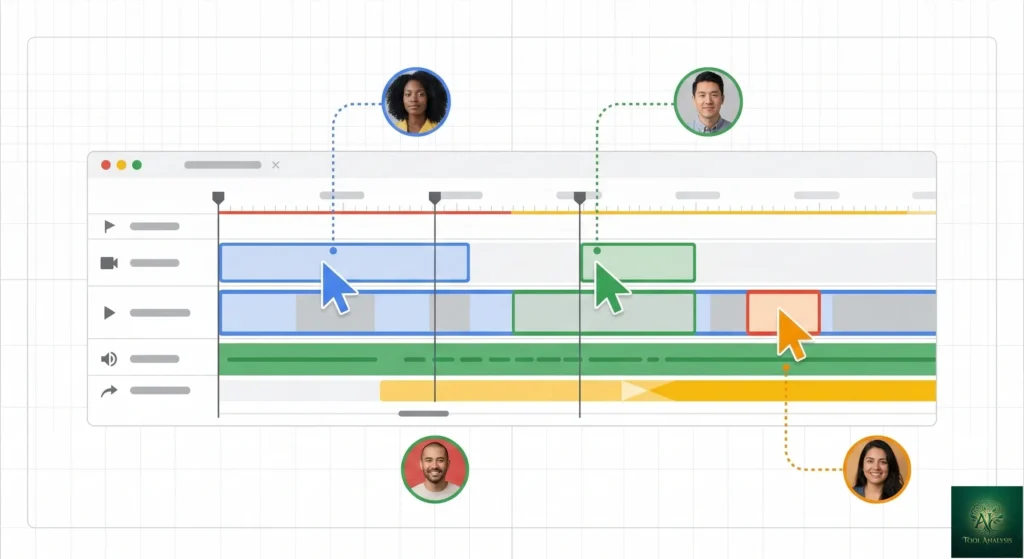
What it is: Google Vids is an AI-powered video creation app built into Google Workspace. Think of it as “Google Docs for video.” You describe what you want, and Vids generates a storyboard, suggests scenes, adds stock footage, creates AI voiceovers, and even generates 8-second video clips from text using Veo 3. Real-time collaboration works exactly like Google Docs, meaning your whole team can edit the same video simultaneously.
Free vs paid: Basic video editing is free for anyone with a Google account. The AI features that make Vids genuinely useful (Veo 3, AI avatars, Help Me Create) require Google Workspace ($7-22/user/month) or a consumer Google AI Pro plan ($19.99/month). If your business already pays for Workspace, you may already have access without spending an extra dollar.
One major limitation: Videos are capped at 30 minutes maximum. This is a workplace communication tool, not a YouTube production suite. Desktop-first editing, with mobile limited to viewing only.
Best for: Business teams creating training videos, product demos, internal announcements, and client presentations. Anyone already in the Google ecosystem who wants video creation without learning editing software. Educators building course content.
Skip if: You create long-form content beyond 30 minutes, you want cinematic AI video generation (use Google Flow instead), or you need advanced timeline editing (use DaVinci Resolve or Premiere Pro). For the full landscape of AI tools across categories, see our complete AI tools guide.
⚡ TL;DR – The Bottom Line
What It Is: Google’s AI video maker built into Workspace — describe what you want and it generates a storyboard with stock footage, voiceovers, and Veo 3 AI clips.
Best For: Business teams making training videos, product demos, and internal announcements who already use Google Workspace.
Price: Free basic editing for all Google accounts. AI features included with Workspace ($7-22/user/mo) or Google AI Pro ($19.99/mo).
Our Take: The best collaborative video tool for Workspace teams — unmatched real-time editing, but AI storyboards need heavy refinement (expect to customize 60-70% of what it generates).
⚠️ The Catch: 30-minute cap, desktop-only editing, and AI-generated scenes often miss the mark — this is a first-draft generator, not an autopilot.
📑 Quick Navigation
What Google Vids Actually Does
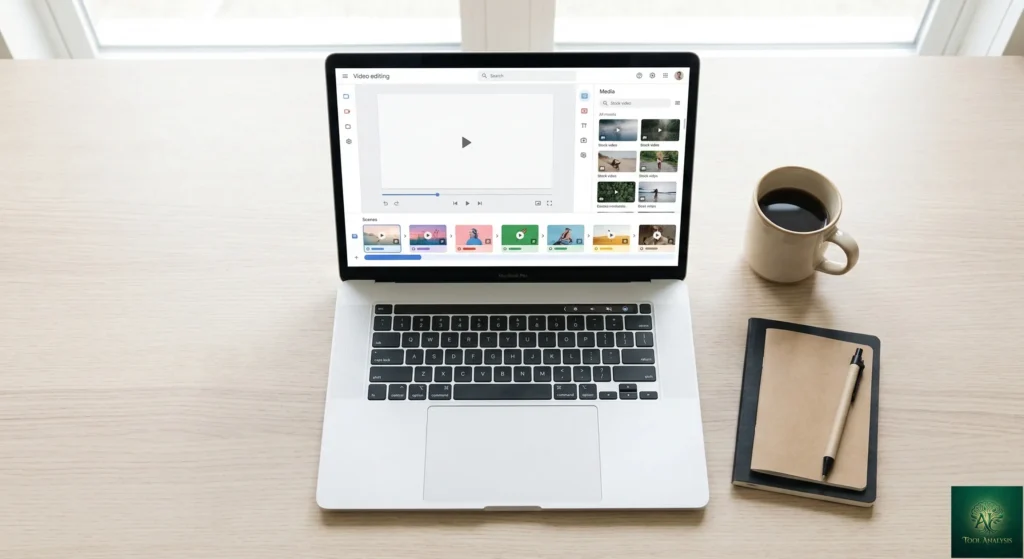
Here’s the simplest way to understand Google Vids: imagine if Google Slides and a video editor had a baby, and that baby was raised by Gemini AI. You work with “scenes” instead of slides, each scene holds video clips, images, text overlays, and audio. The AI helps you build the whole thing from a single text prompt.
The “Help Me Create” feature is the centerpiece. Type something like “Create a 3-minute onboarding video for new employees at a marketing agency” and Vids generates a complete storyboard with suggested scenes, stock footage, background music, and text. You can also feed it a Google Doc or Slides presentation using the @ symbol, and Vids builds a video that follows your existing content. This is where Vids saves the most time. Instead of starting from a blank timeline, you start from a nearly-finished draft.
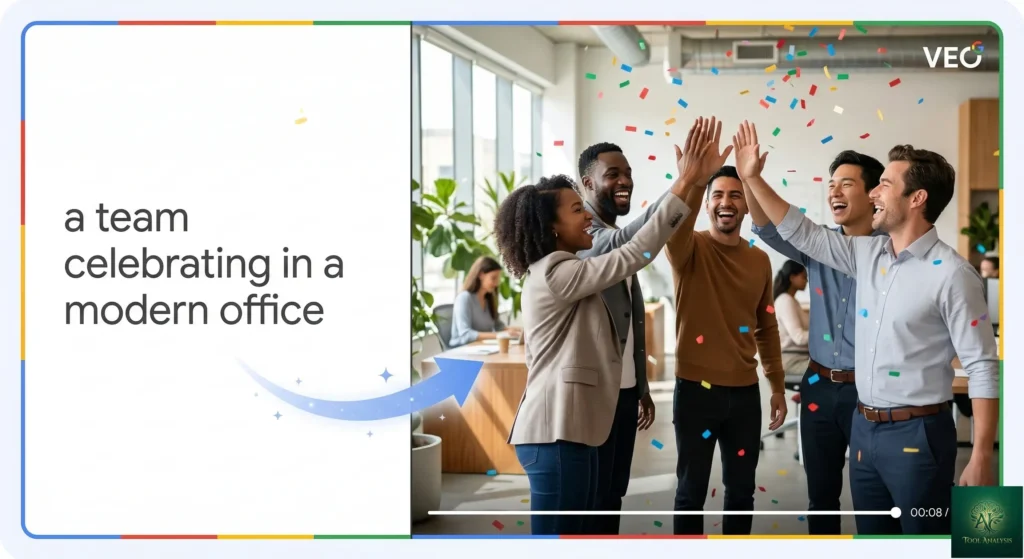
The Veo 3 integration (added late 2025) is the most exciting addition. You can generate 8-second AI video clips from text prompts with realistic motion and native audio. Type “a team celebrating hitting their quarterly goals in a modern office” and Veo 3 creates a short clip you can drop into your video. It’s not going to replace your B-roll footage library, but for quick internal videos, it’s genuinely useful.
AI avatars let you create a virtual presenter from a script. Write your narration text, choose an avatar, and Vids generates a talking-head video segment. This is particularly useful for training content where you want a consistent presenter across dozens of modules without scheduling studio time for each one. As of February 2026, avatars are powered by Veo 3.1 with cartoon styles and support for seven additional languages including Spanish, French, and German.
The recording studio with built-in teleprompter is the underrated feature. Record yourself presenting with your script scrolling on screen, then drop the recording directly into your video. No switching between apps. No export/import dance. For anyone who creates educational or explanation content, this alone saves meaningful time.
And because this is Google, collaboration is native. Multiple people can edit the same video simultaneously, leave comments on specific scenes, and track version history. If you’ve ever tried to collaborate on a video project through email (“attached v3_final_FINAL.mp4”), you’ll appreciate how much friction this removes.
🔍 REALITY CHECK
Marketing Claims: “Tell more engaging stories at work through easy-to-use, collaborative video creation with Gemini.”
Actual Experience: The “easy-to-use” claim is mostly accurate for simple projects. The scene-based interface is genuinely approachable for non-editors. However, the AI-generated storyboards often miss the mark. One tester reported removing nearly all AI-suggested scenes from their first project. The Help Me Create feature works best as a starting framework you’ll heavily customize, not a finished product. Video quality depends heavily on how well you write your prompts.
Verdict: A great first-draft generator, not an autopilot. Expect to spend 60-70% of your time refining what the AI creates, not just clicking “generate” and walking away.
Getting Started: Your First 15 Minutes
Access is easier than you’d expect. Type vids.new into your browser, or open Google Drive and click “New,” then look for Vids. If you have a personal Google account, you’ll get basic editing features. If you have a Workspace account (Business Starter and above), you get the AI features too.
When you start a new project, you’ll see four options: “Help me create” (AI-assisted), “Templates” (50+ pre-built themes), “Record” (direct recording), and “Upload” (bring your own media). For your first video, try “Help me create.” Enter a description like “product demo for a new coffee blend” and watch the AI generate your storyboard.
The AI will produce a multi-scene outline with suggested media, music, and text. Here’s the important part: treat this as a starting point, not the finished product. Review each scene. Swap out generic stock footage with your own images from Google Drive or Google Photos. Rewrite the AI-generated text in your brand voice. Adjust pacing by extending or shortening scenes.
For voiceover, you have three options. You can type text and let the AI narrate it (eight voice options, surprisingly natural-sounding). You can record yourself using the built-in recording studio with teleprompter. Or you can upload your own audio files. The AI narration is good enough for internal videos. For client-facing content, record yourself or use a dedicated voice tool like Fish Audio or Qwen3-TTS.
When you’re done, click “Share” to collaborate or “Download” to export as MP4. Videos auto-save to Google Drive. The entire process from first visit to finished first video takes about 15-20 minutes for a simple 2-3 minute training video.
💡 Key Takeaway: If you’re already using Google Workspace, try typing vids.new in your browser right now. You can have a working first video in 15-20 minutes without installing anything or creating a new account.
Google Vids Review: Features That Actually Matter
Help Me Create (AI Storyboarding) ⭐⭐⭐⭐
Powered by Gemini, this is the headline feature. Describe your video and the AI generates a complete storyboard. You can reference existing Google Docs or Slides using the @ symbol, which dramatically improves output quality because the AI has your actual content to work from. The results are best for structured content (training videos, presentations, announcements) and weakest for creative or emotional storytelling. One educator found it “great for getting a first draft faster” but noted that the AI-suggested scenes needed significant reworking.
Veo 3 Text-to-Video ⭐⭐⭐⭐
Generate 8-second video clips from text prompts with synchronized audio. The quality is impressive for an integrated feature. Clips show realistic motion, decent lighting, and atmospheric sound. However, you’re limited to landscape format and 8-second clips. For comparison, Google Flow with Veo 3.1 offers much more control, longer clips, and ingredients-to-video workflows. Think of Veo 3 in Vids as “quick B-roll on demand” rather than a full AI video production tool. It’s best used for accent clips that add visual interest between your main content scenes.
AI Avatars ⭐⭐⭐
Write a script, pick an avatar, and generate a talking-head presentation. The avatars look professional enough for internal training content. Lip-sync is decent but not perfect. The selection of avatars is limited compared to dedicated avatar tools like HeyGen or Synthesia. Where this shines: creating consistent training content across dozens of modules without booking a presenter for each one. Where it falls short: anything client-facing or public where slightly uncanny facial expressions could distract.
Recording Studio with Teleprompter ⭐⭐⭐⭐⭐
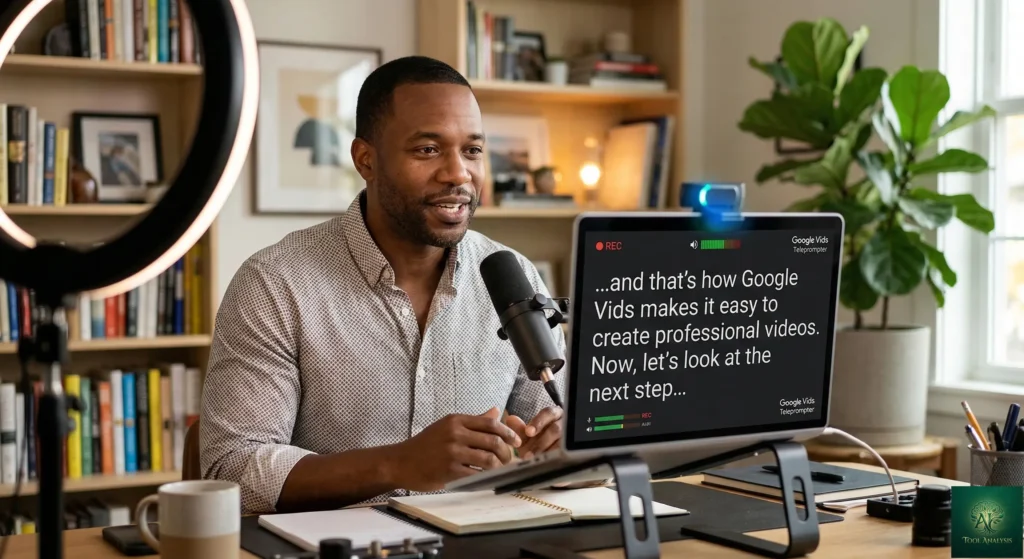
This is the feature that doesn’t get enough attention. Record yourself presenting with your script scrolling on screen, and the recording drops directly into your video project. No export. No upload. No switching apps. For anyone who records explanatory content, tutorials, or presentations, this is a genuine workflow improvement. The AI-powered transcript trimming automatically removes awkward pauses and filler words. If you regularly create talking-head content for your team, this single feature justifies using Vids over competitors that don’t integrate recording so seamlessly.
Real-Time Collaboration ⭐⭐⭐⭐⭐
This is the killer feature no competitor matches. Multiple people can edit the same video simultaneously. Leave comments on specific scenes. Track version history. Share with view-only or edit access. It works exactly like Google Docs collaboration, which means most Workspace users already know how to use it. For teams that currently pass video files back and forth via email or Slack, this alone is transformative.
Stock Media Library ⭐⭐⭐⭐
Millions of royalty-free stock videos, images, and music tracks built in. No hunting for assets on external sites, no licensing worries, no additional cost. The quality is comparable to what you’d find on paid stock sites like Storyblocks. You can also import your own media from Google Drive and Google Photos, making it easy to mix branded assets with stock content.
🌐 Google Vids Feature Strength Profile
🔍 REALITY CHECK
Marketing Claims: “Make video creation as easy as making a doc or a slide.”
Actual Experience: It’s easier than traditional video editing (DaVinci Resolve, Premiere Pro), but “as easy as a doc” is overselling it. The scene-based editor has a learning curve, especially for choosing transitions, timing music, and matching voiceover to visuals. One reviewer called the current version “overly complex and unpolished for the average professional” while acknowledging room for growth. Template customization is limited. The 30-minute cap blocks most long-form use cases.
Verdict: Easier than any traditional editor, but not quite as frictionless as making a Google Doc. Best for structured, internal business content.
📬 Enjoying this review?
Get honest AI tool analysis delivered weekly. No hype, no spam.
Pricing Breakdown: What You’ll Actually Pay
Google Vids pricing is confusing because it depends on which Google plan you’re on. Here’s the simplified breakdown as of March 2026:
| Plan | Monthly Cost | Google Vids Access | AI Features (Veo 3, Avatars, Help Me Create) |
|---|---|---|---|
| Free Google Account | $0 | Basic editing, templates, stock media | No |
| Workspace Business Starter | $7/user/month | Full access | Yes (free through May 31, 2026) |
| Workspace Business Standard | $14/user/month | Full access | Yes |
| Workspace Business Plus | $22/user/month | Full access | Yes |
| Google AI Pro (Consumer) | $19.99/month | Full access | Yes |
| Google AI Ultra (Consumer) | $249.99/month | Full access | Yes (highest limits) |
The key insight: if your business already pays for Google Workspace, you likely already have Google Vids with AI features at no additional cost. Business Starter ($7/user/month) is the cheapest path to AI video creation. That’s less than a single month of Canva Pro ($15/month) or VEED Pro ($24/month), and you’re getting an entire productivity suite alongside it.
For individual creators without Workspace, Google AI Pro at $19.99/month unlocks everything. It includes Google Vids AI, plus access to Gemini Advanced, Flow, and other Google AI tools. You can get the first month free to test it.
Important timing note: Business Starter users currently get full AI features for free, but Google states this is “for a limited time, at least through May 31, 2026.” After that, AI features may require the AI Expanded Access or AI Ultra Access add-ons. AI generation limits enforcement began March 1, 2026 for some tiers. If you’re evaluating Vids, now is the best time to test the AI features while access is unrestricted.
For a deeper look at how Google’s AI tools compare across your entire workflow, check our Gemini Gems review (free GPT alternative) and Google Workspace Studio.
💰 Monthly Cost: Google Vids vs Canva vs VEED
💡 Key Takeaway: If your company already pays for Google Workspace, you're paying $0 extra for Google Vids with AI features. Check your admin console before subscribing to any standalone video tool — you may already have full access.
Head-to-Head: Google Vids vs Canva vs VEED
These are the three tools most readers will be comparing for business video creation. Here's how they stack up on identical tasks:
| Feature | Google Vids | Canva Video | VEED.io |
|---|---|---|---|
| AI storyboard from prompt | Yes (Help Me Create) | Yes (Magic Design) | Limited |
| AI text-to-video | Yes (Veo 3, 8s clips) | Yes (basic) | Yes |
| AI avatars | Yes | Yes (via apps) | Yes |
| Real-time collaboration | Yes (like Google Docs) | Yes (basic) | Limited |
| Vertical video | Yes (9:16 and 1:1) | Yes | Yes |
| Max video length | 30 minutes | Varies by plan | Varies by plan |
| Stock media library | Millions (included) | Millions (Pro) | Included |
| Recording studio | Yes (with teleprompter) | Yes (basic) | Yes |
| Google Drive integration | Native | Via connector | Via connector |
| Price (individual) | $0-$19.99/mo | $0-$15/mo | $0-$24/mo |
| Best for | Workspace teams, training | Social media, marketing | Professional editing |
The verdict: Google Vids wins for teams already in Google Workspace who need collaborative, internal business video. Canva wins for social media and marketing content with more templates and design-first workflows. VEED wins for professional editing features and advanced subtitling. The ideal choice depends on your primary use case, not which tool is "best" overall.
If you're creating marketing content alongside your videos, see how Pomelli handles AI-generated marketing campaigns and product photography for free.
🔍 REALITY CHECK
Marketing Claims: "Google Vids is the only video tool with Google Docs-style collaboration."
Actual Experience: This claim is actually accurate. While Canva offers basic multi-user editing, no competitor matches the depth of Google Vids' collaboration: simultaneous editing, threaded scene comments, full version history, and granular sharing permissions. However, Canva and VEED both beat Vids on template variety, advanced editing controls, and social media optimization features. The collaboration advantage only matters if you actually work on videos as a team.
Verdict: If you regularly collaborate on videos with teammates, Vids is the clear winner. If you're a solo creator, this advantage disappears and Canva or VEED may serve you better.

Who Should Use This (And Who Shouldn't)
Choose Google Vids if: Your team is already on Google Workspace. You create training videos, product demos, internal announcements, or client presentations. You want real-time collaboration on video projects. You need a teleprompter recording setup without extra software. You're an educator building course content. You want Veo 3 AI video generation built into your editing workflow.
Stick with Canva if: You need more template variety and design-first workflows. You want integrated social media scheduling. Your primary output is marketing content, not training or presentations. If you're evaluating Canva alternatives, our AI tool reviews section covers dozens of options.
Choose VEED.io if: You need advanced subtitle and caption tools. You want more professional editing controls than either Vids or Canva offers. You create content for multiple platforms with format-specific exports.
Use Google Flow instead if: You want cinematic AI video generation. You need clips longer than 8 seconds. You want advanced control over camera movements, lighting, and scene composition. Flow is Google's creative filmmaking tool. Vids is Google's workplace communication tool. They solve different problems.
Skip entirely if: You create long-form content over 30 minutes. You want professional-grade timeline editing (use DaVinci Resolve). You're a solo creator without a Workspace account and don't want to pay $19.99/month for Google AI Pro. You need offline editing capability.
What Users Are Actually Saying
Community sentiment is mixed, which is actually helpful for making a decision. The praise and criticism are both specific enough to tell you whether Vids fits your workflow.
What people love: The collaboration features receive universal praise. Multiple reviewers emphasize that no other video tool lets teams edit simultaneously the way Vids does. The recording studio with teleprompter is called a "game-changer" for educators. The Google Drive integration makes media management effortless. One technology reviewer noted that Vids takes care of the heavy lifting for presentation-style videos, especially for people who've never learned traditional editing.
What people criticize: The AI storyboard suggestions are described as "hit or miss" with several testers reporting they deleted most AI-generated scenes. Template customization is limited compared to Canva. One Google Workspace productivity expert called the current version "overly complex and unpolished for the average professional," while noting it has room to grow. Loading and buffering issues during editing are reported, though this varies by connection speed.
The nuanced take: Power users consistently say Vids is best understood as a workplace communication tool, not a general-purpose video editor. It replaces the need to learn DaVinci Resolve for quick internal videos, but it won't replace DaVinci Resolve for anything requiring creative polish. The comparison to Google Slides is apt: just as Slides won't replace Keynote for professional presentations, Vids won't replace dedicated editors for professional video. But for the 90% of business video that doesn't need professional polish, it does the job fast.
💡 Key Takeaway: If you're asking "can Google Vids replace my video editor?" you're asking the wrong question. Ask instead: "Is most of my video content internal training, demos, or announcements?" If yes, Vids handles 90% of that faster than any traditional editor.
The Road Ahead: What's Coming
Short-term (1-3 months): AI generation limits are being enforced starting March 2026 for some Workspace tiers. Google has guaranteed AI features in Vids through at least May 31, 2026 for Business Starter and Education Plus users. Expect ongoing improvements to Veo 3 clip quality and AI avatar realism based on the pace of updates since launch.
Medium-term (3-6 months): Based on Google's pattern with Workspace apps, longer video limits and more mobile editing capabilities seem likely additions. The recent Google Flow update (February 25, 2026) merged Whisk, ImageFX, and Flow into a single creative workspace, suggesting Google is consolidating its creative tools. Deeper integration between Vids and Flow would make Vids significantly more capable for creative video production.
Long-term (6-12 months): Google's investment in Veo 3 (and the upcoming 3.1 improvements) suggests text-to-video capabilities within Vids will grow substantially. If Google follows the pattern of Slides evolving from simple presentation tool to comprehensive storytelling platform, Vids could become the default business video tool for Workspace's 3+ billion users. The question is whether Google commits to Vids long-term or adds it to the graveyard of discontinued Google products. Google's explicit guarantee through May 2026 is reassuring but not permanent.
FAQs: Your Questions Answered
Q: Is Google Vids free?
A: Partially. Basic video editing, templates, and stock media are free for any Google account. The AI features that make Vids genuinely powerful (Veo 3, AI avatars, Help Me Create) require a Google Workspace plan ($7-22/user/month) or Google AI Pro ($19.99/month). If your company already pays for Workspace, check your plan because you may already have access.
Q: Can Google Vids replace a videographer?
A: For internal business content like training videos, team announcements, and product walkthroughs, yes. You can create professional-enough videos in 15-20 minutes that would take a videographer hours. For client-facing marketing content, public product launches, or anything requiring creative storytelling, you'll still want human creative direction. Vids handles the "good enough" business content that doesn't justify hiring a professional.
Q: Is my data safe with Google Vids?
A: Google Vids follows the same data policies as other Workspace apps. For business accounts, your data is covered by the Workspace data processing agreement. However, Google warns that AI features may be reviewed by human reviewers, so avoid sharing confidential information in AI prompts. Standard Workspace security, compliance controls, and admin settings apply.
Q: How does Google Vids compare to ChatGPT or Claude for video?
A: Different tools entirely. ChatGPT and Claude can help you write video scripts, but they don't create, edit, or produce videos. Google Vids is a video creation and editing tool with AI assistance built in. Use Claude to write your script, then bring it into Vids to produce the actual video.
Q: What's the learning curve?
A: If you've used Google Slides, you'll feel at home within 10 minutes. The scene-based editor works similarly to slides. The AI features (Help Me Create, Veo 3) require some prompt-writing skill to get good results. Non-editors can create passable videos in their first session. Producing polished output takes 3-5 projects of practice. Significantly easier than DaVinci Resolve or Premiere Pro, slightly harder than Canva's video editor.
Q: Can I create vertical videos for social media?
A: Yes. As of October 2025, Google Vids supports vertical (9:16) and square (1:1) video formats in addition to landscape (16:9). You can create content for TikTok, Instagram Reels, and YouTube Shorts directly in Vids.
Q: What's the maximum video length?
A: 30 minutes. Google expanded this from the original 10-minute limit in February 2026. You can insert videos from Google Drive (up to 95 minutes or 4 GB) into individual scenes and trim them, but the total project output cannot exceed 30 minutes.
Q: Can I use Google Vids on my phone?
A: You can view videos on mobile, but creation and editing are optimized for desktop browsers (Chrome recommended). Google says the mobile experience is for viewing and quick feedback, not heavy editing. Full mobile editing hasn't been announced.
Q: What's the difference between Google Vids and Google Flow?
A: Vids is for workplace video communication (training, presentations, announcements) with a scene-based editor. Flow is for creative AI filmmaking with Veo 3.1, text-to-video, image-to-video, and cinematic editing tools. Think of Vids as "Google Docs for video" and Flow as "an AI film studio." They target completely different users and use cases. Read our full Google Flow review for details.
Final Verdict
The best collaborative video tool for Google Workspace teams, but AI storyboards need heavy refinement and the 30-minute cap limits scope.
Google Vids solves a real problem for a specific audience: business teams that need to create professional-looking videos without learning video editing. The collaboration features are unmatched. The Veo 3 integration adds genuine AI value. The recording studio with teleprompter is a quiet standout. And if you're already on Workspace, the effective cost is zero.
The limitations are clear and honest: 30-minute cap, desktop-only editing, AI storyboards that need heavy refinement, and an uncertain future beyond May 2026 for some Workspace tiers. These aren't dealbreakers for the target audience (business teams making internal content), but they're real limits that narrow the use case.
✅ What We Liked
- ✓ Unmatched real-time collaboration (Google Docs-level)
- ✓ Recording studio with teleprompter is a genuine time-saver
- ✓ Veo 3 AI clips add real value as quick B-roll
- ✓ Zero extra cost for existing Workspace subscribers
- ✓ Now supports vertical (9:16), square (1:1), and landscape formats
❌ What Fell Short
- ✗ AI storyboards need 60-70% manual refinement
- ✗ 30-minute max video length limits scope
- ✗ Desktop-only editing (mobile is view-only)
- ✗ AI feature access uncertain beyond May 2026 for some tiers
Use Google Vids if your team lives in Google Workspace and needs training videos, presentations, or internal announcements. Use Canva if you need design-first marketing video with more templates. Use Google Flow if you want cinematic AI video. Use DaVinci Resolve if you need professional editing power.
Try it today: Type vids.new in your browser (free for basic features, AI features with Workspace or Google AI Pro)

Founder of AI Tool Analysis. Tests every tool personally so you don't have to. Covering AI tools for 10,000+ professionals since 2025. See how we test →
For more Google ecosystem AI tools, explore our coverage of Gmail AI features, Gemini Gems (free GPT alternative), Pomelli (free AI marketing), and Google Flow (AI filmmaking). For video-specific tools, see our Seedance review and Kling AI guide.
Stay Updated on AI Video Tools
Stay ahead of the creative AI curve. Weekly reviews of AI image generators, video editors, and design platforms — with honest testing, not press releases.
- ✅ Honest Reviews: We actually test these tools, not rewrite press releases
- ✅ Price Tracking: Know when tools drop prices or add free tiers
- ✅ Feature Launches: Major updates covered within days
- ✅ Comparison Updates: As the market shifts, we update our verdicts
- ✅ No Hype: Just the AI news that actually matters for your work
Free, unsubscribe anytime. 10,000+ professionals trust us.
Want AI insights? Sign up for the AI Tool Analysis weekly briefing.
Newsletter

Related Reading
Explore more AI video and creative tool reviews:
- Google Flow VEO 3.1 Review: AI Filmmaking Tool
- Pomelli Review 2026: Google's Free AI Marketing Tool
- Gmail AI Features Review 2026: 5 Gemini Tools Tested
- Seedance Review: AI Video Generator
- Kling AI Complete Guide 2026
- Gemini Gems Review: Free GPT Alternative
- Fish Audio Review: AI Voice Cloning
- Qwen3-TTS Review: AI Text-to-Speech
Last Updated: March 6, 2026
Google Vids Version Tested: March 2026 (Web)
Next Review Update: April 6, 2026
Have a tool you want us to review? Suggest it here | Questions? Contact us