

🆕 Latest Update (February 17, 2026): Claude in Excel now supports MCP connectors, letting you pull data from S&P Global, LSEG, Daloopa, PitchBook, Moody’s, and FactSet directly inside your spreadsheets. The February 5 Opus 4.6 upgrade added native pivot table editing, chart editing, conditional formatting, sort/filter, and data validation. Access expanded to all Pro ($20/month) subscribers.
The Bottom Line
Claude in Excel is basically having a spreadsheet expert sitting next to you who can read your entire workbook, explain any formula, and make changes without breaking anything. Available on all paid Claude plans starting at $20/month for Pro (the same subscription that gives you Claude Code, Cowork, and Agent Teams). No free tier. The February 2026 Opus 4.6 upgrade added native pivot tables, conditional formatting, chart controls, and MCP connectors to financial data providers. One major limitation: usage limits are shared with Claude.ai, so heavy spreadsheet sessions eat into your regular chat allowance. Best for finance professionals, analysts, and anyone who inherits complex spreadsheets. Skip if you only use basic formulas or need VBA automation.
⚡ TL;DR – The Bottom Line
What It Is: An AI sidebar add-in for Microsoft Excel that reads your entire workbook, explains formulas with clickable cell references, and makes edits while preserving dependencies.
Best For: Finance professionals, analysts, and anyone who inherits complex multi-tab spreadsheets they didn’t build.
Price: Included with Claude Pro ($20/month), Max ($100-$200/month), Team, and Enterprise plans. No free tier.
Our Take: The best AI tool for understanding and debugging existing spreadsheets — cell-level citations and cross-tab tracing are genuinely unmatched.
⚠️ The Catch: Usage limits are shared with Claude.ai, so heavy Excel sessions eat into your regular chat allowance. No VBA, Power Query, or chat history between sessions.
📑 Quick Navigation
🔍 REALITY CHECK
Marketing Claims: “Claude understands your entire workbook, from nested formulas to multiple tab dependencies.”
Actual Experience: Claude does trace formulas across sheets impressively and provides cell-level citations. However, complex sensitivity tables and circular references still trip it up. One Wall Street Oasis reviewer reported Claude “kept trying to force the data table solution” even after being told the better approach.
Verdict: Excellent for understanding and explaining models, good for modifications, still needs supervision for building from scratch.
📊 What Claude in Excel Actually Does (Not What Anthropic Claims)
This sidebar add-in puts Anthropic’s AI directly inside Microsoft Excel. Think of it as having a colleague who has instantly read and memorized every tab, formula, and cell reference in your workbook, and can explain any of it in plain English.
The Five-Minute Test: You open a 15-tab financial model someone else built. Instead of spending two hours clicking through cells trying to understand how revenue flows into the summary tab, you press Ctrl+Alt+C (Windows) or Control+Option+C (Mac), and ask: “How is Q3 revenue calculated?”
Claude responds with something like: “Q3 revenue in Summary!C22 is driven by customer acquisition in Inputs!D7 (currently 120 customers), which flows through the Forecast!B14 calculation at $1,500 per customer.” Every cell reference is clickable. You can jump straight to the source. Total time: about 30 seconds for what would take a human 20 minutes of cell-tracing.
Beyond reading and explaining, the tool can modify assumptions while preserving formula dependencies, debug errors like #REF! and #VALUE! by tracing them to their source, fill templates with new data, and build new workbooks from scratch. Every change is tracked and explained before it happens, so you always know exactly what got touched.
The add-in was first released as a beta research preview in October 2025, initially limited to 1,000 testers on Max and Enterprise plans. By January 2026, Anthropic expanded access to all Pro subscribers. Now, with the February 2026 Opus 4.6 upgrade and MCP connector support, it’s the most capable version yet.
🔥 The Opus 4.6 Update + MCP Connectors: What Changed
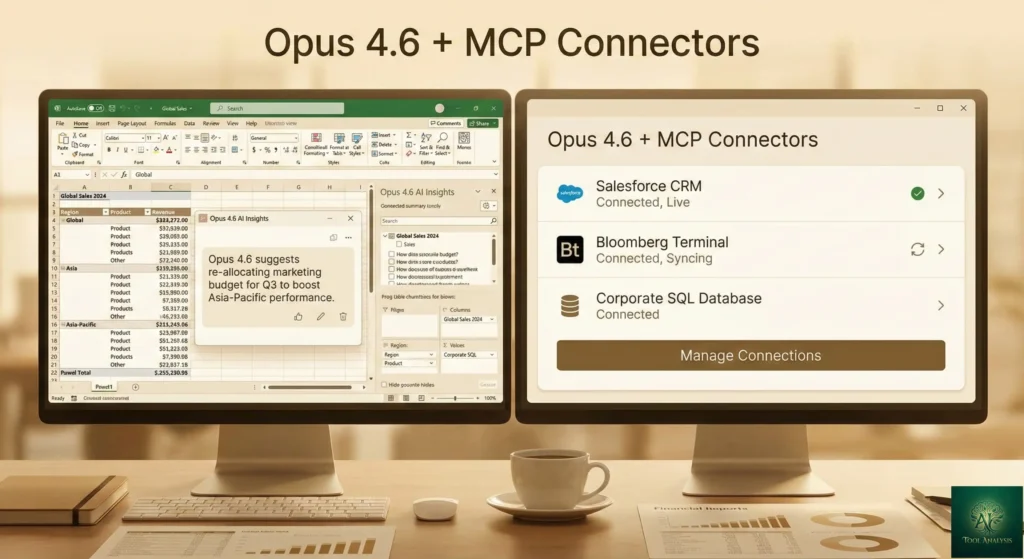
The Opus 4.6 release (February 5, 2026) didn’t just swap in a smarter model. It added a significant set of native Excel operations that bring Claude in Excel closer to a full editing experience. Then on February 17, Anthropic rolled out MCP connector support, connecting your spreadsheets to live financial data.
Pivot table editing lets you sort, filter, and modify the schema of existing pivot tables directly through Claude. Previously, Claude couldn’t touch pivot tables at all, which was a dealbreaker for many analysts.
Chart editing allows adjusting axes, labels, and legends on existing charts. Ask Claude to “change the Y-axis to start at zero” or “add data labels to the revenue bars,” and it handles the formatting directly.
Conditional formatting applies rules based on values or formulas, including data bars. Tell Claude “highlight all cells in column D that are below target” and it creates the appropriate formatting rule.
MCP connectors let you pull context from S&P Global, LSEG, Daloopa, PitchBook, Moody’s, and FactSet without leaving Excel. If you’ve already enabled connectors in your Claude settings, they work in Excel automatically. This means you can ask Claude to populate a DCF model with live market data or compare your assumptions against current consensus estimates.
The underlying model upgrade matters too. According to Anthropic’s benchmarks, Opus 4.6 outperforms its predecessor by 190 Elo points on GDPval-AA, a benchmark measuring performance on economically valuable knowledge work. In practical terms, the model can now plan before acting, ingest unstructured data and infer the right structure without guidance, and handle multi-step changes in a single pass.
💡 Key Takeaway: If you tried Claude in Excel before February 2026 and were frustrated by the lack of pivot table or chart editing, the Opus 4.6 update addresses those gaps directly. It’s worth a second look.
🔍 REALITY CHECK
Marketing Claims: “Handles long-running and harder tasks with improved performance.”
Actual Experience: The Opus 4.6 improvements are real for structured tasks like pivot table manipulation and conditional formatting. Complex multi-step model building (like constructing a full DCF from scratch) still requires significant human guidance. The SumProduct review team noted the tool is “not yet a replacement for experienced modelers but helps automate the setup phase significantly.”
Verdict: Meaningful upgrade for existing spreadsheet work. Don’t expect it to replace a financial analyst for complex model creation.
⚙️ Getting Started: Your First 10 Minutes

Step 1: Navigate to the Microsoft Marketplace listing and install the add-in. You need a paid Claude subscription ($20/month minimum) before installation will work.
Step 2: Open Excel, go to Home > Add-ins (Windows) or Tools > Add-ins (Mac), and activate “Claude by Anthropic.” Sign in with your Claude credentials.
Step 3: Open any spreadsheet and press Ctrl+Alt+C (Windows) or Control+Option+C (Mac). The sidebar appears on the right. Ask your first question about the open workbook.
Step 4: Try something specific. Select a cell with a complex formula and ask “What does this calculate?” Claude will trace the formula’s dependencies across all tabs and explain it in plain English with clickable cell references.
Time to first useful output: About 3 minutes from installation to getting your first formula explanation. The interface is clean and the learning curve is gentle because you’re just typing questions in natural language.
One important tip: Claude in Excel has an “Ask before edits” mode that requests your permission before modifying any cells. Keep this on, especially when working with production spreadsheets. There’s also an “Accept all edits” option for trusted workflows, but start with the guardrails on.
A nice quality-of-life feature: session logging. Turn it on in your settings and Claude creates a separate “Claude Log” tab in your workbook that tracks every action it takes each turn. Helpful for auditing what changed and when.
🧮 Features That Actually Matter

Formula explanation with cell-level citations ⭐⭐⭐⭐⭐ is the standout feature. When Claude explains a calculation, it doesn’t just describe it abstractly. It says “Revenue in C22 comes from Inputs!D7 multiplied by Pricing!B3” with each reference clickable. For anyone who’s inherited a sprawling financial model, this alone justifies the subscription.
Cross-tab dependency tracing ⭐⭐⭐⭐⭐ follows the chain of calculations across your entire workbook. Ask “What drives the final profit number?” and Claude maps the complete flow from input assumptions through intermediate calculations to the output, spanning as many tabs as the model uses.
Assumption modification with formula preservation ⭐⭐⭐⭐ lets you say “Change the growth rate from 5% to 8% and show me how it affects the bottom line.” Claude updates the input cell and shows you every downstream cell that changes, with before-and-after values. It’s like having an instant sensitivity analysis. Before this feature, you’d change the cell manually and then hunt through tabs to see what moved. Now Claude shows you the full impact in seconds.
Native Excel operations (Opus 4.6) ⭐⭐⭐⭐ including pivot table editing, chart modification, conditional formatting, sort/filter, and data validation. These bring the add-in from “smart reader” to “actual editing partner.” The pivot table support in particular fills a gap that frustrated early users for months.
MCP connector integration ⭐⭐⭐⭐ connects to S&P Global, LSEG, Daloopa, PitchBook, Moody’s, and FactSet. For finance professionals, this means you can ask Claude to pull live data into your models without switching applications. Still new (launched February 17, 2026), so expect some rough edges with complex queries.
Error debugging ⭐⭐⭐⭐ traces #REF!, #VALUE!, and circular reference errors to their source and offers fixes. The XDA Developers reviewer described this as “a game-changer for times when I’m staring at a never-ending spreadsheet with no idea what’s going on.”
What the tool still can’t do: VBA macros, Power Query, Data Tables, and advanced charting creation from scratch. The tool can modify existing charts but can’t build complex custom visualizations. For VBA-heavy workflows, you’ll still need Microsoft Copilot or manual coding. Check our ChatGPT Codex review for AI-assisted VBA writing as an alternative.
💡 Key Takeaway: If your primary need is understanding and debugging spreadsheets you didn’t build, Claude in Excel is the best tool available. If you need VBA automation or Power Query, stick with Microsoft Copilot.
🔍 REALITY CHECK
Marketing Claims: “Create pivot tables and charts to visualize your data.”
Actual Experience: The Opus 4.6 update does let Claude edit existing pivot tables and charts effectively. Creating new ones from scratch works for straightforward datasets but struggles with complex data structures that need human judgment about groupings and hierarchies. The “creation” capability is better described as “template-based setup” than “intelligent design.”
Verdict: Good for modifications and simple creation. Complex visualizations still need human setup.
📬 Enjoying this review?
Get honest AI tool analysis delivered weekly. No hype, no spam.
⚖️ Claude in Excel vs Microsoft Copilot vs Gemini in Sheets
The spreadsheet AI market now has three serious contenders. Here’s how they compare on the same core tasks:
| Feature | Claude (Opus 4.6) | Microsoft Copilot | Gemini in Sheets |
|---|---|---|---|
| Formula Explanation | ⭐⭐⭐⭐⭐ Cell-level citations | ⭐⭐⭐ Basic explanation | ⭐⭐⭐ Adequate |
| Cross-Tab Tracing | ⭐⭐⭐⭐⭐ Full dependency map | ⭐⭐⭐ Limited | ⭐⭐ Single sheet focus |
| Pivot Table Support | ⭐⭐⭐⭐ Edit existing (new) | ⭐⭐⭐⭐⭐ Full create/edit | ⭐⭐⭐ Basic pivot tables |
| VBA/Macro Support | ❌ Not supported | ⭐⭐⭐⭐ Full support | ⭐⭐⭐ Apps Script |
| Data Connectors | ⭐⭐⭐⭐ MCP (6 finance sources) | ⭐⭐⭐⭐⭐ Microsoft Graph + Power BI | ⭐⭐⭐ Google Workspace |
| Chat History | ❌ Not saved between sessions | ⭐⭐⭐⭐ Persistent | ⭐⭐⭐ Limited |
| OneDrive Required? | No, local files work | Yes, for Agent mode | N/A (cloud-native) |
| Response Speed | ⭐⭐⭐⭐ Fast | ⭐⭐⭐ Sometimes laggy | ⭐⭐⭐⭐ Fast |
| Conditional Formatting | ⭐⭐⭐⭐ New in Opus 4.6 | ⭐⭐⭐⭐⭐ Full support | ⭐⭐⭐ Basic |
| Session Logging | ⭐⭐⭐⭐ Dedicated log tab | ⭐⭐⭐ Change tracking | ⭐⭐ Version history only |
| Monthly Cost | $20-$200/month | $30/user/month (M365 Copilot) | $0-$20/month |
| Best For | Understanding inherited models | M365-native workflows | Light spreadsheet tasks |
🕸️ Spreadsheet AI Showdown: Claude vs Copilot vs Gemini
The choice comes down to your primary workflow. Choose Claude in Excel if you frequently work with inherited, multi-tab spreadsheets where understanding formula logic is critical. The cell-level citations and cross-tab tracing are genuinely unmatched.
Stick with Microsoft Copilot if you live in the M365 ecosystem, need VBA support, or want persistent chat history. Copilot’s deeper Office integration means it handles presentation-to-spreadsheet workflows better.
Consider Gemini in Sheets if you primarily use Google Workspace and your spreadsheet needs are moderate. It’s the cheapest option (free with Google Workspace) but lacks the depth for serious financial modeling. See our Google Antigravity review for more on Google’s AI ecosystem.
💰 Pricing Breakdown: What You’ll Actually Pay
Claude in Excel doesn’t cost extra. It’s included with your existing Claude subscription. Here’s what each tier gets you:
| Plan | Monthly Cost | Model Access | Usage Limits | Best For |
|---|---|---|---|---|
| Pro | $20/month ($17/month annually) | Sonnet 4.5 + Opus 4.6 | ~45 messages per 5-hour window (shared) | Occasional spreadsheet users |
| Max 5x | $100/month | Sonnet 4.5 + Opus 4.6 | 5x Pro limits | Daily analysts |
| Max 20x | $200/month | Sonnet 4.5 + Opus 4.6 | 20x Pro limits | Heavy power users |
| Team | $25-$150/user/month | Full model access | Higher team limits | Teams/departments |
| Enterprise | Custom pricing | Full model access + SSO | Custom limits | Organizations |
📈 What You’ll Actually Spend Over 12 Months
Cost per actual use case: If you analyze 3 inherited spreadsheets per week (a common scenario for financial analysts), the Pro plan works out to about $1.67 per spreadsheet analysis session. That’s dramatically cheaper than the hour of manual cell-tracing you’d otherwise spend. For comparison, Microsoft Copilot at $30/user/month comes to about $2.50 per session for the same frequency.
The hidden cost: Usage limits are shared across ALL Claude applications. If you spend two hours in Claude.ai researching, your Excel add-in session may hit limits sooner. On the Pro plan, you get roughly 45 messages per 5-hour window shared across the web app, mobile, desktop, and Excel. Heavy spreadsheet users should seriously consider the Max plan at $100/month.
Free alternatives: There’s no free version of Claude in Excel. The closest free options are Gemini in Google Sheets (included with Google Workspace), uploading spreadsheets to free ChatGPT, or using the free tier of Google’s NotebookLM to analyze exported CSV files. None match the live formula-aware integration, but they’ll handle basic questions.
🔍 REALITY CHECK
Marketing Claims: “Included with your Claude subscription at no extra cost.”
Actual Experience: Technically true, but the shared usage limits mean heavy Excel users effectively need to upgrade to Max ($100/month) to avoid constant interruptions. The “$20/month” price is accurate only if your combined Claude usage stays within Pro limits.
Verdict: Budget $20/month for occasional use, $100/month for daily analyst workflows.
🎯 Who Should Use This Tool (And Who Shouldn’t)
Choose Claude in Excel if:
You inherit spreadsheets you didn’t build. If you’ve ever opened a workbook with 15+ tabs, color-coded cells, and zero documentation, the cell-level citations and cross-tab tracing will save you hours every week. This is the tool’s sweet spot.
You’re a financial analyst or consultant who needs to quickly understand client models, audit assumptions, or prepare workbook documentation. The MCP connectors for S&P Global and PitchBook add real value for research workflows.
You’re already paying for Claude Pro or Max. Since Claude in Excel is included at no extra cost, it’s pure upside. You’re already paying for the subscription through Claude Code or regular Claude.ai usage.
Stick with Microsoft Copilot if: You live in the M365 ecosystem and need VBA support, persistent chat history, and deep SharePoint/OneDrive integration. Copilot is better for creating spreadsheets from scratch within Microsoft’s workflow.
Stick with Gemini in Sheets if: Your team uses Google Workspace, your spreadsheet needs are moderate, and you want the lowest cost option. Gemini handles formulas and basic analysis well enough for non-financial workflows.
Skip entirely if: You only use basic SUM/AVERAGE formulas, your spreadsheets are single-tab and straightforward, you need VBA or Power Query automation, or you handle sensitive regulated data that can’t be processed by third-party AI (Claude’s enterprise audit logging doesn’t yet cover the Excel add-in).
⚠️ Limitations You Need to Know Before Committing
No chat history between sessions. Every time you close the sidebar and reopen it, you start fresh. Claude doesn’t remember your previous questions or the context you built up. For iterative analysis that spans multiple work sessions, this is genuinely frustrating.
Shared usage limits. Your Claude in Excel usage counts against the same allowance as Claude.ai, Claude Code, and Claude Cowork. On the Pro plan, a heavy Excel session can leave you locked out of regular Claude chat for hours.
No VBA, Power Query, or Data Tables. These are significant gaps for power users. Claude can open .xlsm files but can’t read or write macro code. If your workflow depends on these features, Copilot is the better choice for now.
Prompt injection risk is real. Anthropic’s own documentation warns that spreadsheets from untrusted sources could contain hidden instructions in cells, formulas, or comments designed to manipulate Claude. Their testing found edge cases where Claude could be tricked into extracting sensitive information. Only use the tool with spreadsheets you trust.
Team/Enterprise gaps. The add-in doesn’t inherit custom data retention settings and isn’t included in Enterprise audit logs or the compliance API. For regulated industries, this limits adoption until Anthropic closes these gaps.
💡 Key Takeaway: If you work in a regulated industry or handle sensitive client data, wait for Anthropic to add enterprise audit logging to the Excel add-in before adopting. The prompt injection risk also means you should never use it with spreadsheets from untrusted sources.
💬 What Users Are Actually Saying
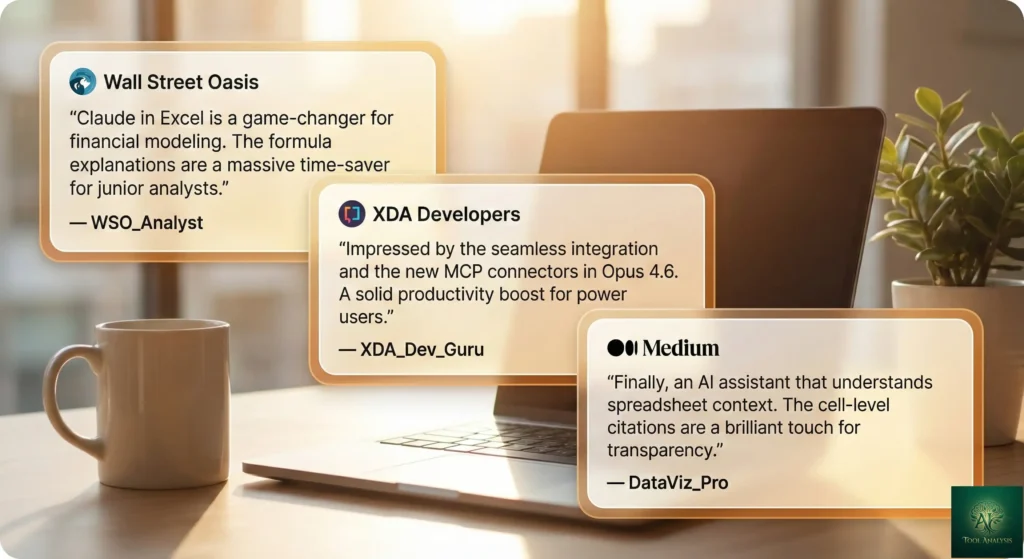
Wall Street Oasis: Financial professionals gave measured praise. One tester reported the add-in “kept trying to force the data table solution” on complex models, while acknowledging it’s “better than the competition for understanding inherited workbooks.” The consensus: not ready for production on complex models, but better than anything else for spreadsheet comprehension.
XDA Developers: The reviewer was significantly more positive, writing that “no AI tool has helped me with data analysis better” than Claude in Excel. They particularly praised the error debugging and the “Ask before edits” mode that prevents accidental changes.
Medium (Civil Learning): Highlighted the emotional core of the tool’s value. “The constant low-grade stress” of touching inherited spreadsheets is exactly what this tool addresses. The review emphasized that most Excel work “isn’t building, it’s interpreting,” which is where Claude excels.
Hacker News: The developer community acknowledged the tool’s potential while noting that “spreadsheet-native AI is harder than it looks” and expressing concern about the prompt injection attack surface. Several commenters wanted to see Claude Code’s plugin ecosystem extended to the Excel add-in.
SumProduct: The Excel training firm was cautiously optimistic, describing the tool as “not yet a replacement for experienced modelers but helps automate the setup phase significantly.” They noted it performs best with well-structured workbooks and struggles more with messy, undocumented ones.
Common praise patterns: Cell-level citations, formula explanation quality, cross-tab tracing, “Ask before edits” safety. Common complaint patterns: Shared usage limits, no chat history, VBA gap, prompt injection concerns for shared workbooks.
❓ FAQs: Your Questions Answered
Q: Is there a free version?
A: No. Claude in Excel requires a paid Claude subscription starting at $20/month (Pro plan). It’s included at no extra cost with Pro, Max, Team, and Enterprise plans, but there’s no standalone free option. The closest free alternative to Claude in Excel is Gemini in Google Sheets.
Q: Can it replace a spreadsheet analyst?
A: No, not for complex work. It’s excellent for understanding, explaining, and making guided modifications to existing models. For building sophisticated financial models from scratch, auditing compliance-critical calculations, or making judgment calls about methodology, you still need human expertise. Think of it as a highly capable assistant, not a replacement.
Q: Is my data safe?
A: Claude reads your open workbook content. Chat history isn’t saved between sessions. Team/Enterprise plans don’t inherit custom data retention settings at this time. Anthropic explicitly warns against using the tool with untrusted spreadsheets due to prompt injection risks. Don’t use it with spreadsheets containing highly sensitive data unless you’ve assessed the risk.
Q: How does it compare to ChatGPT for spreadsheet work?
A: Significantly better. Uploading a spreadsheet to ChatGPT only captures static values and loses all formula logic. The Claude add-in reads live formulas, provides clickable cell references, makes direct edits while preserving dependencies, and navigates across multiple tabs. It’s a fundamentally different experience. See our ChatGPT review for more context.
Q: What’s the learning curve?
A: Very gentle. If you can type a question in plain English, you can use the tool. There’s no special syntax or commands to learn. The interface is a sidebar chat window inside Excel. Most users report being productive within 5-10 minutes of installation. The only adjustment is learning what types of questions get the best results (specific beats vague).
Q: What AI model powers the add-in?
A: As of February 2026, you can switch between Sonnet 4.5 and Opus 4.6 within the sidebar. Opus 4.6 is Anthropic’s most powerful model, specifically upgraded for spreadsheet and financial tasks. Use Sonnet for quick questions (uses less of your allowance) and Opus for complex analysis.
Q: Does it work with Google Sheets?
A: No. It’s a Microsoft Excel add-in only, supporting .xlsx and .xlsm files. For Google Sheets, you’d need to export to Excel format first, or use Gemini’s built-in Sheets integration.
Q: Are usage limits shared with Claude.ai?
A: Yes. All Claude apps share the same usage limits. Pro users get roughly 45 messages per 5-hour window across Claude.ai, Excel, mobile, and desktop apps. Heavy spreadsheet users should consider Max ($100/month) for 5x the allowance.
Q: Can it handle VBA macros?
A: Not yet. VBA, Power Query, and Data Tables aren’t supported. Claude can work with .xlsm files but cannot read or write macro code. For VBA assistance, Microsoft Copilot or ChatGPT are better options.
Q: What about the MCP connectors? Do they cost extra?
A: No extra cost for the connector feature itself. If you’ve already enabled connectors in your Claude settings (S&P Global, LSEG, Daloopa, PitchBook, Moody’s, FactSet), they work in Excel automatically. However, some data providers require their own subscriptions for access to their data.
🏁 Final Verdict
The best AI tool for understanding and debugging existing spreadsheets. Unmatched cell-level citations and cross-tab tracing, but limited by shared usage quotas and missing VBA support.
Claude in Excel is the best AI tool available for understanding and debugging existing spreadsheets. The cell-level citations, cross-tab tracing, and formula preservation are genuinely useful features that no competitor matches. The Opus 4.6 update closed significant gaps by adding pivot table editing, conditional formatting, and chart controls. The new MCP connectors for financial data providers add real workflow value for analysts.
That said, it’s still in beta, and it shows. No chat history between sessions is frustrating. Usage limits shared with Claude.ai can leave you stranded mid-analysis. No VBA or Power Query support limits its reach. And for building complex models from scratch, human expertise still wins.
✅ What We Liked
- ✓ Cell-level citations with clickable references
- ✓ Cross-tab dependency tracing is unmatched
- ✓ Opus 4.6 added pivot tables, charts, conditional formatting
- ✓ MCP connectors for live financial data
- ✓ Included free with existing Claude subscription
❌ What Fell Short
- ✗ No chat history between sessions
- ✗ Shared usage limits eat into Claude.ai allowance
- ✗ No VBA, Power Query, or Data Table support
- ✗ Prompt injection risk with untrusted spreadsheets
Use it if: You regularly work with complex, multi-tab spreadsheets you didn’t build. You need to understand financial models quickly. You’re already paying for Claude Pro or Max. You want formula debugging that actually shows its reasoning.
Stick with Microsoft Copilot if: You live in the M365 ecosystem. You need VBA or macro support. You create more spreadsheets than you analyze. You want persistent chat history.
Stick with Gemini in Sheets if: Your team runs on Google Workspace, your spreadsheets are relatively simple, and free matters more than depth.
Try it today: Install the add-in from the Microsoft Marketplace and press Ctrl+Alt+C to start. If you don’t have a Claude subscription yet, the $20/month Pro plan includes access to the Excel add-in, Claude Code, web search, and Agent Teams, making it one of the best-value AI subscriptions available.
Founder of AI Tool Analysis. Tests every tool personally so you don’t have to. Covering AI tools for 10,000+ professionals since 2025. See how we test →
Stay Updated on AI Productivity Tools
Don’t let your team fall behind. Subscribe for weekly reviews of AI productivity tools, automation platforms, and business solutions.
- ✅ Honest Reviews: We actually test these tools, not rewrite press releases
- ✅ Price Tracking: Know when tools drop prices or add free tiers
- ✅ Feature Launches: Major updates covered within days
- ✅ Comparison Updates: As the market shifts, we update our verdicts
- ✅ No Hype: Just the AI news that actually matters for your work
Free, unsubscribe anytime. 10,000+ professionals trust us.
Want AI insights? Sign up for the AI Tool Analysis weekly briefing.
Newsletter

📚 Related Reading
Explore more AI productivity and coding tool reviews:
- Claude Code Review 2026: The Reality After Claude Opus 4.5 Release
- Claude Agent Teams Review: Multiple AI Agents Working In Parallel
- Claude Cowork Review: Anthropic’s AI Agent For Non-Coders
- Claude Code Plugins: 9,000+ Extensions For Your Terminal
- Top AI Agents For Developers 2026: 8 Tools Tested
- Google Antigravity Review: Free Claude Opus 4.5 Access
- GitHub Copilot Pro+ Review: Is The $39/Month Tier Worth It?
- ChatGPT Codex Review 2026: OpenAI’s AI Coding Agent
- Cursor 2.0 Review: $9.9B AI Code Editor
Last Updated: February 24, 2026
Claude in Excel Version Tested: Opus 4.6 (Beta) + MCP Connectors
Next Review Update: March 24, 2026
Have a tool you want us to review? Suggest it here | Questions? Contact us