

The Bottom Line
If you remember nothing else: Claude in PowerPoint is like having a presentation co-author who actually reads your company’s brand guidelines before touching a single slide. It generates native, editable PowerPoint elements (real shapes, charts, diagrams) that match your existing template’s fonts, colors, and layouts. At $20/month for Pro subscribers, it undercuts Microsoft Copilot for PowerPoint ($30/month + Microsoft 365 subscription) while removing the 2,000-character prompt limit that frustrates Copilot users.
The catch? This is a beta “Research Preview” with real rough edges. Users report error messages on the Microsoft Marketplace, a 30MB file size limit, no chat history between sessions, and missing chart types like waterfall and Gantt. Enterprise buyers will hit a wall: no audit logs, no custom data retention, and no Compliance API support yet. It’s powerful enough to impress your boss, not polished enough to bet your consulting career on.
Best for: Business professionals, product managers, and anyone who builds 5+ presentations per month and already has a Claude subscription. Skip if: You need consulting-grade precision, work in a regulated industry requiring audit trails, or need advanced chart types that aren’t yet supported.
⚡ TL;DR – The Bottom Line
What It Is: An AI sidebar add-in for Microsoft PowerPoint that reads your slide master, generates template-compliant slides with native editable objects, and restructures entire decks on command.
Best For: Business professionals and product managers who build 5+ presentations per month and need brand-compliant output.
Price: Included with Claude Pro ($20/month), Max ($100-$200/month), Team, and Enterprise plans. No free tier. Gamma is $8/month if budget matters most.
Our Take: The most template-aware AI presentation tool available — native editable output and slide master compliance are genuinely unmatched. But beta limitations are real.
⚠️ The Catch: Beta “Research Preview” with no audit logs, no chat history, 30MB file limit, and missing chart types (waterfall, Gantt). Not yet ready for consulting-grade deliverables.
📑 Quick Navigation
What Claude in PowerPoint Actually Does
Anthropic launched Claude directly inside Microsoft PowerPoint on February 5, 2026 alongside the release of Claude Opus 4.6. Initially limited to Max ($100+/month), Team, and Enterprise subscribers, it expanded to Pro plan users ($20/month) on February 20. The add-in lives in a sidebar within PowerPoint, and unlike every other AI presentation tool we’ve tested, it reads your slide master before doing anything. Your layouts, fonts, color schemes, brand elements. When it generates or edits slides, they actually match your existing deck.
Think of it like hiring an assistant who studies your company’s brand book before their first day, instead of one who shows up with their own idea of what “professional” looks like. That single difference, template awareness, is what separates Claude in PowerPoint from tools like Gamma and even Microsoft’s own Copilot in many real-world scenarios.
The Five-Minute Test: In my first five minutes with Claude in PowerPoint, I loaded a corporate template, typed “Create a competitive landscape slide comparing 4 players in the AI coding tools market,” and got back a formatted slide using my template’s exact heading font, brand colors, and layout structure. The content was organized into a clean comparison grid with native PowerPoint shapes I could click into and edit. Total time from prompt to editable slide: about 40 seconds.
🔍 REALITY CHECK
Marketing Claims: “Claude reads your layouts, fonts, and slide masters so every change stays on-brand and on-template.”
Actual Experience: Template reading works impressively well on properly structured slide masters. But if your deck is a Frankenstein of copy-pasted slides from six different templates (and honestly, whose isn’t?), Claude picks inconsistent layouts. One early tester reported that template compliance was the “single most important feature” but recommended cleaning your template first for best results.
Verdict: Template awareness is genuinely impressive but works best with clean, well-structured slide masters. Messy decks get messy results.
Getting Started: Your First 10 Minutes

Setting up Claude in PowerPoint takes about five minutes. Here’s exactly what happens when you install it:
Step 1: Head to the Microsoft Marketplace and search for “Claude by Anthropic in PowerPoint.” Click install. On Windows, you’ll find it under Home > Add-ins. On Mac, it’s Tools > Add-ins.
Step 2: Sign in with your Claude account credentials. You need an active Pro ($20/month), Max ($100+/month), Team ($25/seat/month), or Enterprise plan.
Step 3: Open a deck with an existing template. This is important. Don’t start with a blank presentation if you want to see the template awareness in action. Load a corporate template, a client template, anything with custom fonts and colors.
Step 4: The Claude sidebar appears. Type what you need. That’s it.
One surprise during setup: you can choose between Sonnet 4.5 and Opus 4.6 models. Early testing suggests Opus 4.6 handles complex restructuring better while Sonnet 4.5 works well for lighter edits. If you’re on the Pro plan, be strategic here since Opus consumes more of your usage allocation than Sonnet.
One frustration: chat history doesn’t persist. Close PowerPoint, and your conversation with Claude is gone. You start fresh every session. Anthropic frames this as a privacy feature (your prompts aren’t stored), but it means you can’t pick up where you left off on a complex deck revision.
💡 Key Takeaway: If you’re on the Pro plan, use Opus 4.6 for complex restructuring tasks and Sonnet 4.5 for quick edits. This strategy stretches your shared usage limits significantly.
Claude in PowerPoint Review: Features That Actually Matter
Blank-Deck Builder ⭐⭐⭐⭐
Describe your goal in plain English, and Claude builds a full presentation with logical structure. I told it “10 slides walking through an assessment of the AI coding tools industry” and got a coherent deck with an executive summary, market overview, competitor analysis, pricing comparison, and recommendation slides. The structure made logical sense, and every slide used my template’s formatting.
Before Claude in PowerPoint: Building a 10-slide industry assessment deck from scratch took roughly 2-3 hours between research, structuring, and formatting. After: A solid first draft in about 15 minutes. You’ll still spend 30-60 minutes refining, but the heavy lifting of structure and formatting is handled.
Pinpoint Editor ⭐⭐⭐⭐⭐
This is where Claude truly shines. Select a specific slide and tell Claude what to change: simplify the text, add a chart, restructure the storyline. It makes edits while preserving your formatting and surrounding context. I selected a dense slide with six bullet points and said “Simplify this to three key takeaways with supporting data.” Claude condensed the content, kept the layout intact, and even improved the headline to be insight-driven rather than descriptive.
One user described restructuring a 24-slide quarterly review deck that had buried key metrics on slide 18 instead of slide 3. Instead of spending three hours rearranging manually, they told Claude to restructure for executive readiness. The result: a coherent narrative arc with metrics front-loaded. The time savings on iterative editing alone justify the subscription for frequent presenters.
Bullet-to-Visual Converter ⭐⭐⭐⭐
This feature converts text lists into native PowerPoint diagrams, process flows, and charts. The key word is “native.” Claude doesn’t paste in images. It creates real PowerPoint objects: editable charts where you can click in and change data points, SmartArt diagrams you can restructure, process flows you can animate. This is fundamentally different from tools that generate static screenshots of visuals.
The limitation: available chart types are restricted to standard PowerPoint options. If you need waterfall, Mekko, or Gantt charts (common in consulting and finance), you’re out of luck for now. That’s a significant gap for the enterprise audience Anthropic is targeting.
Connectors (New as of Feb 20) ⭐⭐⭐⭐

The newest addition lets Claude pull context from external tools through the connector icon in the sidebar. Imagine telling Claude “create a quarterly review slide using our latest metrics” and having it actually know what those metrics are because it’s connected to your data source. This works through Anthropic’s MCP (Model Context Protocol), the same infrastructure powering Claude Code’s plugin ecosystem. Early testers report this is the feature that transforms Claude in PowerPoint from “helpful” to “genuinely powerful.”
🔍 REALITY CHECK
Marketing Claims: “Claude produces visuals you can edit directly, not static images.”
Actual Experience: Confirmed. Charts and diagrams are genuine native PowerPoint objects. You can edit data points, change colors, add animations. However, independent testing by a competing platform found Claude-generated slides required 20-40 minutes of formatting per slide to reach consulting-grade standards. For “make information look clear and professional” presentations (roughly 80% of business decks), the quality is solid. For pixel-perfect client deliverables, you’re still doing significant manual refinement.
Verdict: Native editable output is a genuine advantage over competitors. Quality is good enough for internal presentations, not yet ready for boardroom-grade deliverables without human polish.
💡 Key Takeaway: If you build internal or team presentations, Claude in PowerPoint saves real time. If you deliver pixel-perfect client decks (consulting, banking), expect to still spend 20-40 minutes polishing each AI-generated slide.
📬 Enjoying this review?
Get honest AI tool analysis delivered weekly. No hype, no spam.
Pricing Breakdown: What You’ll Actually Pay
Claude in PowerPoint is bundled with your existing Claude subscription. There’s no separate fee for the PowerPoint add-in itself. Here’s what each tier costs:
| Plan | Monthly Cost | PowerPoint Access | Key Limits |
|---|---|---|---|
| Pro | $20/month ($17/mo annual) | ✅ Yes (as of Feb 20) | ~45 messages per 5-hour window (shared with chat) |
| Max 5x | $100/month | ✅ Yes | 5x Pro usage |
| Max 20x | $200/month | ✅ Yes | 20x Pro usage |
| Team Standard | $25/seat/month (min 5 seats) | ✅ Yes | Similar to Pro per seat |
| Team Premium | $100-125/seat/month | ✅ Yes | 5x standard usage + Claude Code, Cowork |
| Enterprise | ~$60/seat/month (min 70 seats) | ✅ Yes | Custom limits, annual commitment |
The pricing advantage over Microsoft Copilot is real. Copilot for PowerPoint costs $30/month on top of a Microsoft 365 subscription and caps prompts at 2,000 characters. Claude Pro at $20/month includes PowerPoint access with much longer prompt capability. If you already subscribe to Claude for coding, Cowork file management, or general AI assistance, PowerPoint access is essentially a free bonus.
Hidden cost alert: PowerPoint usage counts against your regular Claude usage limits. Opus 4.6 consumes significantly more allocation than Sonnet 4.5. One early tester on the Pro plan recommends using Opus for “big lifts” and Sonnet for everything else to avoid hitting limits mid-week. Through March 19, 2026, Anthropic is doubling usage limits for all paid plans when using the PowerPoint add-in.
Free alternatives worth knowing about: Gamma offers 400 free AI credits and starts at $8/month for its Plus plan. It creates polished presentations in under 60 seconds but uses a card-based format rather than native PowerPoint. You can export to .pptx, but the output isn’t always formatting-perfect. If budget is the priority and you don’t need template compliance, Gamma is worth trying first.
🔍 REALITY CHECK
Marketing Claims: “Included with your Claude subscription at no extra cost.”
Actual Experience: Technically true, but the shared usage limits mean frequent presenters on the Pro plan will hit caps quickly, especially when using Opus 4.6. The promotional double limits end March 19, 2026, after which heavy users will likely need Max ($100/month) to avoid interruptions.
Verdict: Budget $20/month for occasional use, $100/month if you build presentations daily.
Head-to-Head: Claude in PowerPoint vs Microsoft Copilot vs Gamma
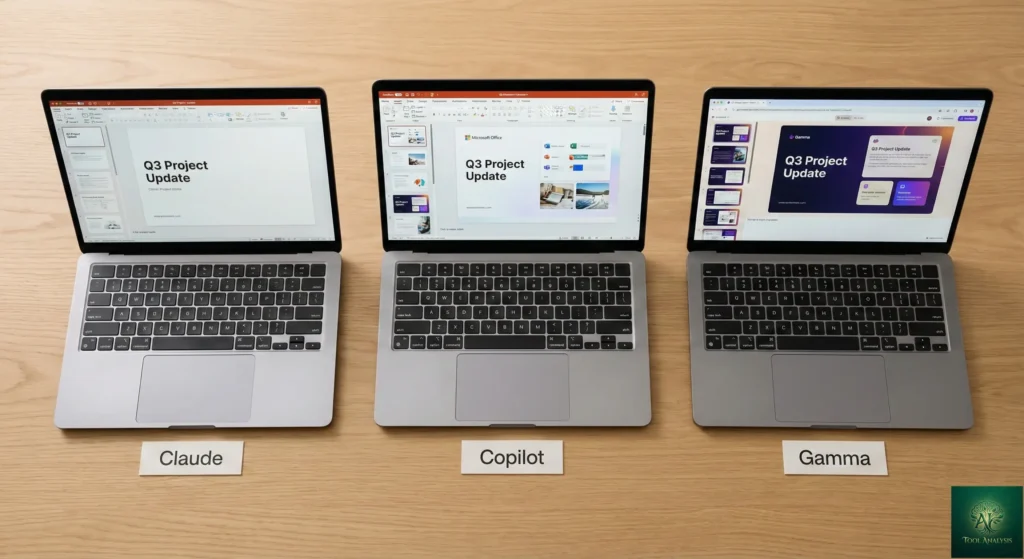
I tested the same task across all three: “Create a 5-slide quarterly business review with revenue data, customer acquisition metrics, key wins, challenges, and next quarter priorities.” Each tool received the same brief with identical data points.
| Criteria | Claude in PowerPoint | Microsoft Copilot | Gamma |
|---|---|---|---|
| Template compliance | ⭐⭐⭐⭐⭐ Reads slide master | ⭐⭐⭐ Uses themes, sometimes off | ⭐⭐ Own templates, PPTX export |
| Output type | Native editable objects | Native editable objects | Card-based (export to PPTX) |
| Content quality | ⭐⭐⭐⭐ Strong reasoning/structure | ⭐⭐⭐ Serviceable first drafts | ⭐⭐⭐⭐ Visually polished |
| Chart types | Standard PPT charts only | Standard + Bing images | Basic charts + AI images |
| Prompt length | Long prompts supported | 2,000 character cap | Moderate length |
| Time to first draft | ~40 seconds | ~30 seconds | ~60 seconds |
| Cost | $20/month (Pro) | $30/month + M365 | $8/month (Plus) |
| Enterprise readiness | ⭐⭐ No audit logs yet | ⭐⭐⭐⭐⭐ Full M365 governance | ⭐⭐⭐ Team features available |
🔍 Head-to-Head: Claude vs Copilot vs Gamma
Winner by category: Claude wins on template compliance and prompt flexibility. Copilot wins on enterprise governance and ecosystem integration. Gamma wins on price and visual polish for standalone presentations.
One independent tester summarized it well: Claude felt like a genuinely intelligent collaborator, while Copilot felt more like a feature bolted onto the software. That qualitative difference matters when you’re iterating on a complex deck. However, if your IT department needs audit trails and compliance tools, Copilot’s enterprise infrastructure is years ahead.
Who Should Use Claude in PowerPoint (And Who Shouldn’t)
Choose Claude in PowerPoint if:
You already pay for Claude Pro/Max/Team for other tasks (coding, writing, research) and want presentation creation as a bonus. You build 5+ presentations per month and spend hours fighting with formatting. Your decks need to match corporate templates exactly. You want to connect external data sources through MCP connectors for context-aware slide generation.
Stick with Microsoft Copilot if:
Your organization is fully invested in the Microsoft 365 ecosystem and needs audit trails, compliance APIs, and admin controls. You work in regulated industries (finance, healthcare, government) where governance requirements are non-negotiable. You also need Copilot across Outlook, Teams, Word, and Excel in a single subscription.
Try Gamma instead if:
Budget is your primary concern ($8/month vs $20+). You need visually stunning standalone presentations and don’t require strict template compliance. You want a dedicated presentation tool with 70+ million users and a mature feature set including AI Agent, web publishing, and social media export.
Skip AI presentation tools entirely if:
You create fewer than 2 presentations per month. Your slides require pixel-perfect design (award ceremonies, keynotes). You work with highly sensitive data that can’t touch third-party AI systems.
What Users Are Actually Saying

Community sentiment after the first few weeks is a mix of genuine excitement and beta frustration. Here’s what we’re seeing across platforms:
The praise: Template awareness is consistently cited as the standout feature. Multiple users report that Claude in PowerPoint is the first AI tool that doesn’t make their slides look like they came from a completely different company. The native editable output (real charts, real shapes) gets specific praise for eliminating the “paste a screenshot and pray” workflow. One XDA Developers writer noted they found Claude’s PowerPoint integrations “better than the native AI features” built into Office.
The complaints: Microsoft Marketplace error messages are widespread since the February 20 expansion to Pro users. The 30MB file limit blocks larger presentations with embedded media. Missing enterprise compliance features (no audit logs, no custom data retention) are delaying IT approval at multiple organizations. Users on the Windows Forum are building practical deployment checklists because Anthropic’s own documentation doesn’t address enterprise rollout comprehensively yet.
The balanced takes: Professional testers position it as capable enough for “occasional presentations” but not yet ready for daily consulting workflows. The consensus forming: impressive technology held back by beta limitations. One reviewer described it as “a tool at an inflection point, capable enough to attract professional interest, not yet polished enough to replace established workflows.”
⚠️ Security Warnings You Need to Know
Anthropic is unusually transparent about a real security concern: prompt injection attacks. Because Claude reads the contents of your open file to understand context, malicious instructions hidden in templates or externally sourced documents could trick Claude into taking unintended actions. Anthropic’s own testing found edge scenarios where Claude could be manipulated to extract sensitive information or modify critical data.
The practical advice: only use Claude in PowerPoint with trusted files. Don’t open downloaded templates from the internet, vendor files from unknown sources, or collaborative documents from untrusted parties while the add-in is active. This is especially important for teams using Claude across multiple tools where data flows between systems. It’s worth noting that this vulnerability isn’t unique to Claude. Any AI tool that reads file contents faces similar risks. But Anthropic deserves credit for being upfront about it rather than burying it.
💡 Key Takeaway: Only use Claude in PowerPoint with files you trust. Downloaded templates from unknown sources and shared decks from external parties can contain hidden prompt injection instructions. This applies to any AI tool that reads file contents, not just Claude.
The Road Ahead: What’s Coming
Short-term (next 3 months): Based on Anthropic’s pattern with Claude in Excel’s evolution, expect stability improvements, expanded chart type support, and initial enterprise compliance features. The current double-usage promotion ends March 19, after which normal limits apply.
Medium-term (6-12 months): Enterprise audit logs and Compliance API integration seem inevitable given Anthropic’s stated enterprise ambitions and the February 2026 webinar featuring RBC Capital Markets and D.E. Shaw. Developer hints suggest deeper Excel-to-PowerPoint workflows where data analyzed in Claude in Excel flows directly into presentation slides.
Long-term (12+ months): If Anthropic’s model improvement trajectory continues, expect significantly better design intelligence, more chart types, and potentially real-time collaboration features. The MCP connector ecosystem could eventually make Claude in PowerPoint the hub that pulls data from dozens of business tools into presentations automatically.
🍩 Where Your Presentation Time Actually Goes (Before vs After Claude)
❓ FAQs: Your Questions Answered
Q: Is there a free version of Claude in PowerPoint?
A: No. Claude in PowerPoint requires a paid Claude subscription. The cheapest option is Claude Pro at $20/month ($17/month with annual billing). Free Claude users cannot access the PowerPoint add-in. If you need a free AI presentation tool, Gamma offers 400 free credits.
Q: Can Claude in PowerPoint replace a presentation designer?
A: Not yet. It can replace roughly 60-70% of the manual work in building standard business presentations: structure, content drafting, basic chart creation, and template-compliant formatting. For high-stakes client deliverables, keynotes, or design-heavy decks, you’ll still need human refinement. Think of it as a highly capable first-draft tool, not a replacement for design expertise.
Q: Is my data safe when using Claude in PowerPoint?
A: Claude in PowerPoint works within your existing security framework. However, chat history isn’t saved between sessions, Team/Enterprise custom data retention settings aren’t inherited yet, and the add-in isn’t included in Enterprise audit logs or the Compliance API. Anthropic also warns about prompt injection risks with untrusted files. For highly sensitive data, proceed with caution until enterprise compliance features are added.
Q: How does Claude in PowerPoint compare to ChatGPT for presentations?
A: ChatGPT can generate .pptx files from its chat interface, but the output doesn’t respect your existing templates and requires significant reformatting. Claude in PowerPoint works inside the application itself, reading your slide master and generating template-compliant content. The difference is like emailing a freelancer a brief versus having a co-author sitting next to you with your brand book open.
Q: What’s the learning curve?
A: Minimal. If you can describe what you want in plain English, you can use Claude in PowerPoint. Installation takes 5 minutes. The main learning is being specific in your prompts: “Create a market sizing section with TAM, SAM, SOM” works better than “make some business slides.” Power users will benefit from understanding when to use Opus vs. Sonnet models and how to leverage connectors.
Q: Can I use Claude in PowerPoint on Mac?
A: Yes. The add-in works on both Windows (Home > Add-ins) and Mac (Tools > Add-ins). You need PowerPoint desktop, not the web version. The experience is consistent across both platforms.
Q: Does Claude in PowerPoint work with Google Slides?
A: No. Claude in PowerPoint is a Microsoft Office add-in that only works within the PowerPoint desktop application. For Google Slides users, you’d need to use Claude’s regular chat interface to generate content and then manually transfer it, or use a dedicated tool like Gamma that exports to both formats.
Q: Will Claude in PowerPoint work with my corporate VPN?
A: It should, since it communicates through standard HTTPS like other Microsoft add-ins. However, some corporate firewalls may block the connection to Anthropic’s servers. Check with your IT team if you encounter connectivity issues, and note that Team/Enterprise admin deployment is available through Microsoft AppSource.
🏁 Final Verdict

The most template-aware AI presentation tool available. Impressive native output and slide master compliance, held back by beta limitations and missing enterprise features.
Claude in PowerPoint is the most template-aware AI presentation tool available today. The combination of native editable output, genuine slide master compliance, MCP connector support, and Anthropic’s strong reasoning models creates something that feels meaningfully different from both Copilot and standalone presentation tools. For existing Claude subscribers, it’s a compelling addition that costs nothing extra.
But the beta label is honest. Error messages, missing chart types, no audit logs, and session impermanence are real limitations that matter for professional use. This is a 3.5/5 today with a clear trajectory toward 4.5/5 once the rough edges are smoothed.
✅ What We Liked
- ✓ Reads slide master for true template compliance
- ✓ Generates native editable PowerPoint objects
- ✓ Pinpoint editing preserves context and formatting
- ✓ MCP connectors for live data integration
- ✓ Included free with existing Claude subscription
❌ What Fell Short
- ✗ No chat history between sessions
- ✗ Missing chart types (waterfall, Gantt, Mekko)
- ✗ No enterprise audit logs or compliance API
- ✗ 30MB file size limit
- ✗ Shared usage limits eat into Claude.ai allowance
Use Claude in PowerPoint if you build presentations frequently, already subscribe to Claude, and want a co-author that respects your brand guidelines.
Stick with Microsoft Copilot if enterprise governance, audit trails, and deep Microsoft 365 integration are non-negotiable.
Try it today: Install Claude in PowerPoint from Microsoft Marketplace
For more on Anthropic’s growing productivity ecosystem, read our Claude Cowork review, Claude Code review, and the Claude Opus 4.5 vs Gemini 3.0 comparison.
Founder of AI Tool Analysis. Tests every tool personally so you don’t have to. Covering AI tools for 10,000+ professionals since 2025. See how we test →
Stay Updated on AI Productivity Tools
Don’t let your team fall behind. Subscribe for weekly reviews of AI productivity tools, automation platforms, and business solutions.
- ✅ Honest Reviews: We actually test these tools, not rewrite press releases
- ✅ Price Tracking: Know when tools drop prices or add free tiers
- ✅ Feature Launches: Major updates covered within days
- ✅ Comparison Updates: As the market shifts, we update our verdicts
- ✅ No Hype: Just the AI news that actually matters for your work
Free, unsubscribe anytime. 10,000+ professionals trust us.
Want AI insights? Sign up for the AI Tool Analysis weekly briefing.
Newsletter

📚 Related Reading
Explore more AI productivity and presentation tool reviews:
- Claude AI Review 2025: The Thoughtful Alternative to ChatGPT
- Claude Cowork Review: Anthropic’s AI Agent for Non-Coders
- Claude Code Review 2026: After Opus 4.5
- Claude Code Plugins: 9,000+ Extensions
- Claude in Excel Review 2026: Opus 4.6 Spreadsheet Agent
- Claude Agent Teams Review: Multiple AI Agents Working In Parallel
- Claude Opus 4.5 vs Gemini 3.0 Comparison
- The Complete AI Tools Guide 2025
Last Updated: February 24, 2026
Claude in PowerPoint Version Tested: Opus 4.6 (Beta Research Preview)
Next Review Update: March 24, 2026
Have a tool you want us to review? Suggest it here | Questions? Contact us